Collections
Collections with assets can be used as subcategories of certain subject areas ( see Areas) or can also be assigned to certain projects.
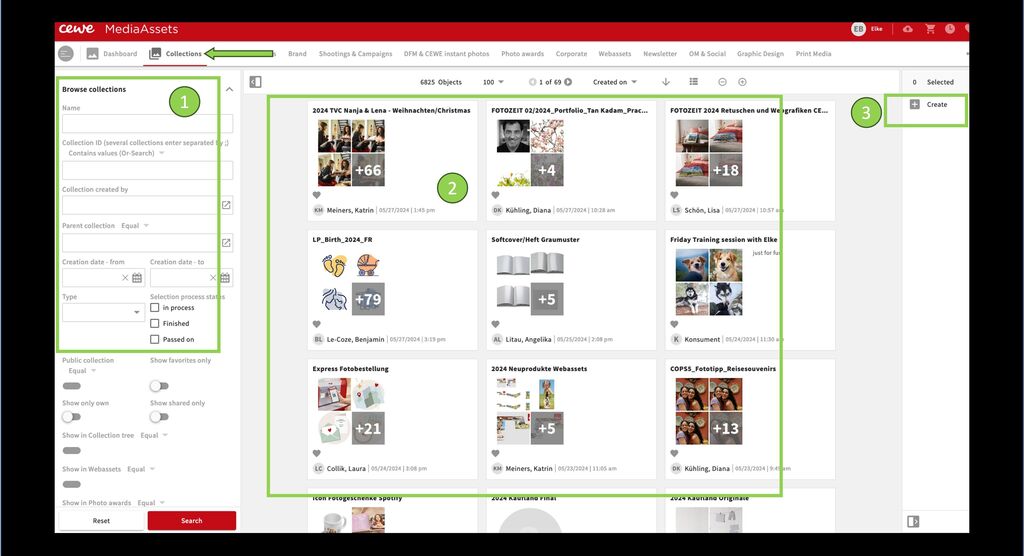
Collections
The various areas contain the respective collection structure, which is created by administrators in consultation with the specialist departments.
Users can also create their own private collections for their projects. Both variants offer the option of sharing bundled assets with other users.
collections can be searched for using the filters via the collection browser
they are displayed as a collection in the results.
new collections can also be created here.
Create and edit collections
Create
A collection can be private or public and have various participants or users to whom you can give certain rights. Typically, the collection itself is created first, and then assets are added. It works the other way around too. Let's start creating the collection.
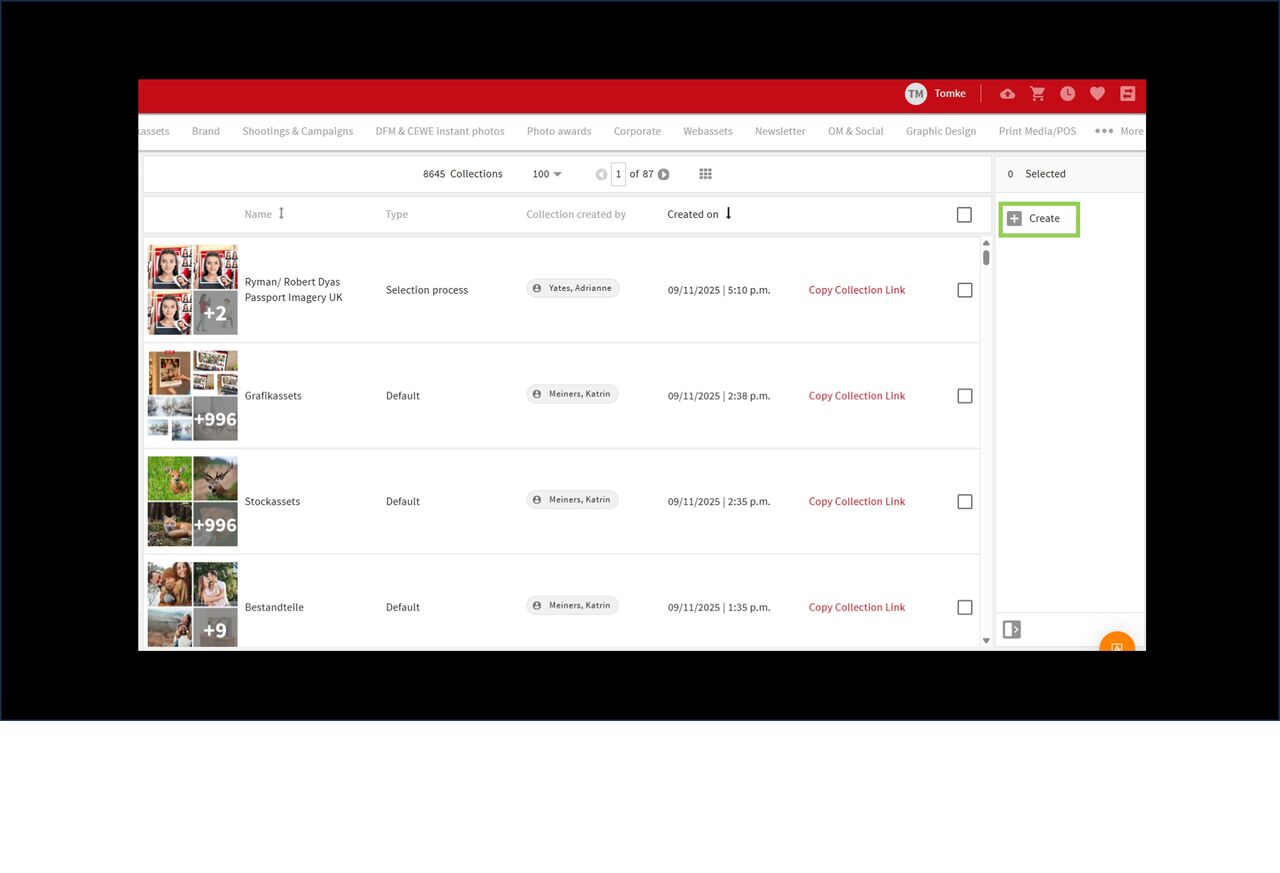
Go to Collections
Click on Create
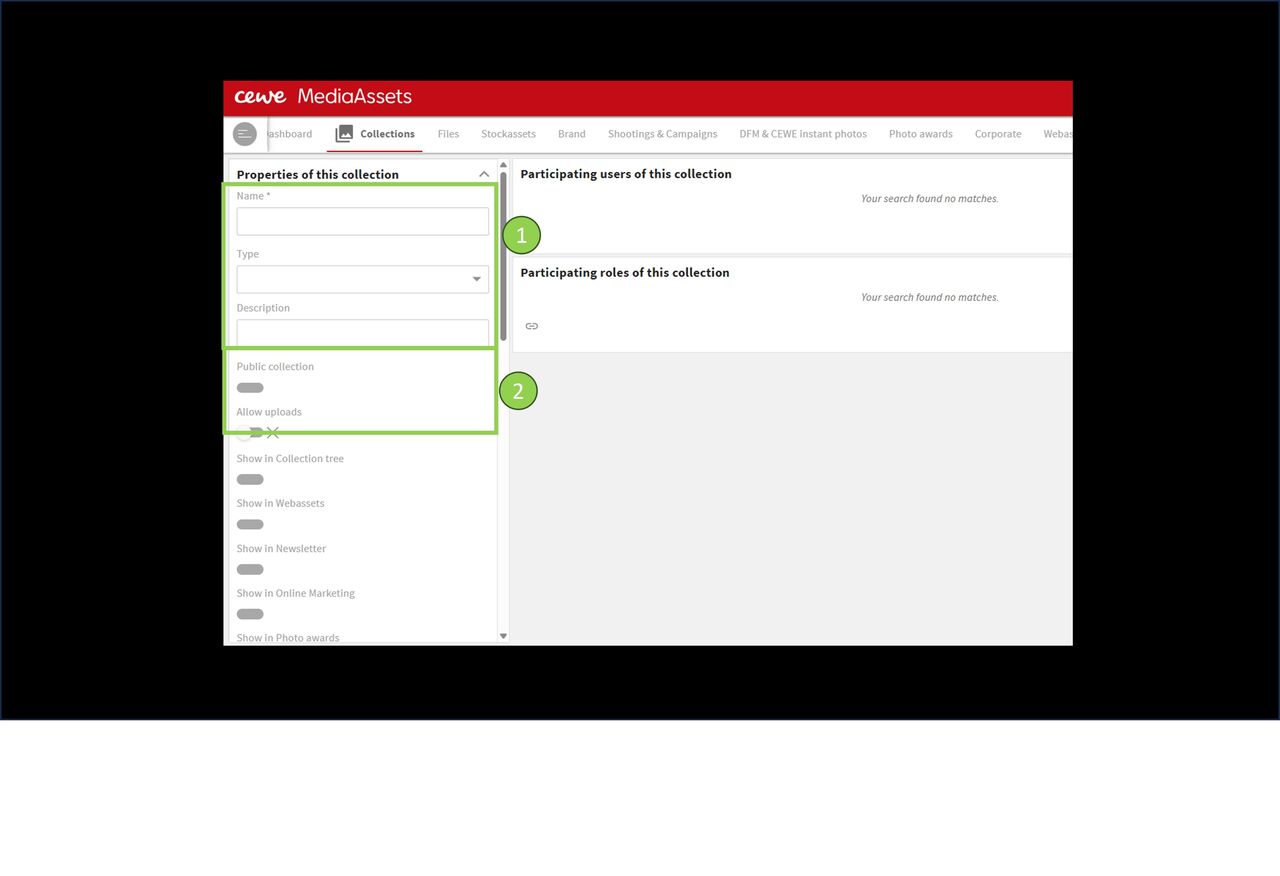
Name
Choose a type (explained in next step) and give the collection a name. You can add a description if required
Should your collection be public? Should uploads of files directly into the collection be allowed? Operate the respective controls.
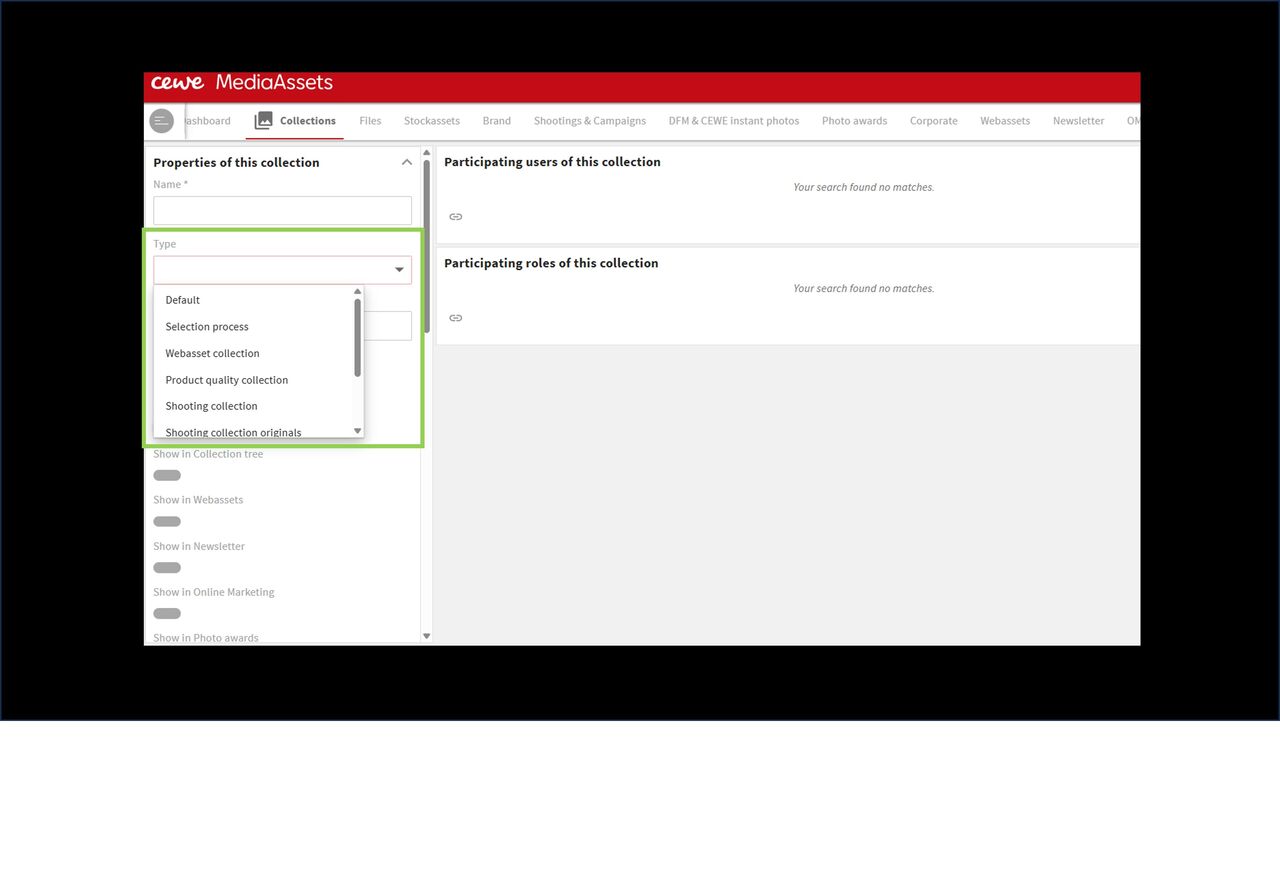
Type
Collections are assigned to different purposes:
- Standard collections - if no special assignment
- Selection process - other users to make a selection from a collection of assets
- Webassets Collection - if they belong to this section
- Product quality collection - to be visible in this section
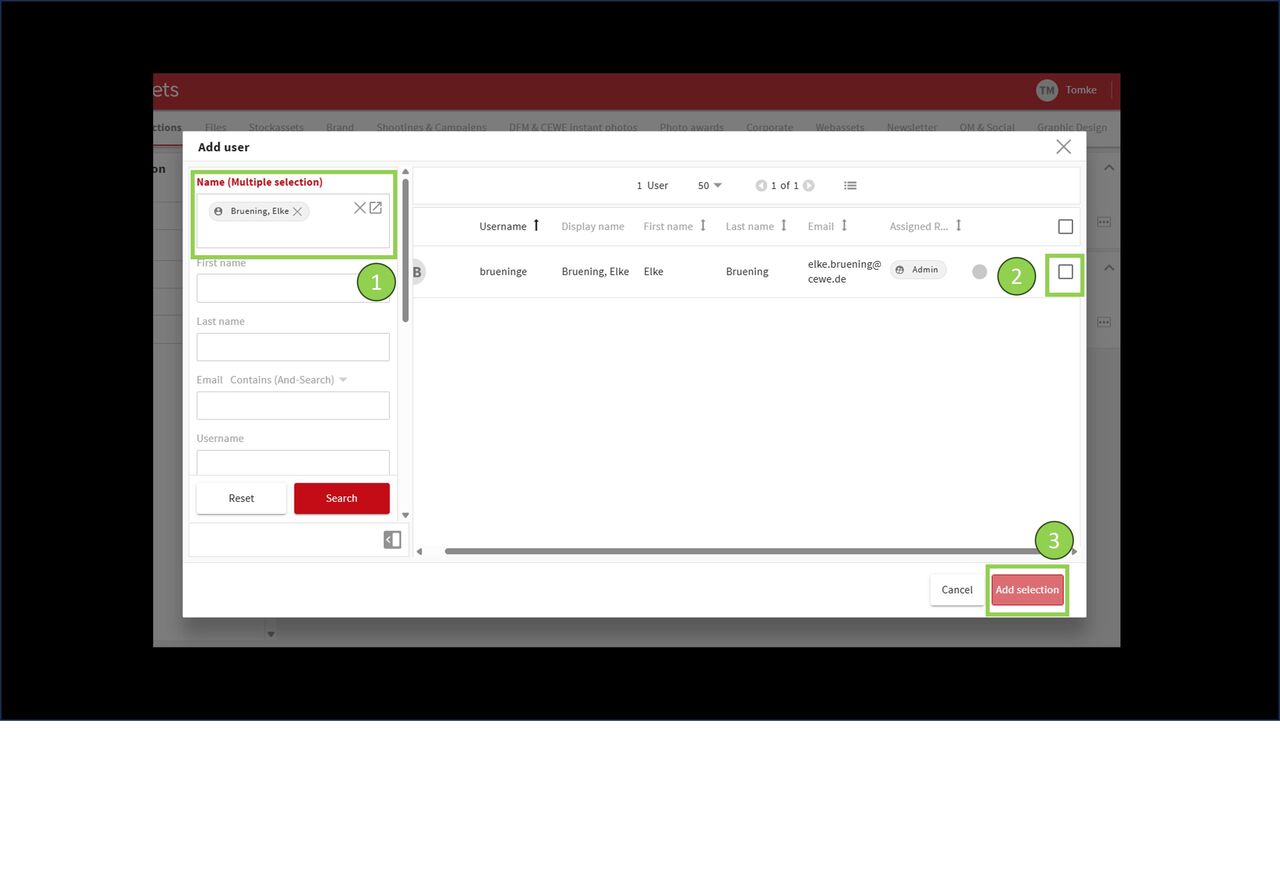
Participant
Now participating users can be announced.
Type in name(s) (multiple names possible)
Select the name by ticking the box
Confirm by using "Add selection"
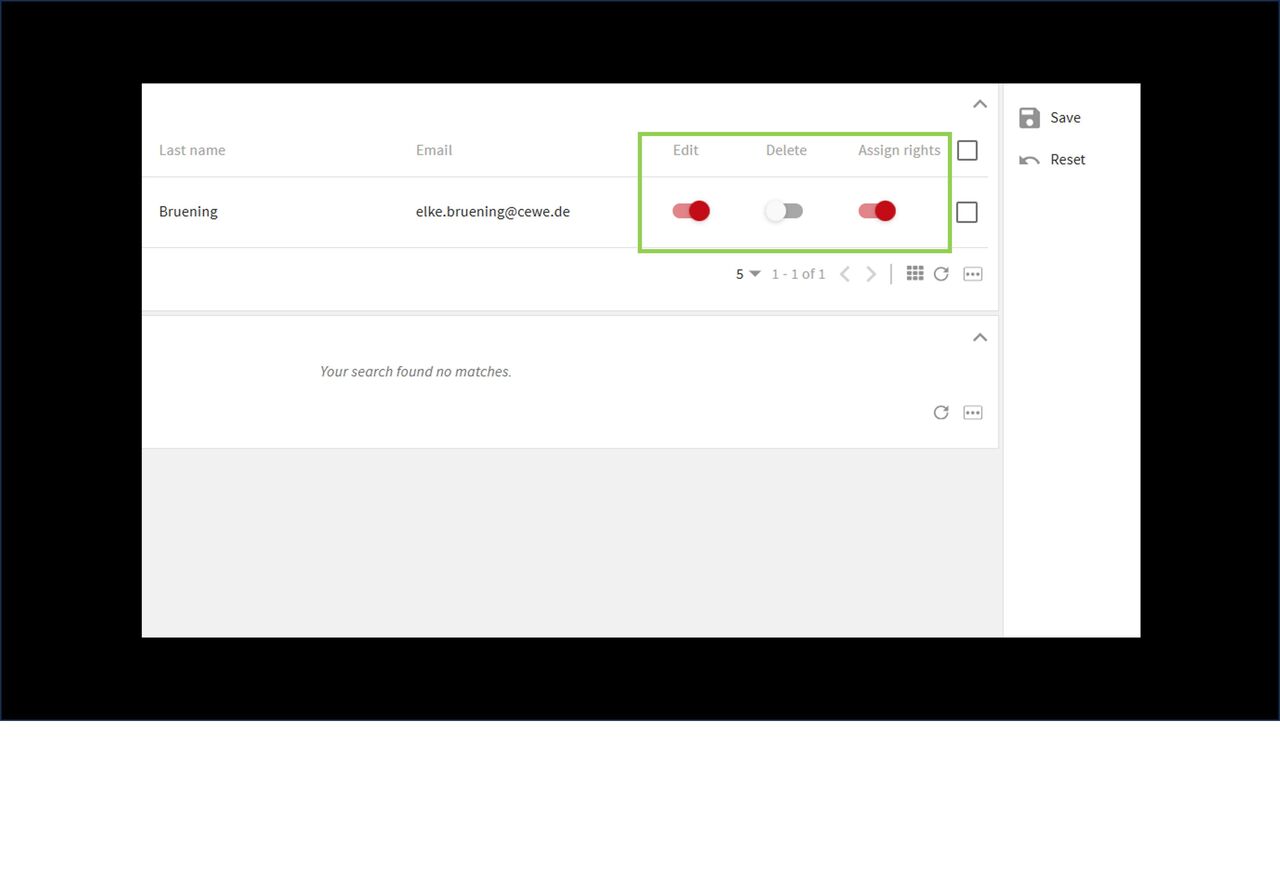
Rights
What is the parent collection?
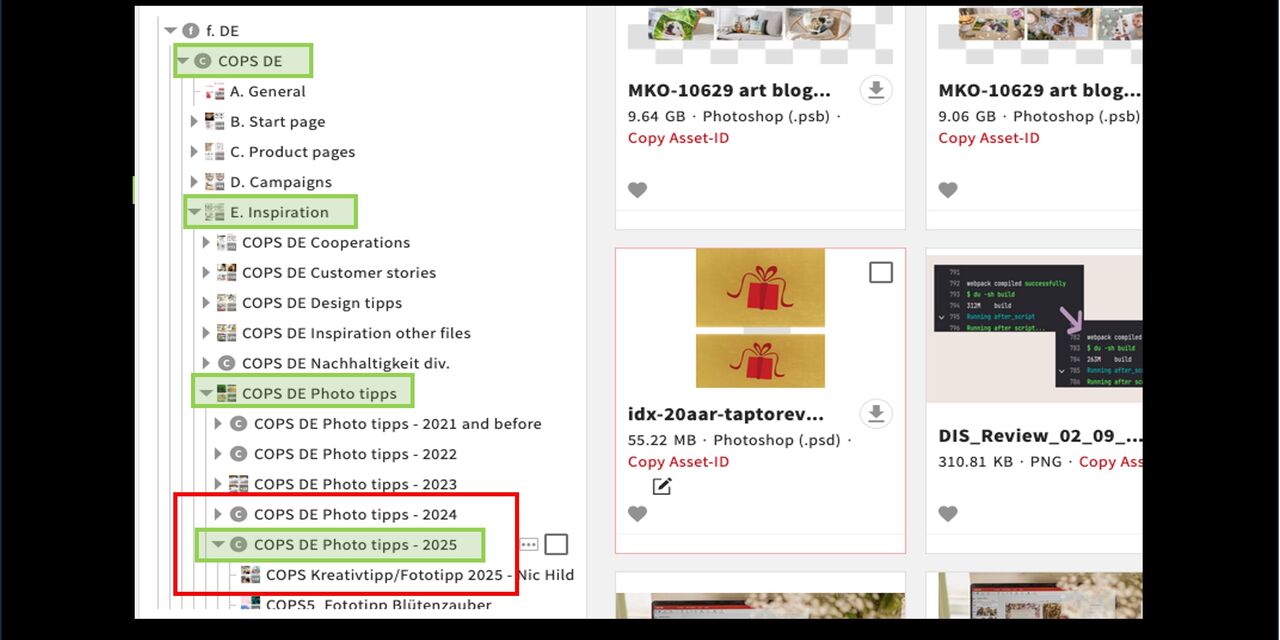
The parent collection is the collection directly above other collections in the structure, see here:
- f.DE = parent collection of COPS DE
- COPS DE is the parent collection of E.Inspiration (and other collections at the same level)
- E.Inspiration is the parent collection of COPS DE Phototipps (and other collections at the same level)
- COPS DE Phototipps is the parent collection of COPS DE Phototipps 2025, etc.
As the parent collection, always specify the collection under which your new collection should appear.
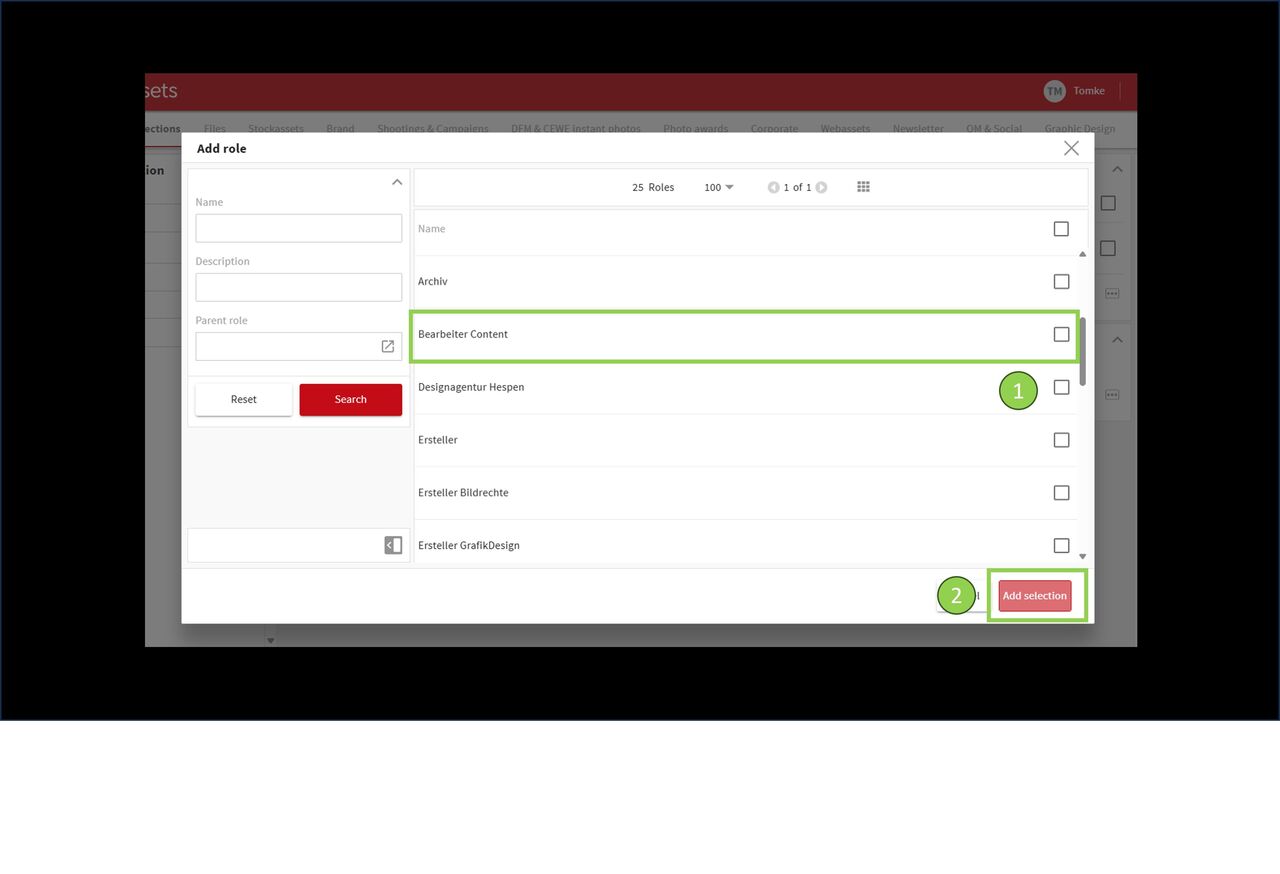
Roles
You can also make your collection accessible to entire user groups via their roles, e.g. all graphic designers.
- Go to Add under Participating roles of this collection
- Select a role shown in the middle (alternatively you can search for the specific role using the filter panel on the left) and click Add selection
Rights are assigned in exactly the same way as for other users.
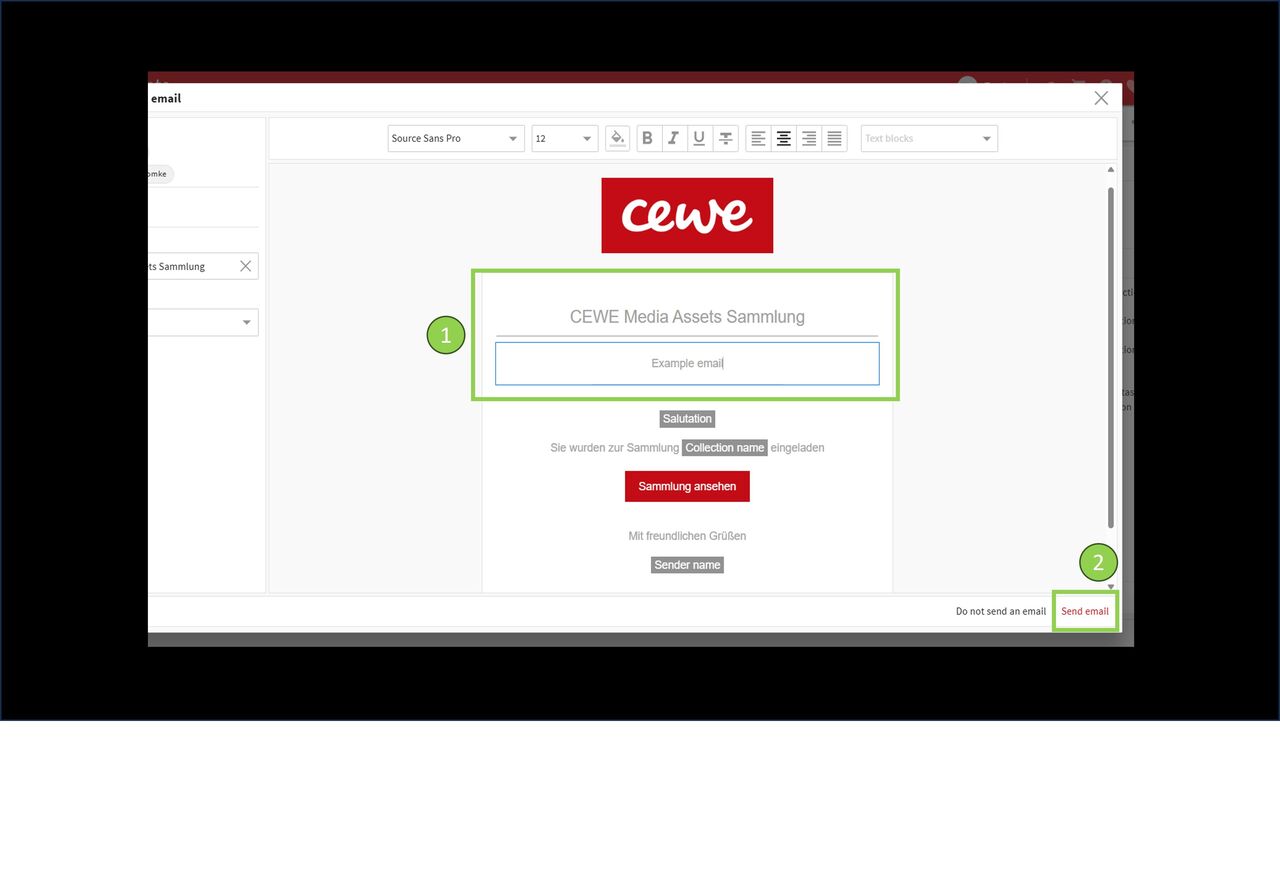
Send
Do you want to inform participants about the new collection by e-mail?
If yes, write a short note
Click "send e-mail" (or don't if not needed)
The collection link can also be copied and shared with users (or everyone if collection is public)
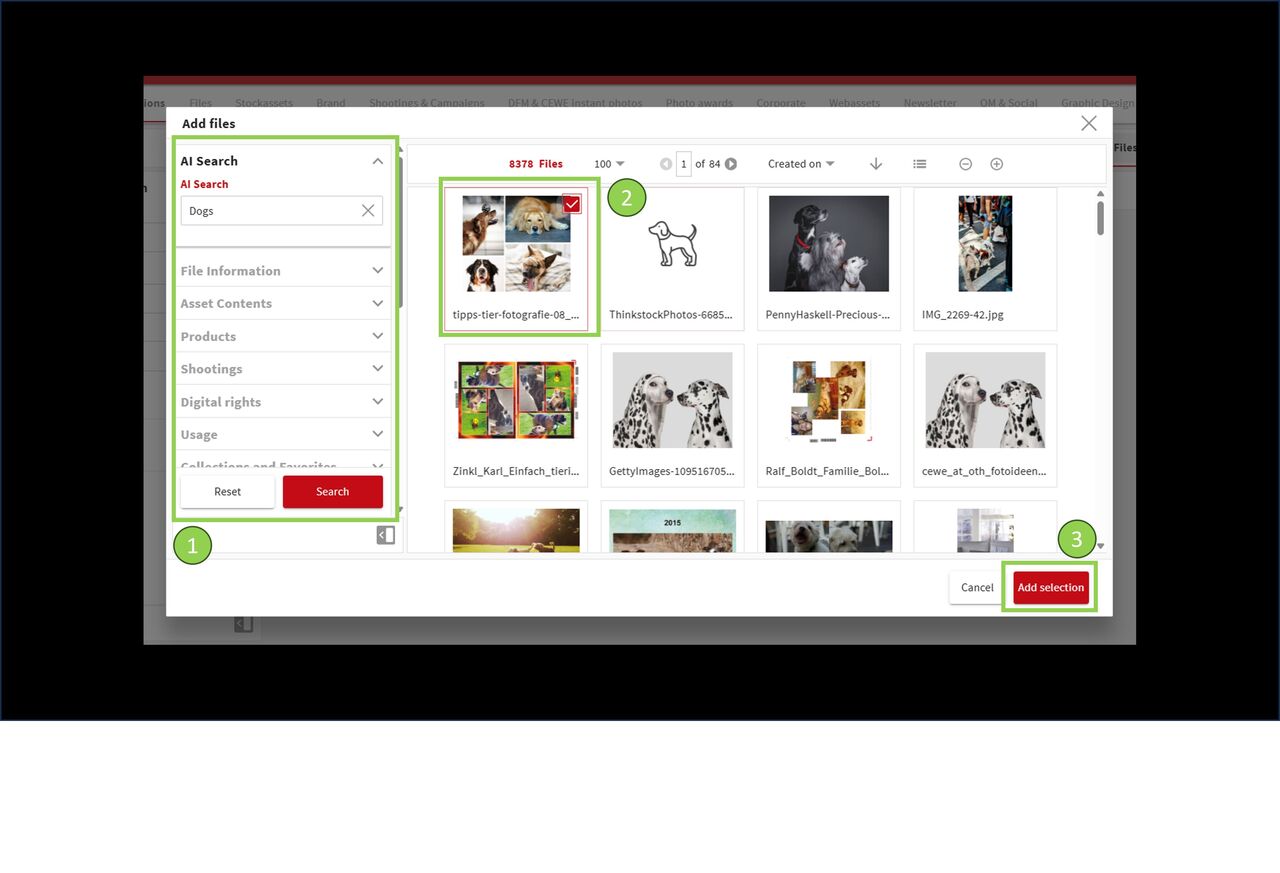
Add assets
Now just integrate your favored assets into the collection by using the button Add assets
filter for assets
select
Add selection
Of course, you can also remove assets from the collection. Just mark the assets and click on "remove files"
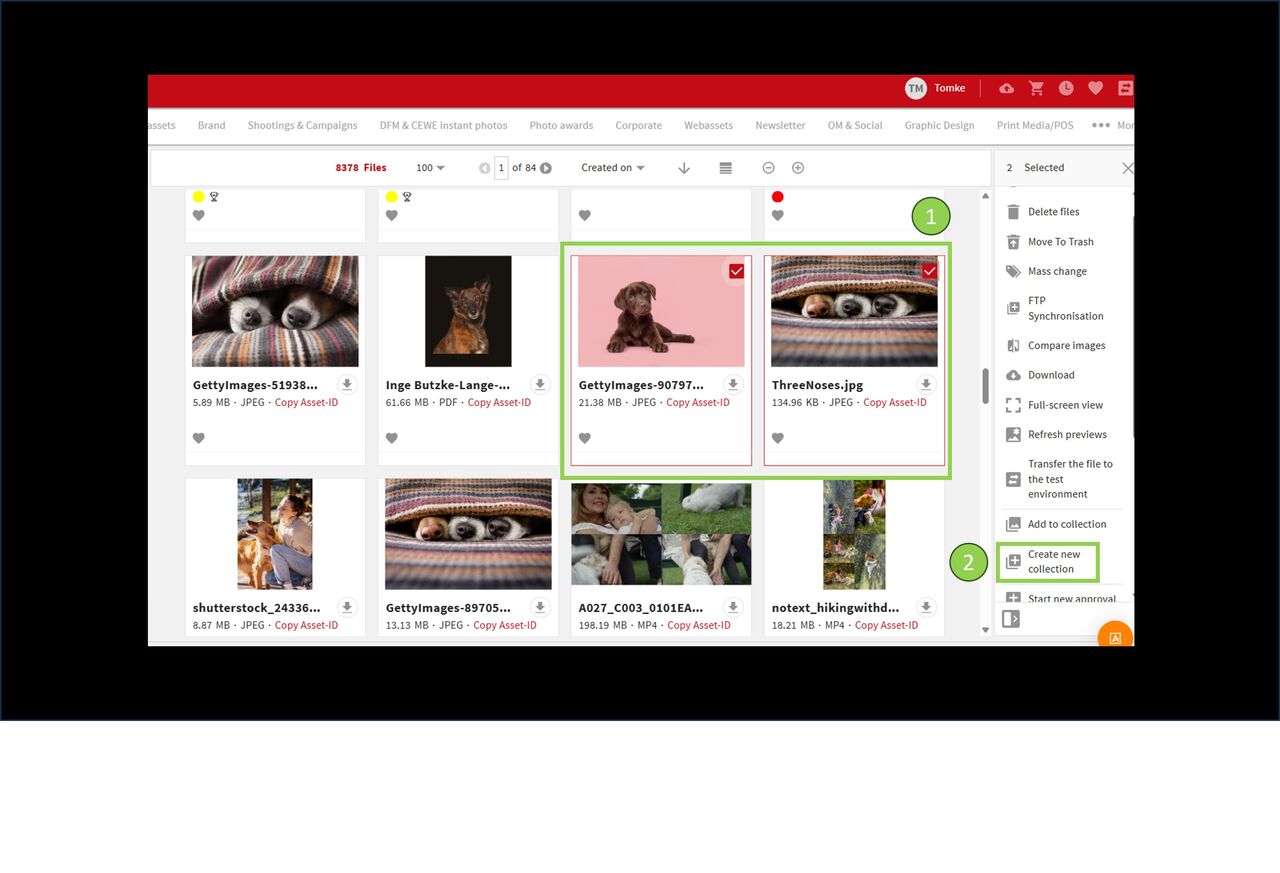
Alternative
Alternatively assets can be chosen, marked and put together using the function
"Create new collection"
Then just follow the steps to create collection as described before.
Webasset collections
Creating and assigning a web asset collection
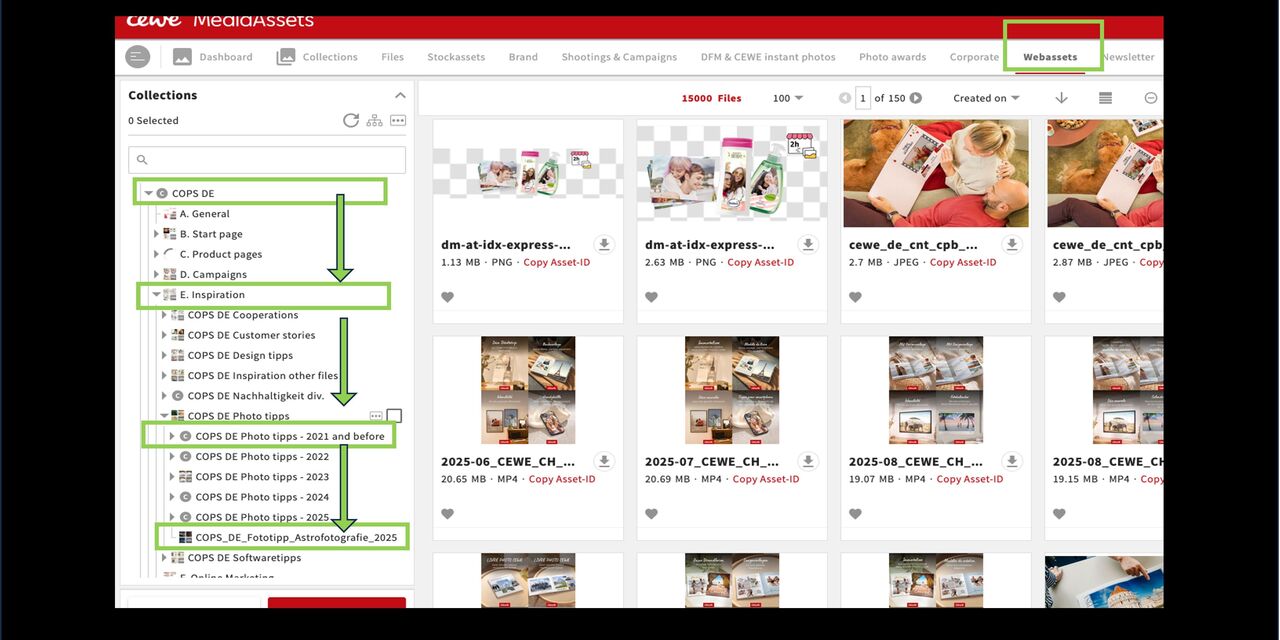
Basic information about web asset collections
To keep our structure manageable, web assets should be uploaded to existing collections whenever possible. If your material does not fit into any existing collection thematically, create a new web asset collection and note the following:
- The name should include country and area, e.g.:„COPS5 DE Fototipp Blütenzauber“.
- Specify the desired parent collection. This defines where your collection will be located.
Example: DE > E. Inspiration > COPS DE Photo tips > COPS DE Photo tips 2025
What is the parent collection?
The parent collection is the collection directly above other collections in the structure, see here:
- f.DE = parent collection of COPS DE
- COPS DE is the parent collection of E.Inspiration (and other collections at the same level)
- E.Inspiration is the parent collection of COPS DE Phototipps (and other collections at the same level)
- COPS DE Phototipps is the parent collection of COPS DE Phototipps 2025, etc.
As the parent collection, always specify the collection under which your new collection should appear.
Create from the Web Assets area
There are several ways to create a new web asset collection:
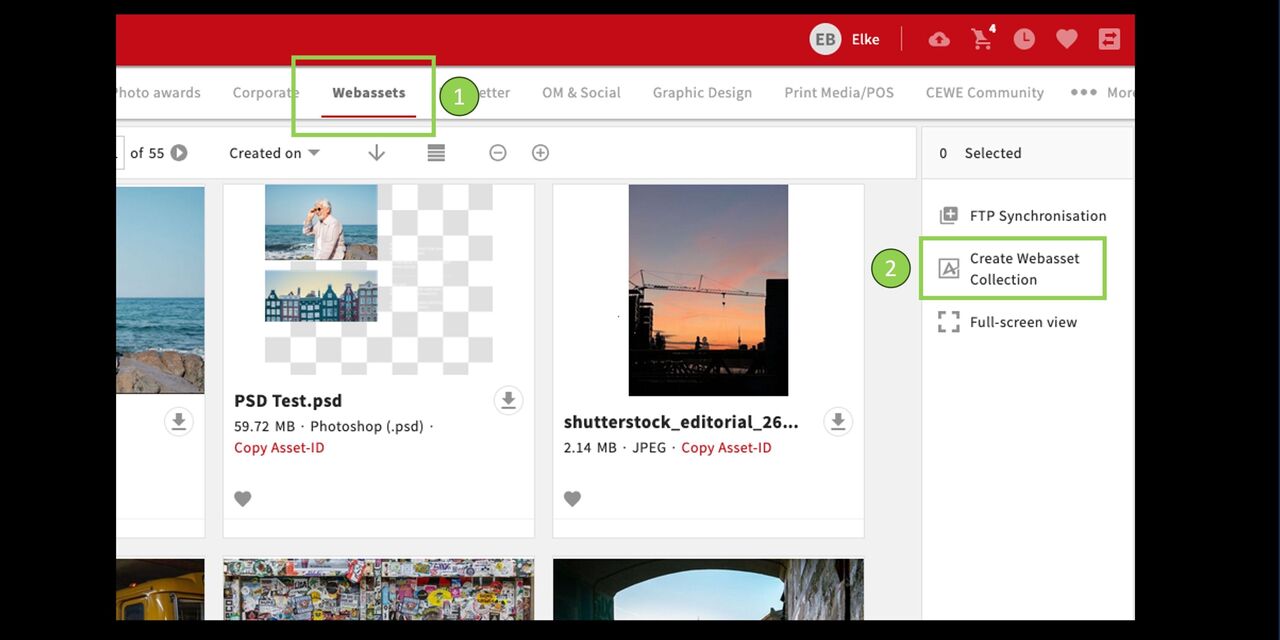
- Go to the Webassets area.
- In the action area, go to “Create Webasset Collection.”
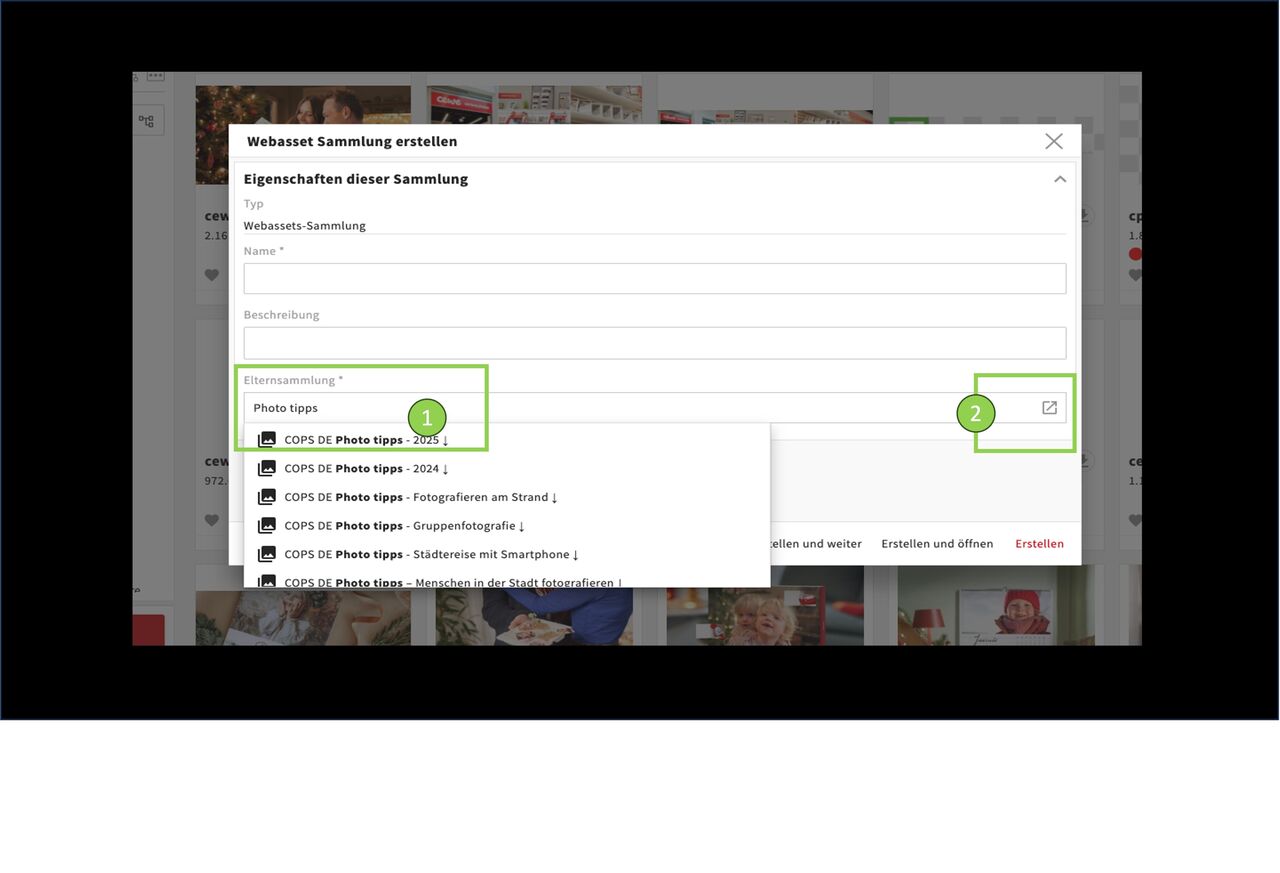
Enter the name and description as usual.
In the field Parent Collection you have two options for entering it:
Type the name into the field if you know it
or click on the box to open the collection browser and search for it
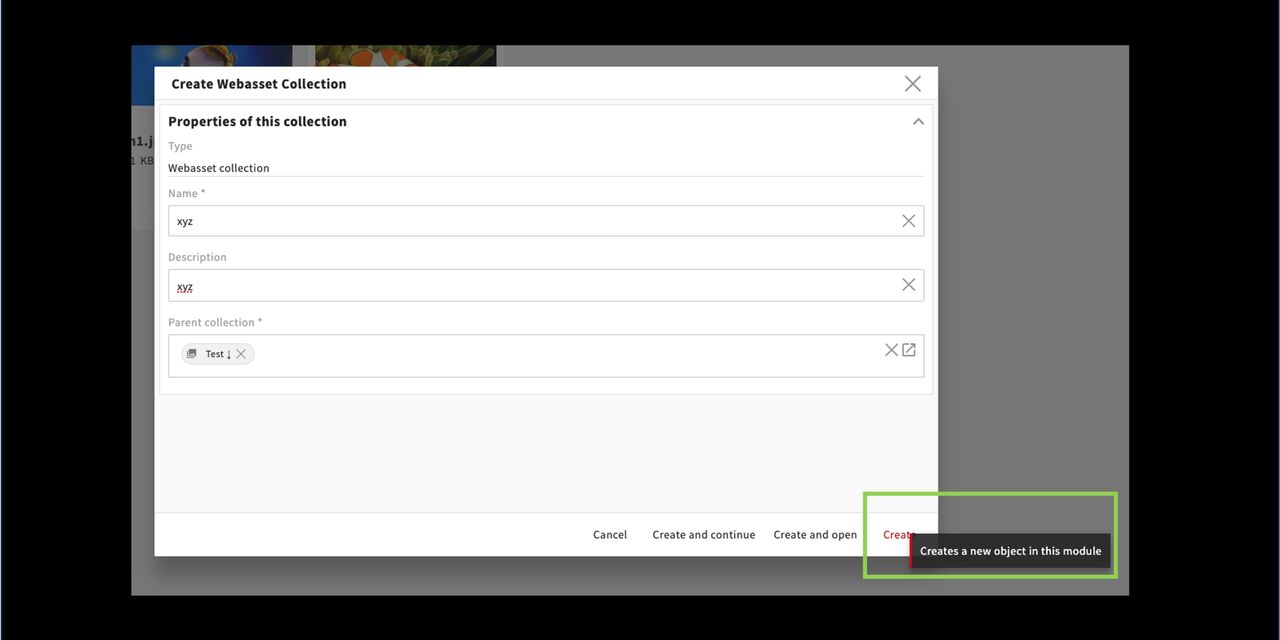
After you have entered the parent collection, click Create in the lower right corner.
The collection will be created and automatically placed below the desired parent collection.
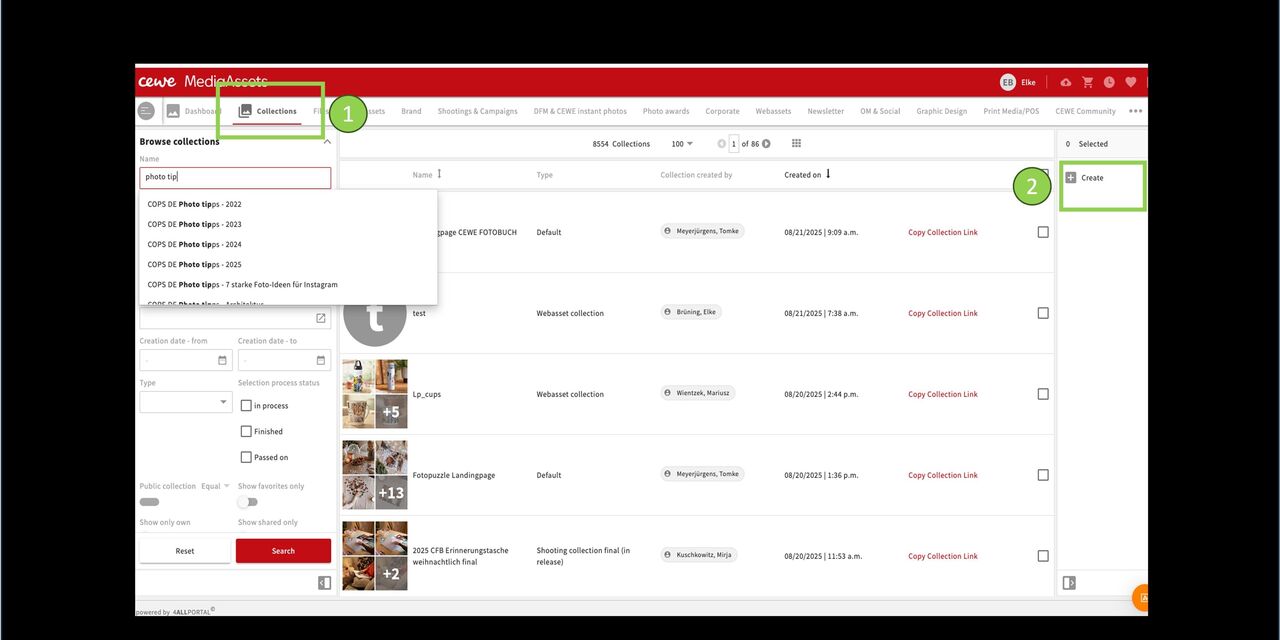
Creating from the collection area
You can also create the collection from the collection area.
If necessary, first search for the name of the parent collection below which you want your new collection to appear.Then click on “Create” on the right.
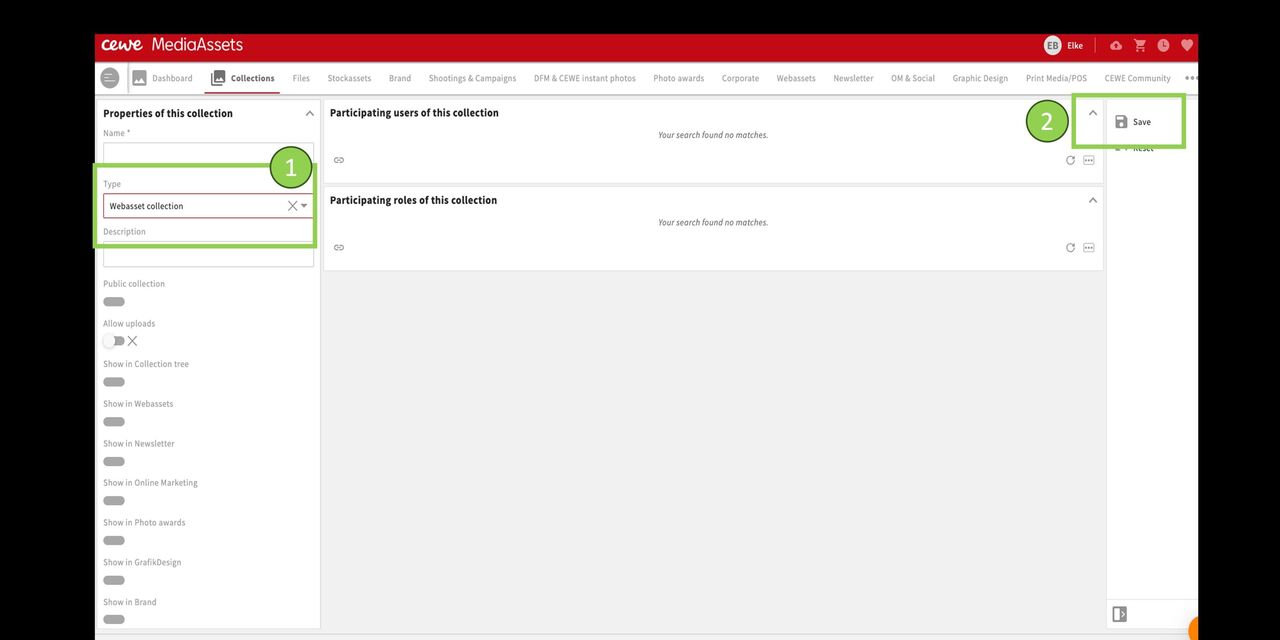
Select the collection type “Web asset collection.”
Go to “Save.”
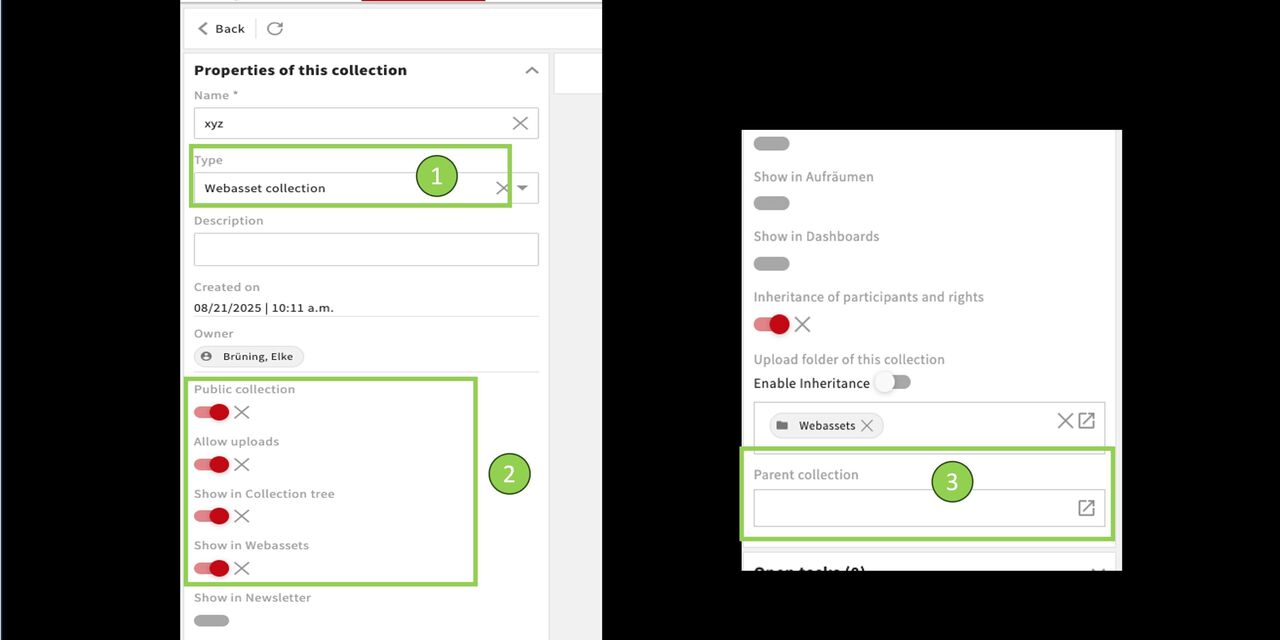
The new collection appears as a web asset collection.
Attributes and permissions are already automatically recorded.
Add the desired parent collection.
Save again!
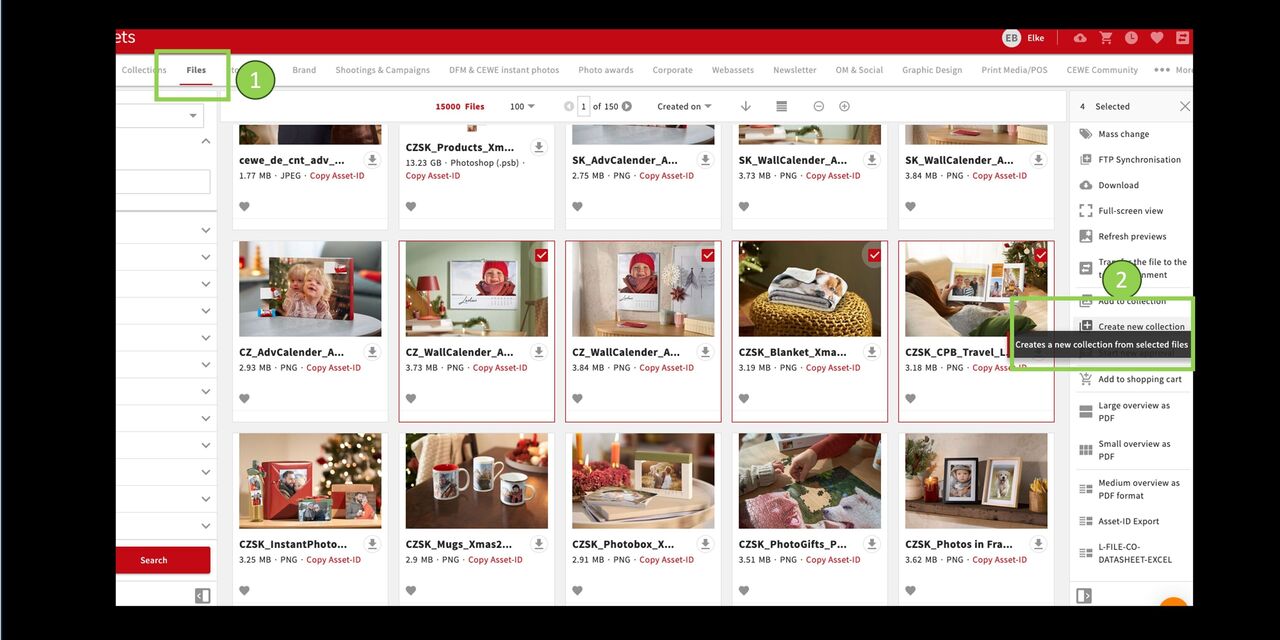
Creating from the Files section
You are in the Files module and select the desired assets.
Then go to “Create New Collection” on the right.
The remaining steps are the same as described before.
Collection functions + asset functions
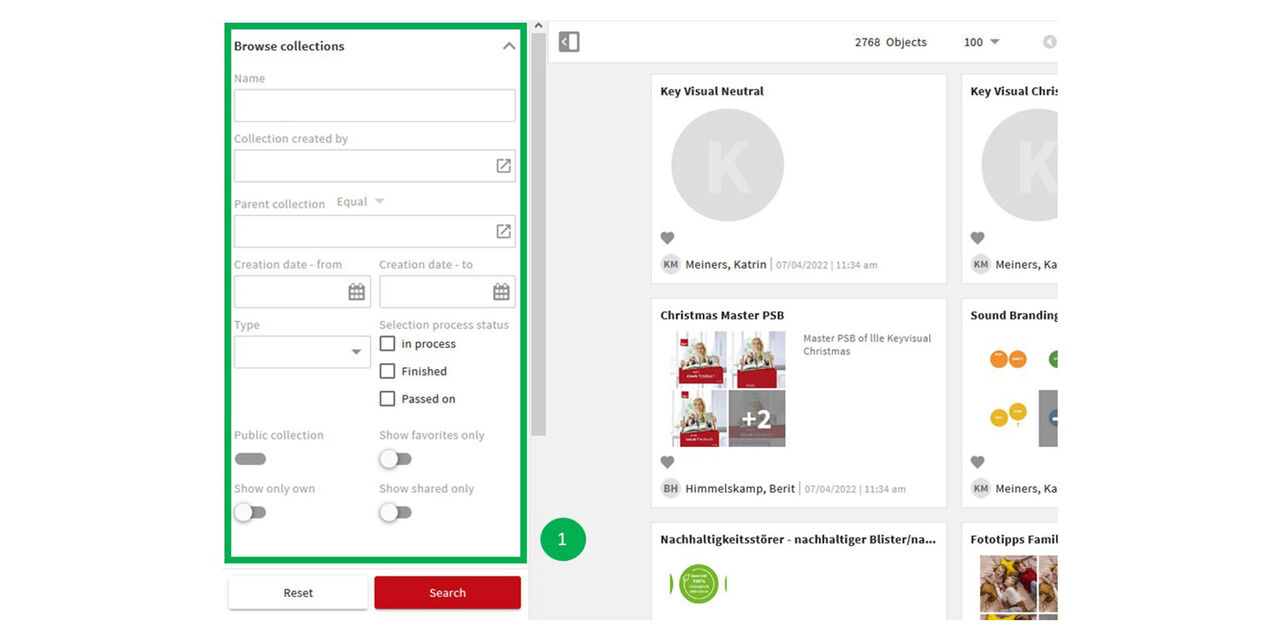
Find collection
- To pull up an existing collection, go to the collections area
- Search for it using the offered filters
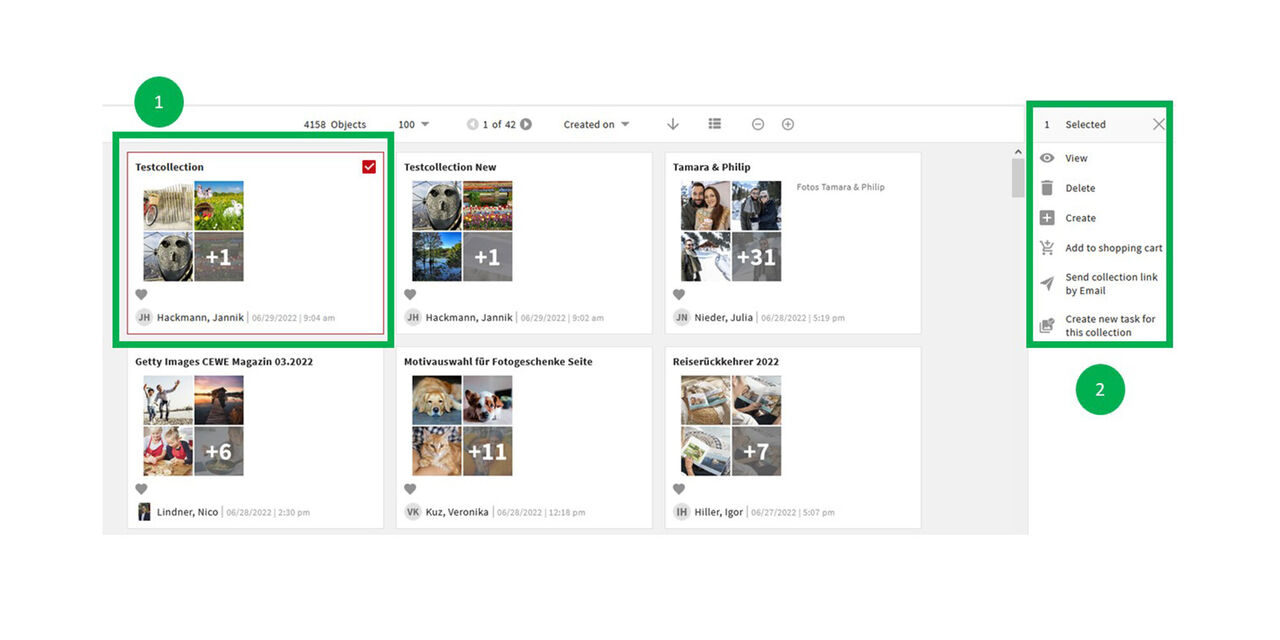
View
- Select the collection to work with.
- In the action area on the right you will find the functions that are available for editing the collection, e.g.
- view
- delete
- send etc.
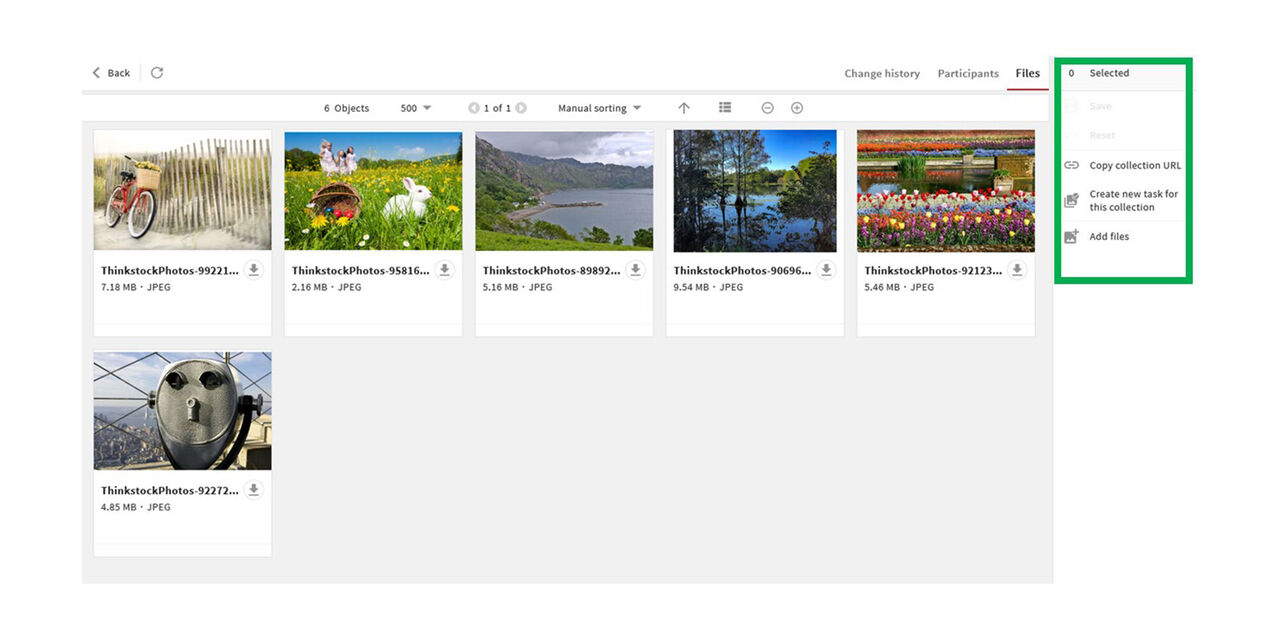
Collection functions
As soon as you are in a collection, you will be presented with options in the action area that you can carry out within the framework of this collection, e.g.
- copy collection url
- share with people
- Add files
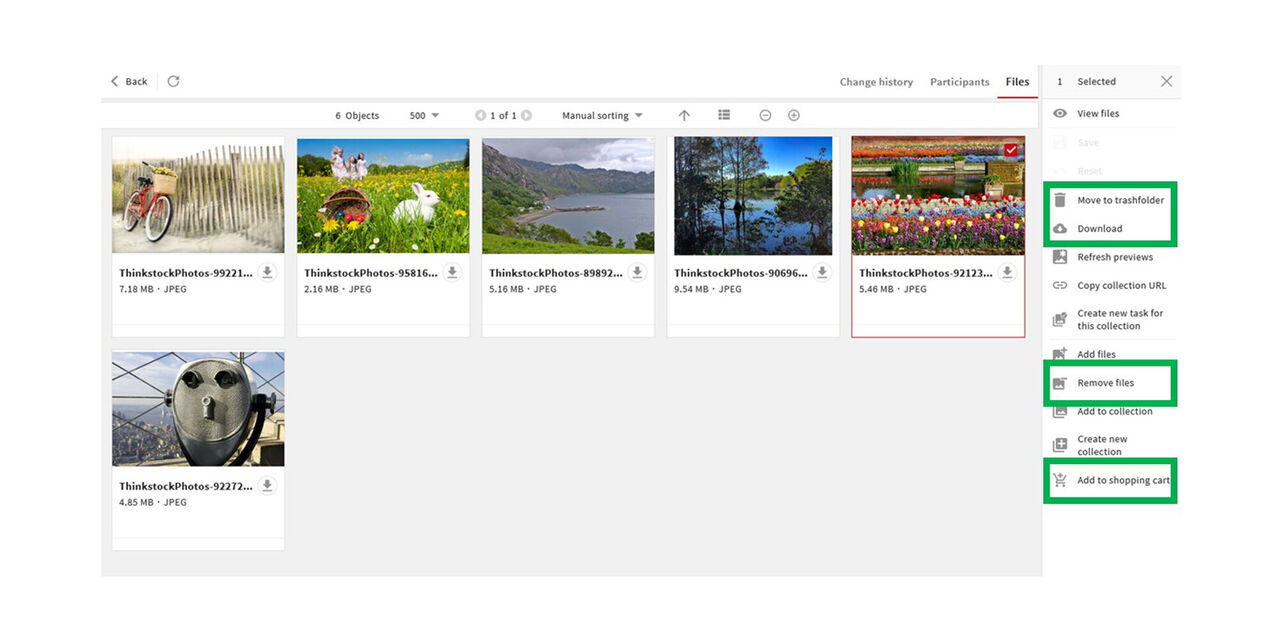
Asset functions
As soon as you click on an asset within a collection, asset functions are displayed in the action area. These include e.g.
- move to trash
- download
- move from the collection
- add to cart.
Display assets from several collections
How to display assets from several collections at the same time using the filters
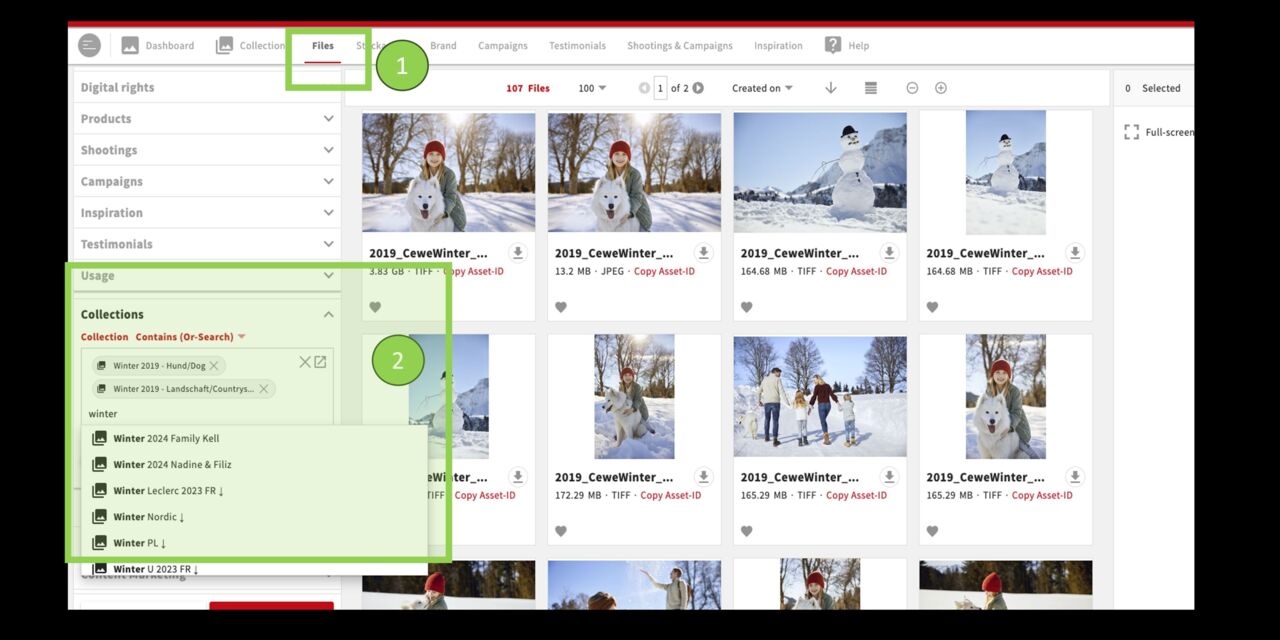
View assets from multiple collections at once.
- Go to the Files module, not the Collections module.
- Open the Collections filter and enter collection names or search terms, such as “Winter.” You can also use the search box.
CEWE MediaAssets will display assets from the selected collections.
Note: You’re in the Files module, so collection features aren’t available here.