Photoshop versions
How to create, delete or re-instate PS versions
Upload versions
New version vs new file
New version if:
- Different working statuses of a file
- Revision/replacement of an existing file
New file if:
- Completely recreated files
- Variants of an existing file, e.g. different formats
- Closed files created from open files, e.g. JPG from PSD or TIFF from RAW file (see evolution tree)
Step 1
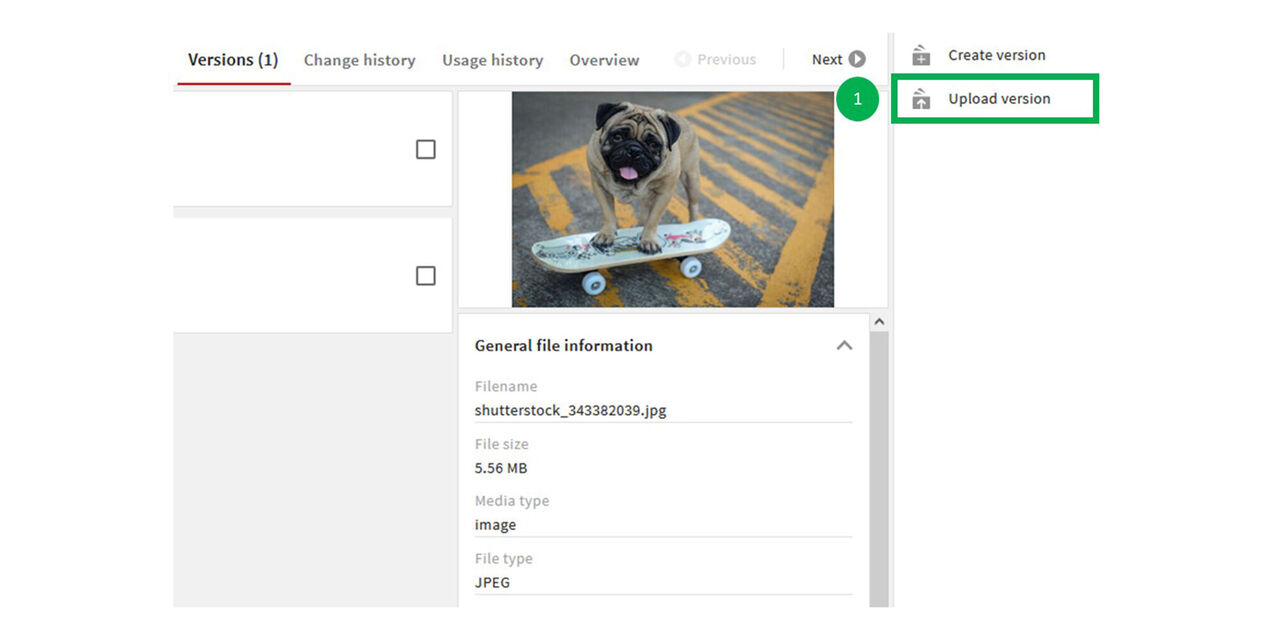
- From the area “Versions” of an asset click on “Upload Version”
Step 2
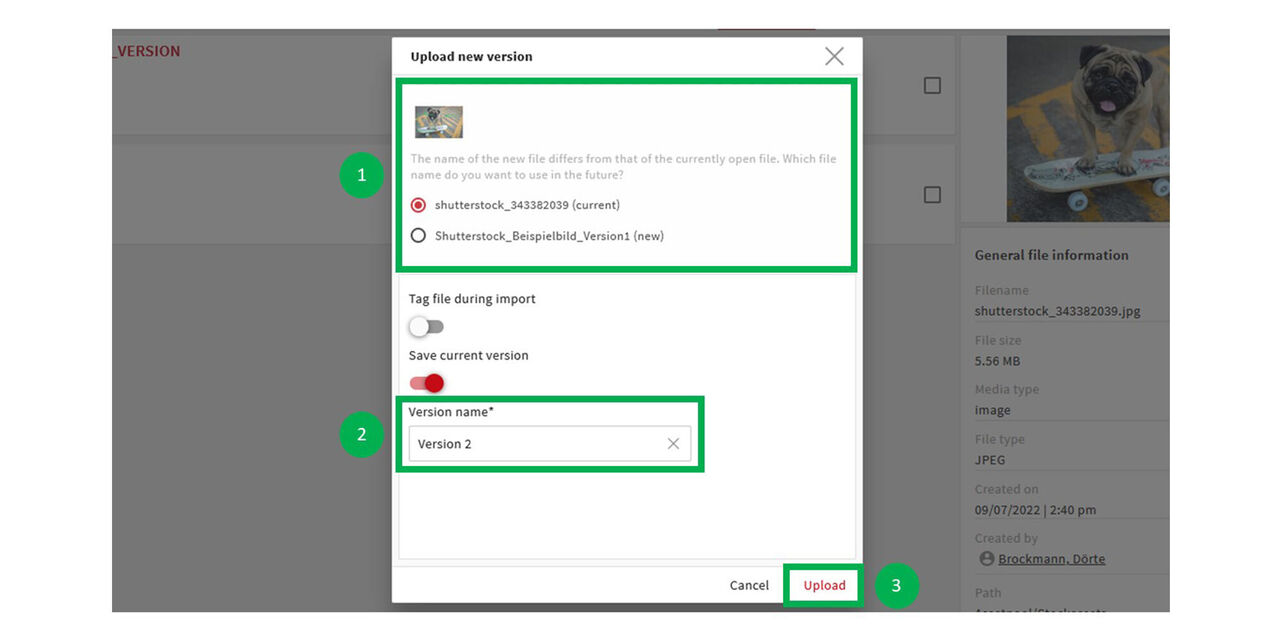
Choose the correct file if the file you want to upload has a different name to the file that already exists
Type in a name for the new version
Click on “Upload”
Step 3
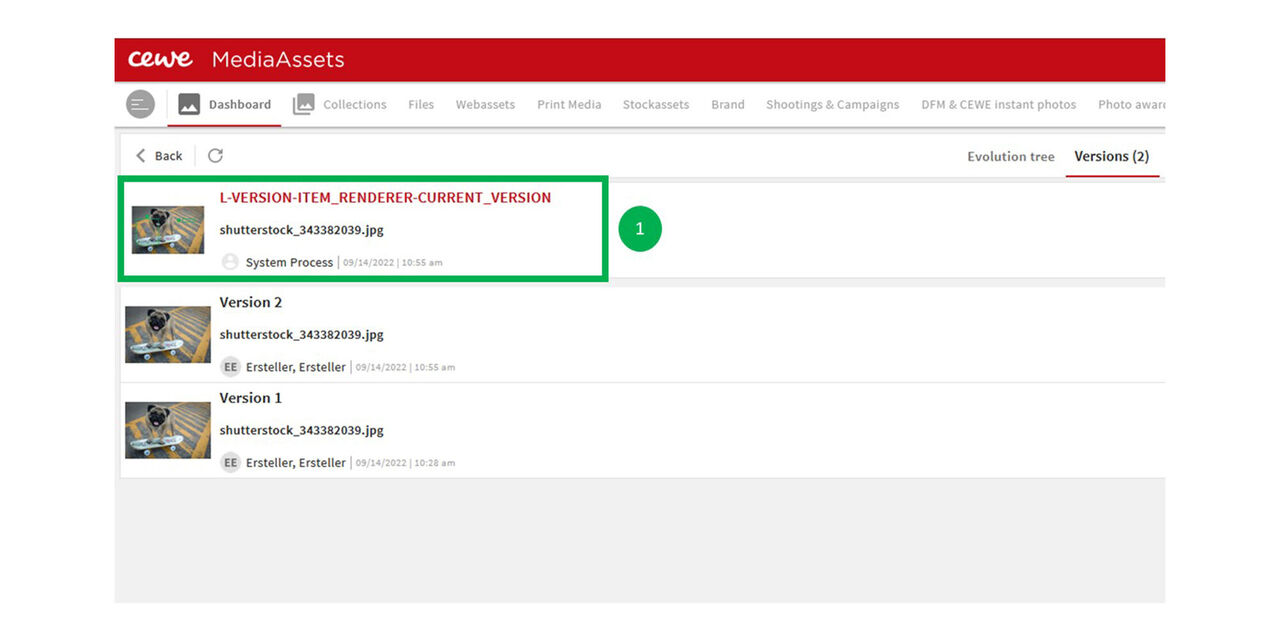
The new version has been uploaded.
.
Delete versions
Step 1
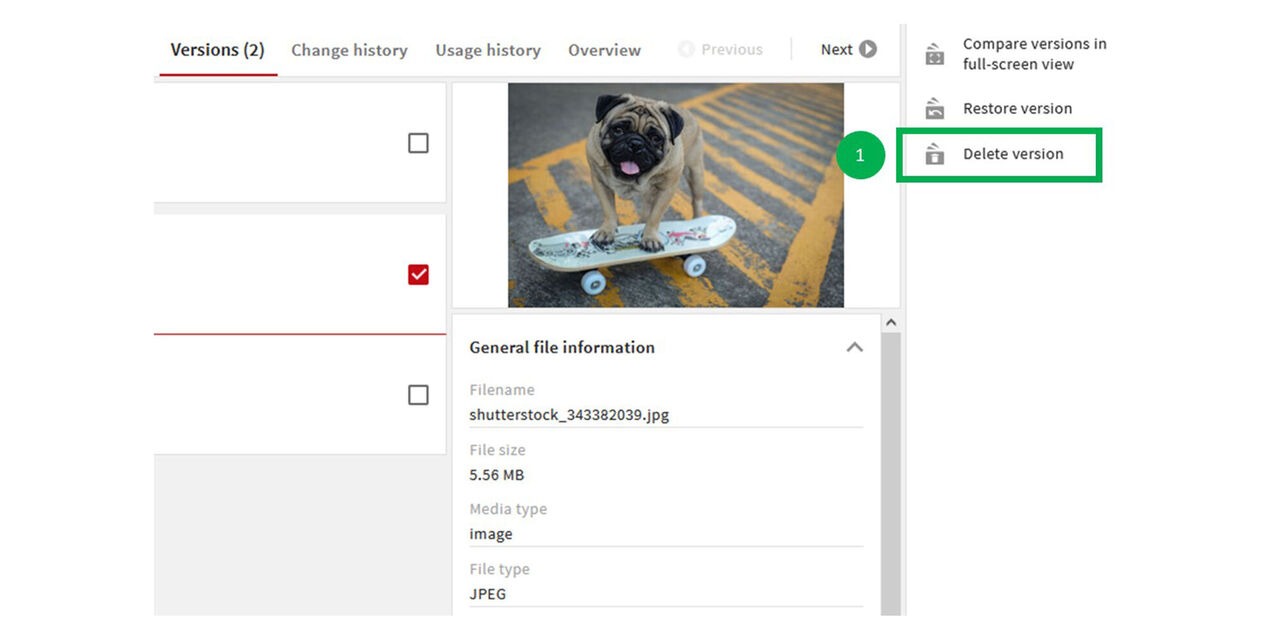
- If at least two versions of an Asset exist, it is possible to delete one of them. Therefore click on “Delete version"
.
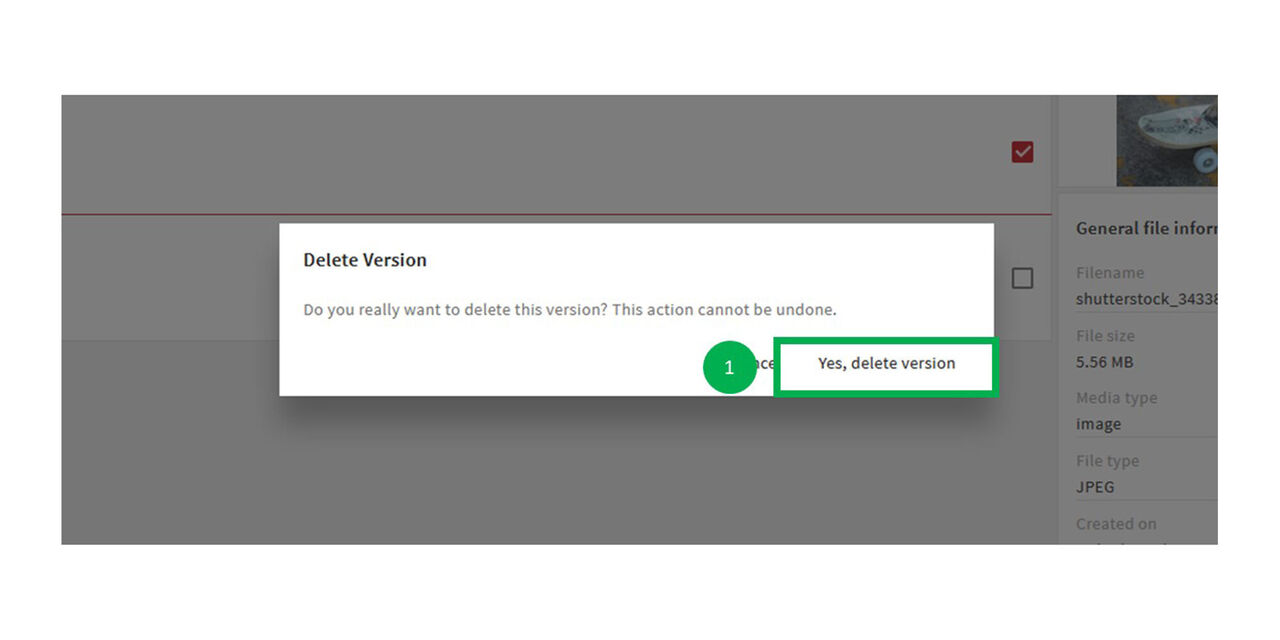
Step 2
- Confirm the deletion by clicking on “Yes, delete version”
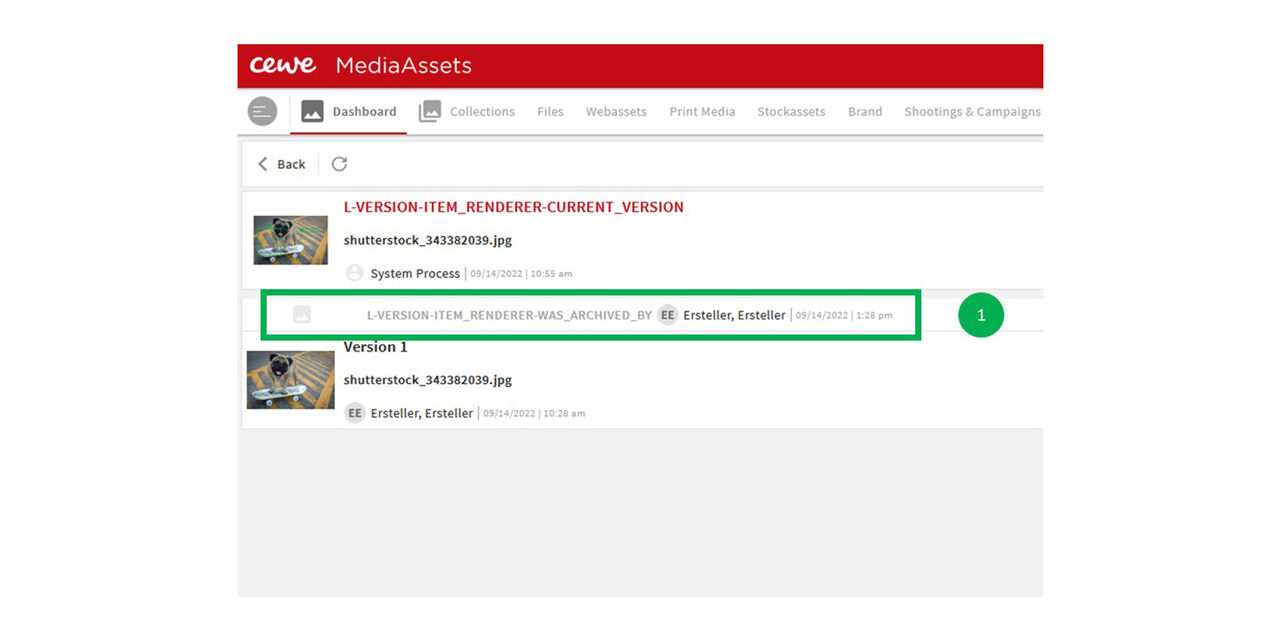
Step 3
The version now has been deleted.
Restore versions
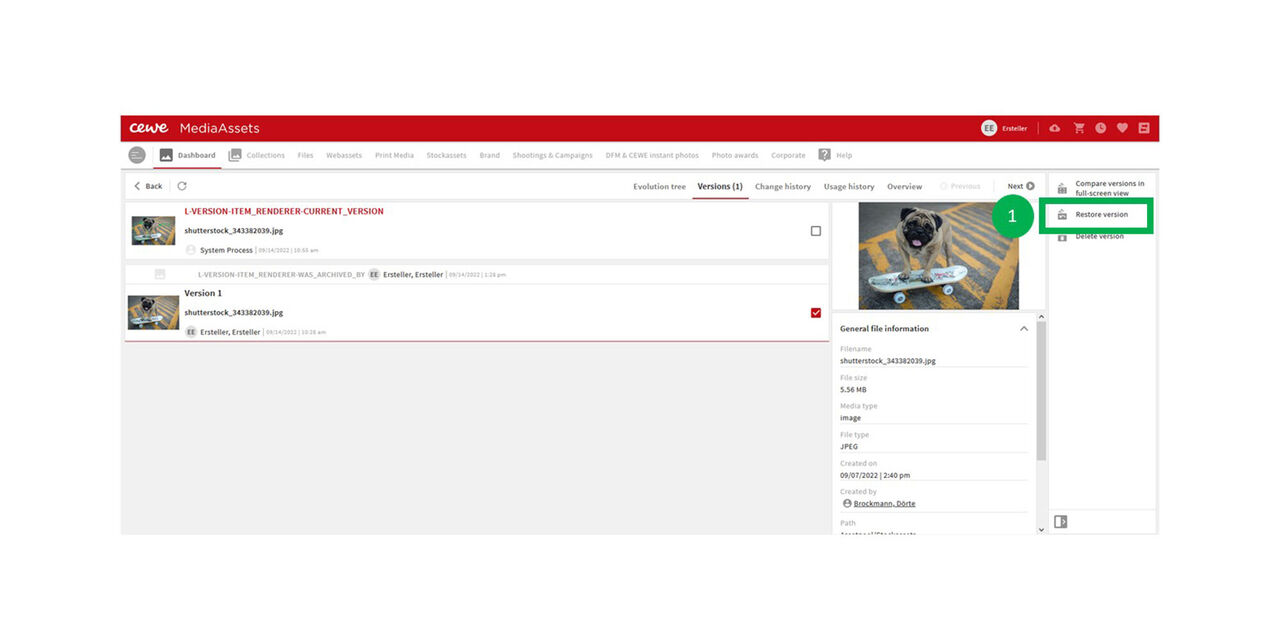
Step 1
A deleted version can be restored.
- Click on the version you want to restore and then click on “Restore version”.
,
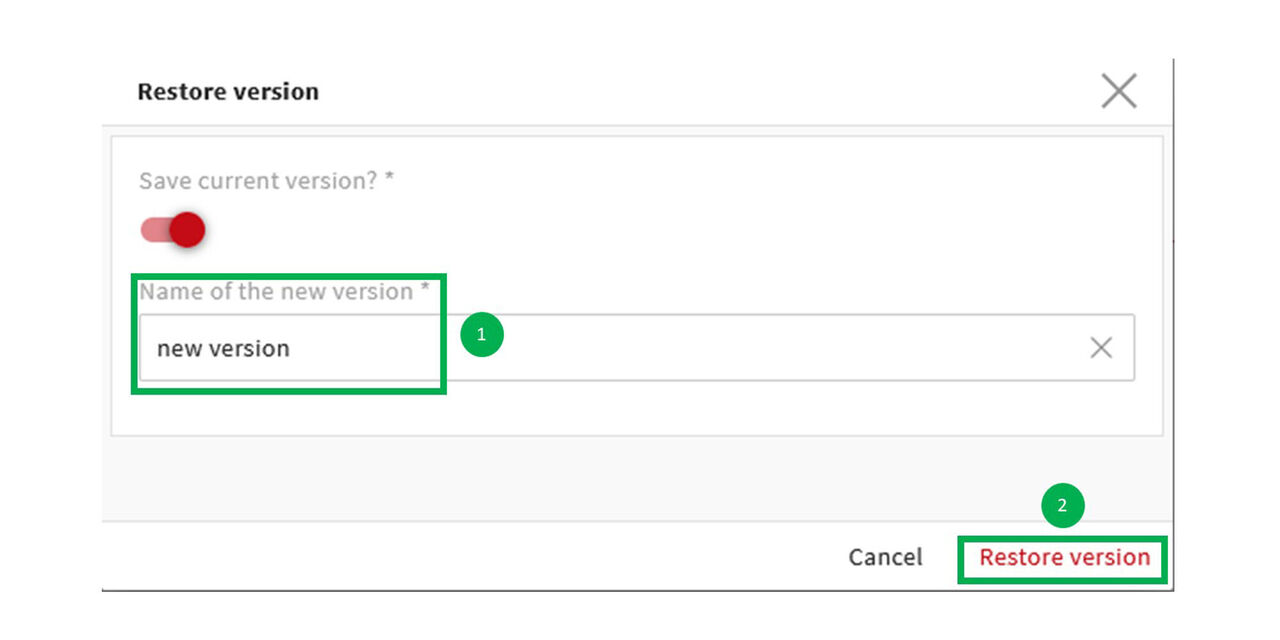
Step 2
- Type in a new name for the version
- Click on “Restore version
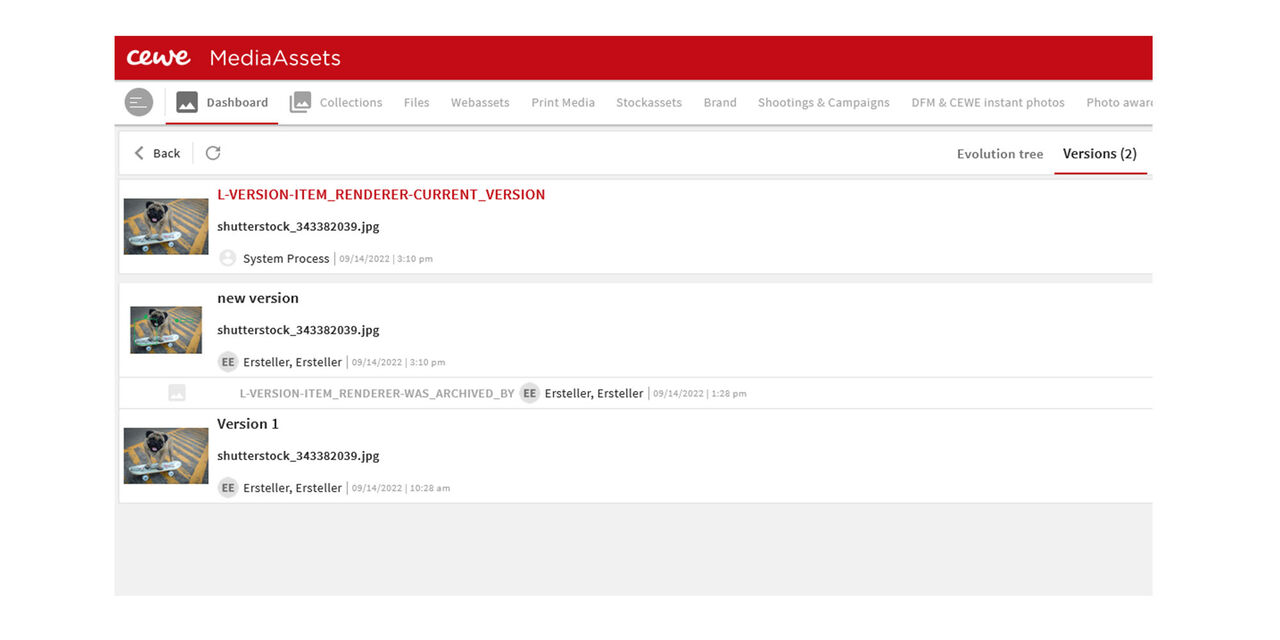
Step 3
The version now has been restored.
.