
Search and find
Explore the many ways to search—from using filters and metadata across different areas and collections to AI-powered search..
Search in files (by filters)
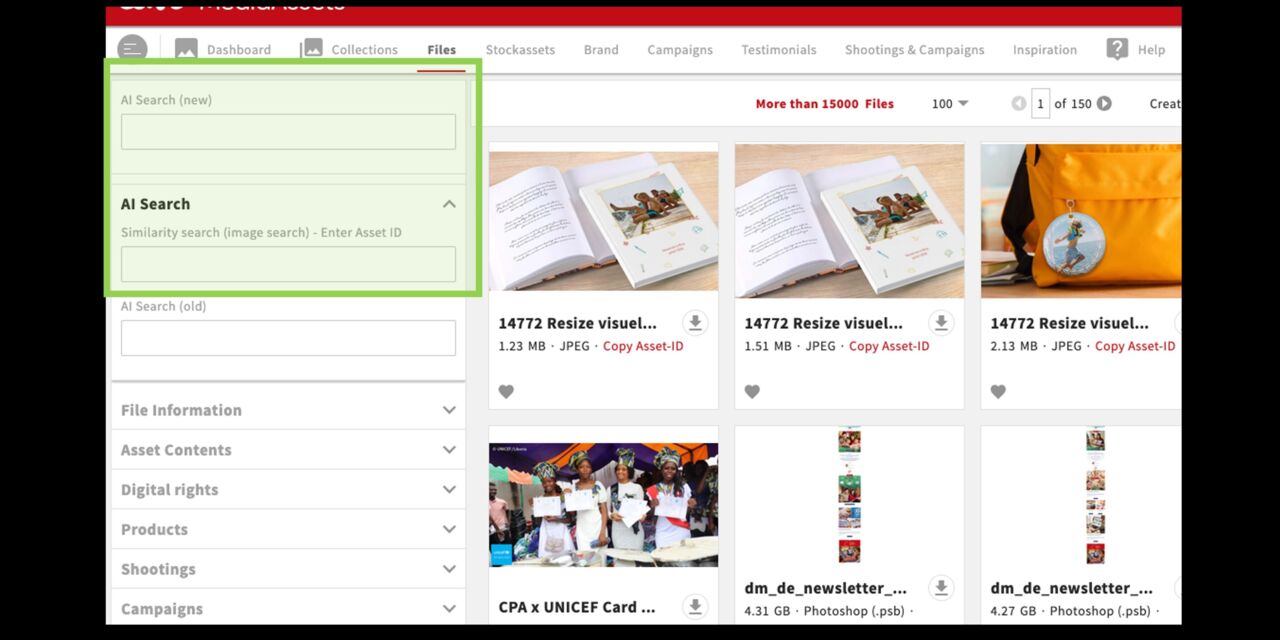
Search filters - Part 1
The search filters are located on the left side of the Files module. Click the arrow next to a main category to view its subcategories. These filters help you find assets based on their metadata.
You can also use the AI search at the top of the page. It lets you search for images using natural language and full sentences.
Another option is the similarity search, which finds images similar to an image you select.
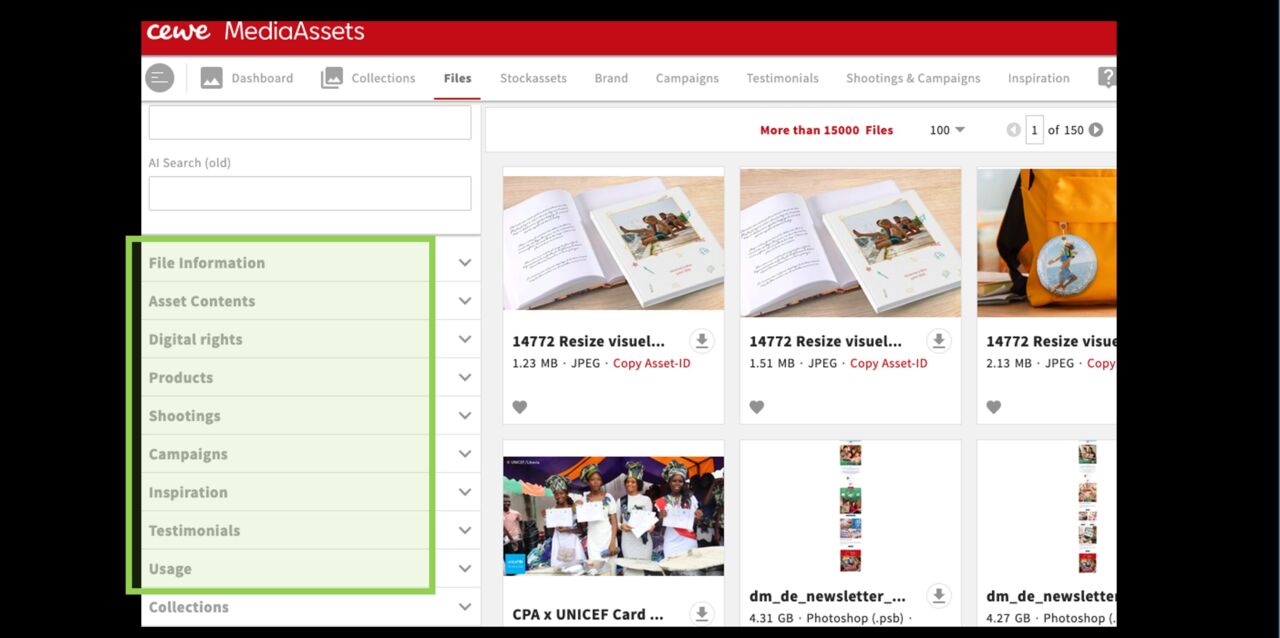
Search filters - Part 2
- File Information > Filename, format, and more
- Asset Contents > Details about the image content
- Digital Rights > Contract and status information
- Products> All products in every variation
- Shootings > Search by shoot name
- Campaigns > Search by campaign
- Inspiration > Search by inspiration topic
- Testimonials > Search by testimonial
- Usage > Find assets approved for specific purposes
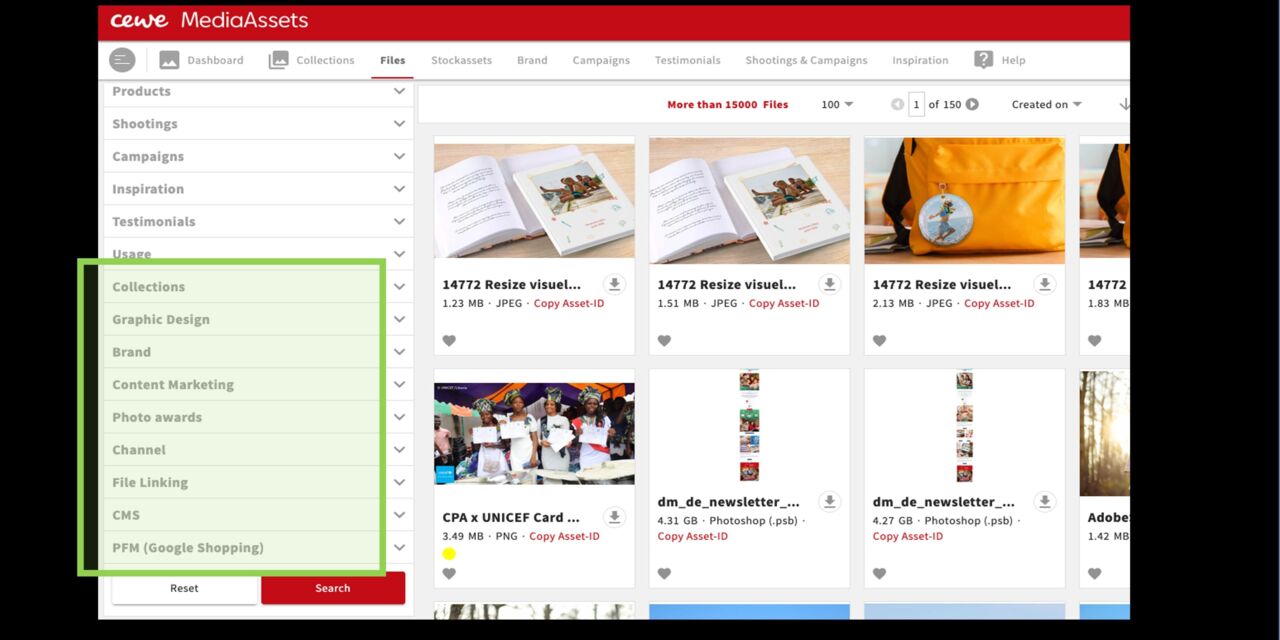
Search filters - Part 3.
- Collections > filter by name of collections
- Graphic Design > filter for types of graphic assets
- Brand > Filter for logos, sound files, etc.
- Content marketing > Content type (e.g. influencer), CMS linking
- Photo award > Search by title and photographer
- Channel > channel like website, print media, newsletter
- File Linking > Search for file linking and embedded files
- CMS > Assets linked to CMS System.
- PFM (Google Shopping) > Assets only in use for Google Shopping
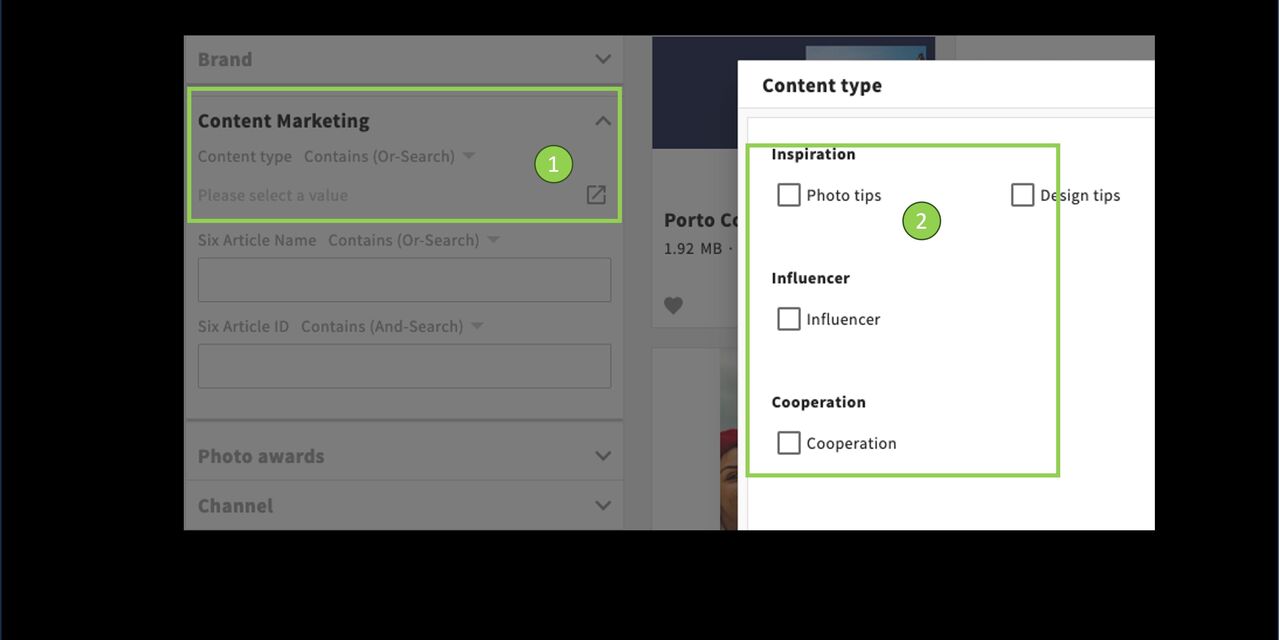
Selection fields
You’ll also find menus to select from in the search filters. Here’s an example:
Content Marketing > Subcategory Content type
click on the symbol (square with arrow) to open the selection.
selection fields
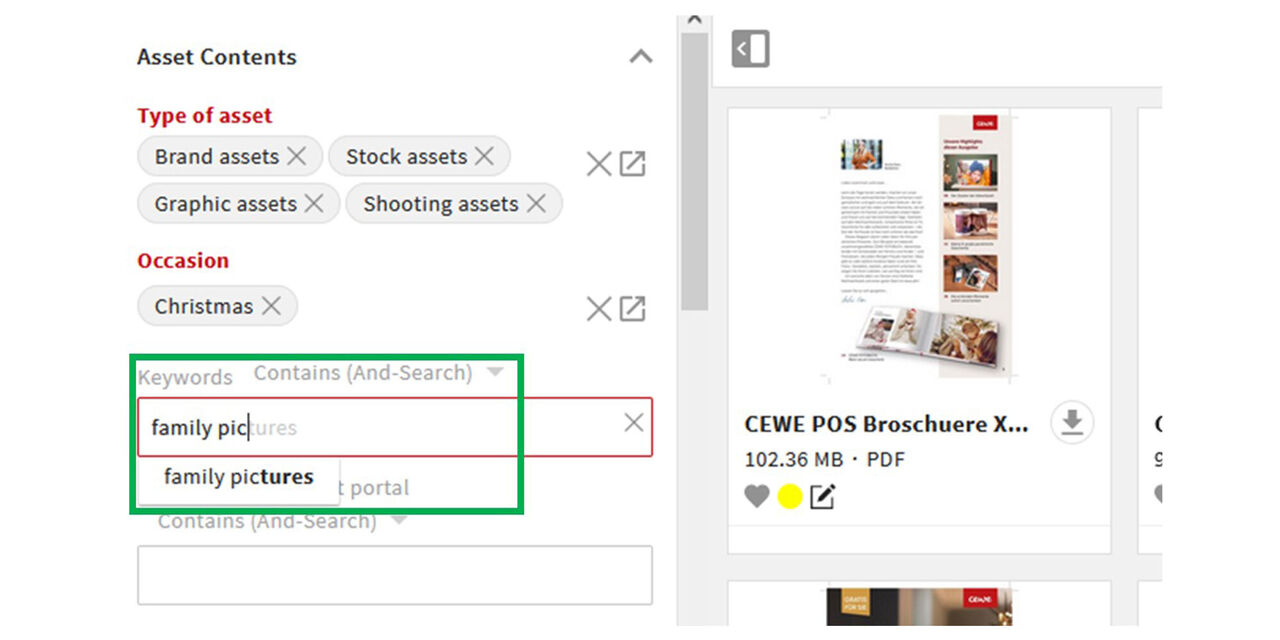
Text fields
There are also free text fields within the main categories. Enter a word here and you will be presented with suggestions that you can choose from. Here you can search for predefined keywords. So it is not possible to search for any word.
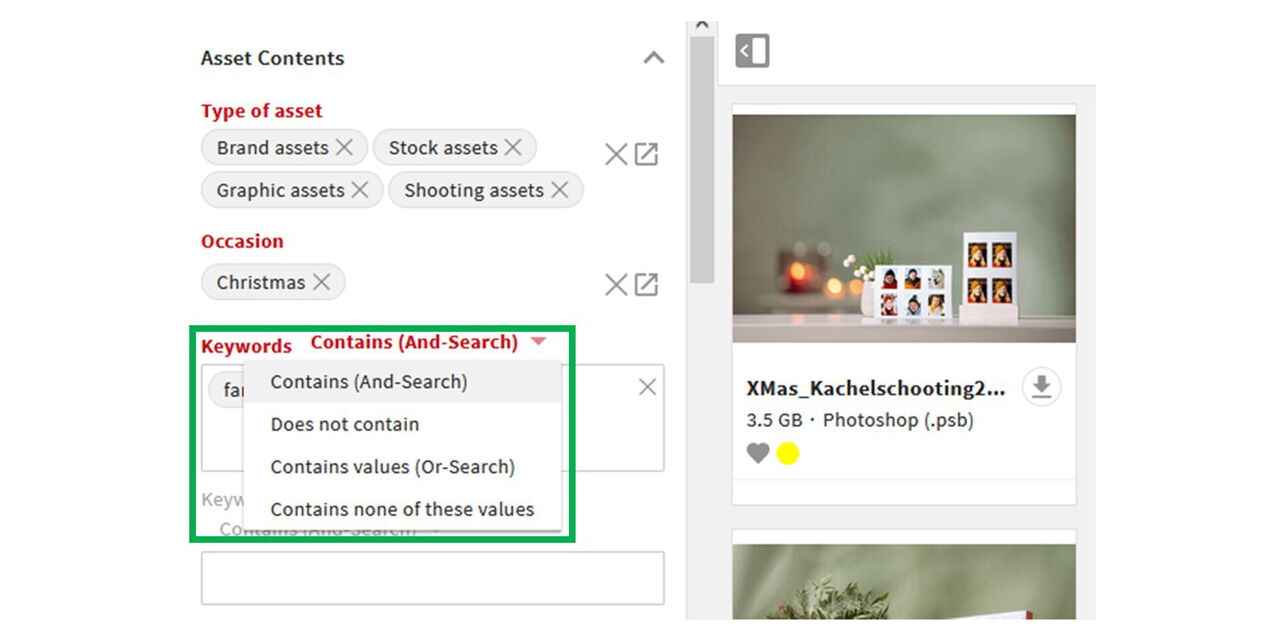
Search option
In this context you can choose different search options (only available for some search fields):
Contains (And-Search) - If you choose the first option and enter at least two keywords you will be shown all the assets that contain both, the one AND the other keyword.
Contains (Or-Search). The other example will only show the assets that contain one OR the other keyword.
AI supported search

Intrduction
The AI search in CEWE MediaAssets is an additional supporting function to search for assets based on the description of image content.
It is not a complete replacement for the traditional filters. These are still required for certain search scenarios..
Image similarity search can compare images, making it a useful additional tool.
AI-search and its capabilities
- Recognise image content (including written words)
- Search with natural language and complete sentences
- Search in various languages (English works best)
- Product search with generic version possible, e.g. photo book
- Can be combined with other filters to narrow down the results
- Results are displayed in order of relevance
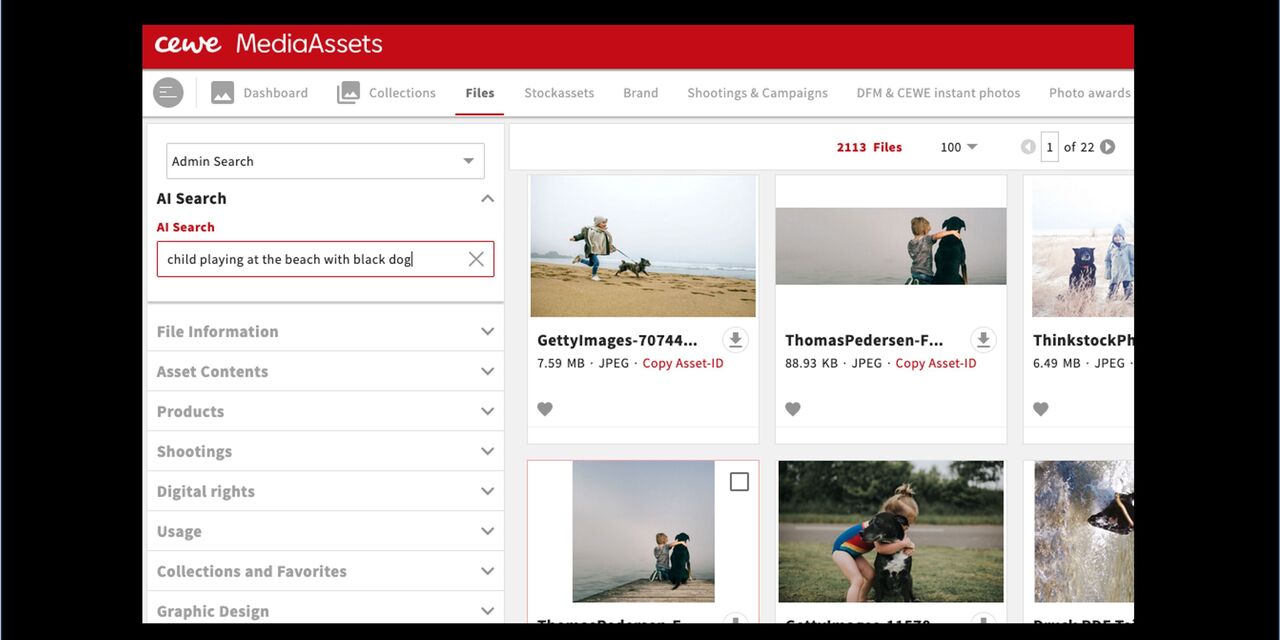
Example
Here is a search with a description instead of individual keywords:
child playing at the beach with black dog
Combination
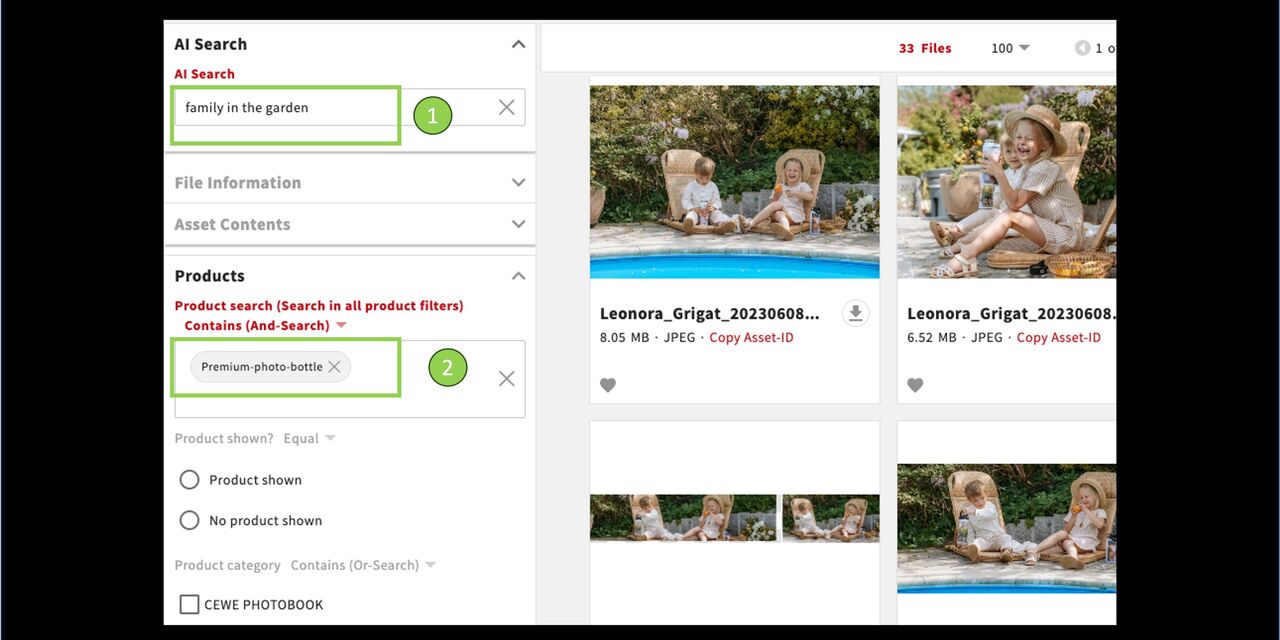
In this example, the AI search is combined with the classic product filter. The product filter searches for the specific CEWE product. AI could not cover that.
AI search: Family in the garden
Product search: Premium - Photo - Drinking bottle
Siimilarity search.
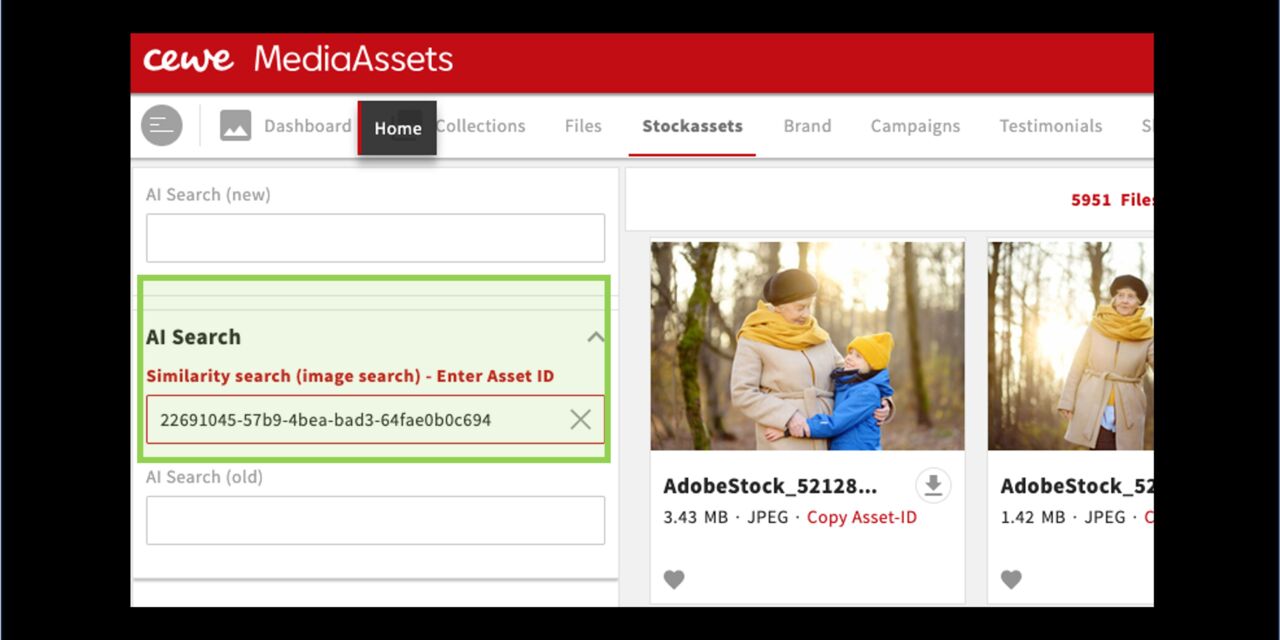
In Similarity Search, simply enter the Asset ID of an image to find similar images.
It’s also a great way to find the original image when you’ve only found a cropped version. For best results, combine the search with the "File Type" filter—for example, when searching for a PSD file.
Additionally, it helps us locate content that needs to be restricted for legal reasons.
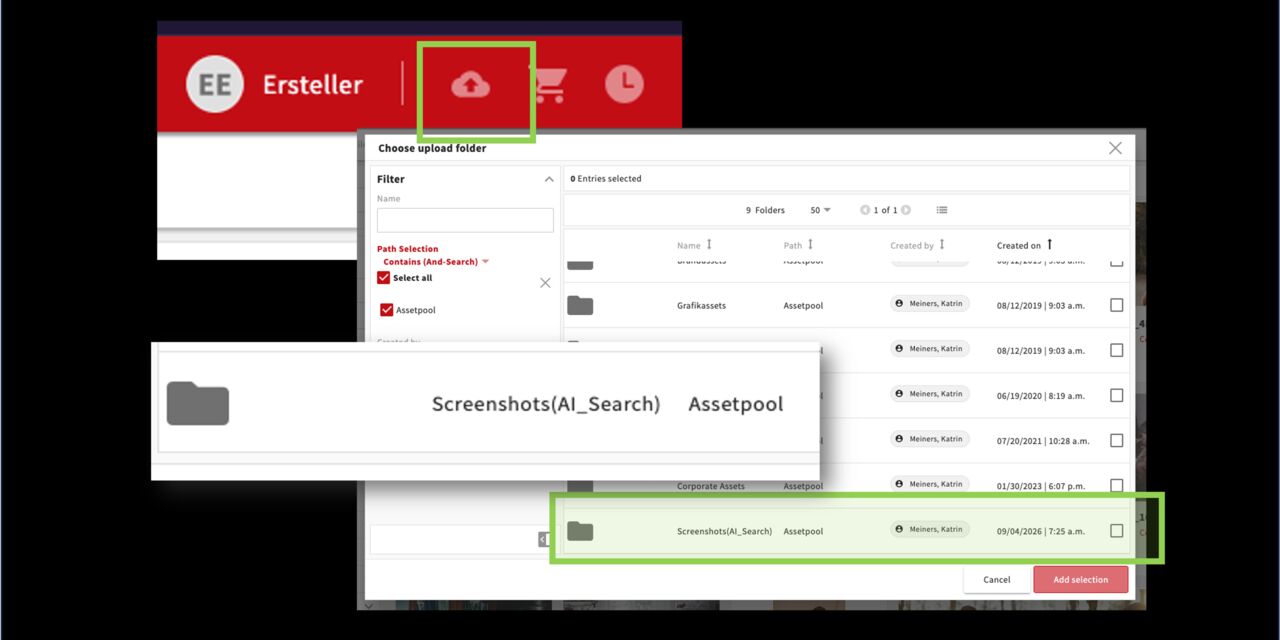
Similarity Search using a screenshot
Users with upload permissions can also use screenshots for similarity searches.
Simply upload a screenshot you’ve created to the designated upload folder to generate an asset ID. Then enter that ID in the similarity search field. This is especially useful when you can’t find suitable source images to compare.
The upload folder is cleared regularly, and screenshots are deleted.
Other
To discover the possibilities of AI-supported search, it is best to try out your own ideas and formulations.
Last but not least... what AI search does not cover:
- Finding people (models) by name
- Details such as paper quality or book size
- Names/expressions such as CEWE (word is recognised, but not meaning)
Search in collections and areas
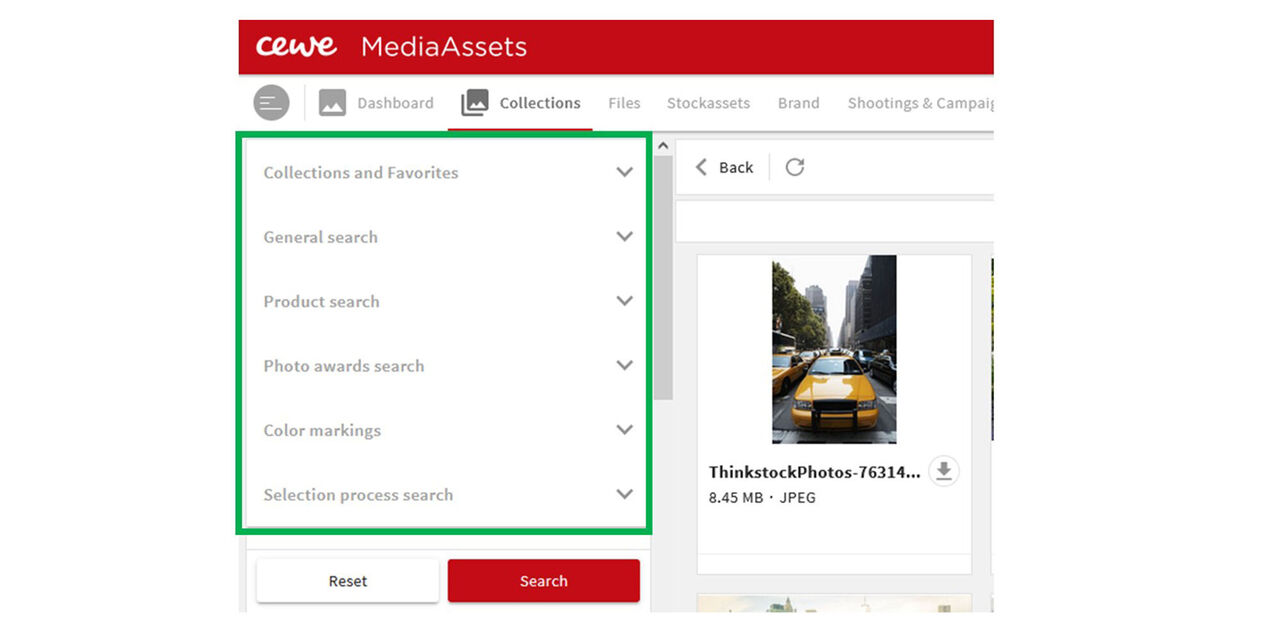
Search within collections
If you have accessed a collection, you will find various filters on the left that can be used within the collection.
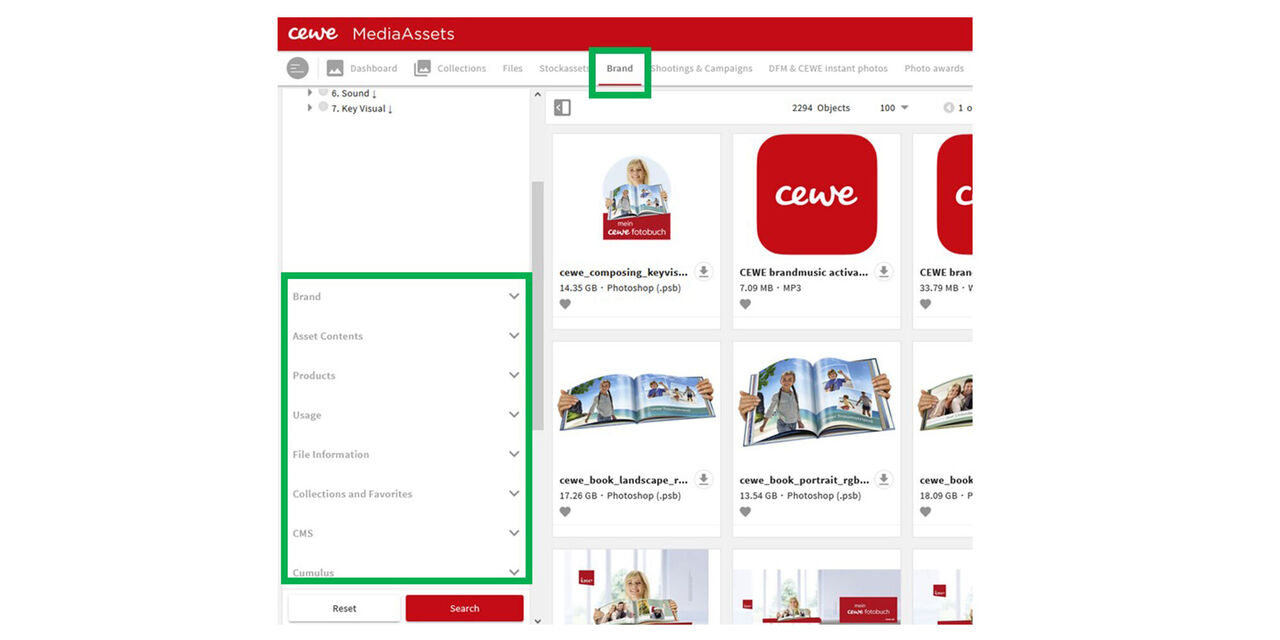
Search within areas
Within the individual areas, here e.g. BRAND, you can search further using area-specific filters (bottom left).
You will also be shown the area-specific collections. (top left)
This is how you find it !
Click on the example to understand more about filters and search options.
CEWE Photobook, Large Landscape, Hardcover Matte, Matte Paper, without motive
Search in files
Filter: Products
Product search: Enter the terms in the field and select from the drop-down menu.
- CEWE photo book
- Without motif / gray pattern
- Hardcover matte
- Photo paper matte
The product search takes all values from the individual filters where they are also still available.
In this example:
Product category, individual product, product display, product attributes
CEWE Photobook, retail partner dm
Search in files
Filter Product > CEWE Photo Book
Filter Use: - Retail partner: dm
Shooting Marianne & Lennard - zu Hause 2022
Search in sections/areas and collections Areas: Shootings & Campaigns
> Collection structure: A. Shootings
> People shootings
> Client shootings
> Marianne, Lennard, Nikas + Mads Keller
> Marianne & Lennard - at home 2022*
Single product, e.g. photo puzzle
Search in Files
Filter: Products
Product category: Photo gifts
Single product photo gifts: Photo puzzle
Test winner from 2019
Search in files
Filter Brand
- Brand assets: Test successes
Filter Usage
- Publication year: 2019
Newsletter files for the partner Müller
Search in sections and collections
Section: Newsletter
Collection:
Newsletter US > Customer Newsletter > Newsletter Müller
TIFF files from Shooting "2023 TVC CH John Rykart - Zermatt"
Search within sections and collections
Section: Shootings & Campaigns
> Collection structure: A. Shootings
> People shootings
> Customer shootings
> CH Family John Rykart
Scroll down to the filters > Filter: **File information **> File type: TIFF
Option 2:
Click on the three-dot menu behind the collection name and then on “View” to go to the collection. From there, you can also set the filter for the file information.
How to Find Image Files from Excel Spreadsheets
Search in files
File information: Asset ID
> Copy the Asset ID from the Excel spreadsheet
> Paste the Asset ID into the text field
> Press the Enter key
> Paste additional Asset IDs using copy and paste or press Search directly
All files with the entered Asset IDs will now appear and can be used further.