Home > Help > View

View

Find out more about display options in the system and the meaning of the icons on the assets.

View options
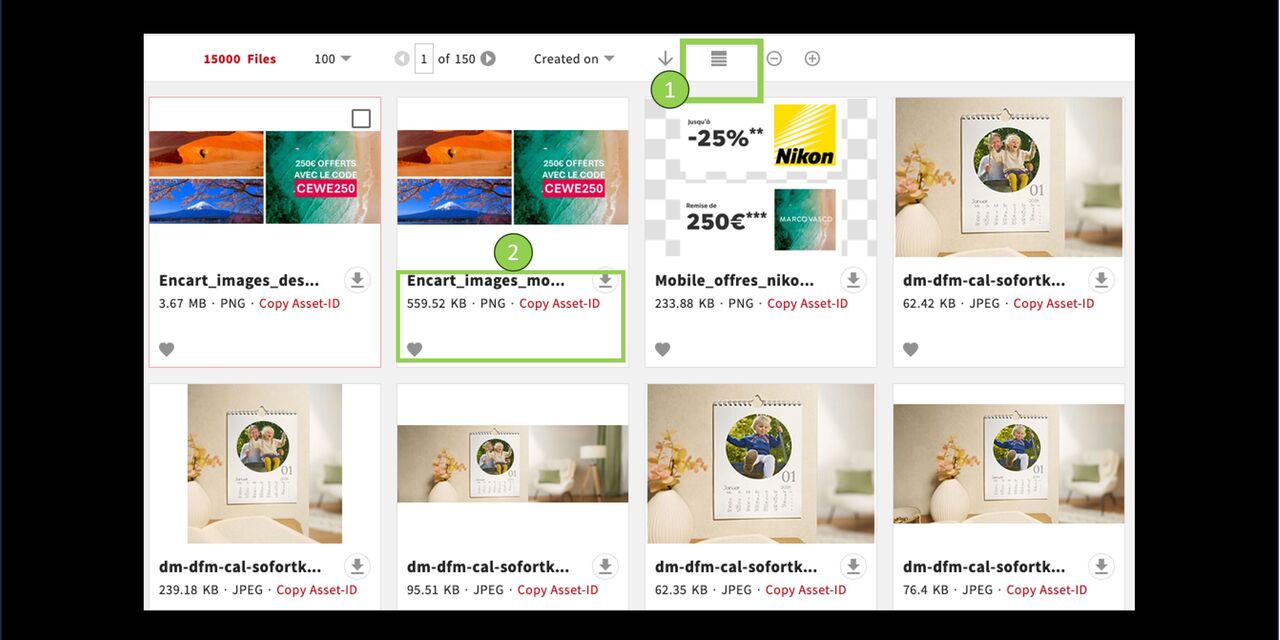
Tile view

The tile view is the standard option in CEWE MediaAssets. You see a thumbnail of the assets including file name, size and format.

  1. You can switch between tile view and list view using the symbol

  2. Asset-view within tile view

List view

The list view is a way to display assets with detailed metadata.

  1. Use the icon to switch between list view, grid view, and tile view.

  2. Asset display in list view with in-depth metadata.

By the way: A red or yellow dot is part of the so-called traffic light status, which regulates download rights. For more information, see the “Downloads/Uploads” section.

Grid view

The grid view is an option to display the assets with further metadata.

  1. You can switch between grid view, tile view and list view using the symbol

  2. Asset-view within list view with more metadata

By the way: A red or yellow dots is part of the so called traffic light status that regulates the download rights. More on this under "Downloads/Uploads".

Detail view

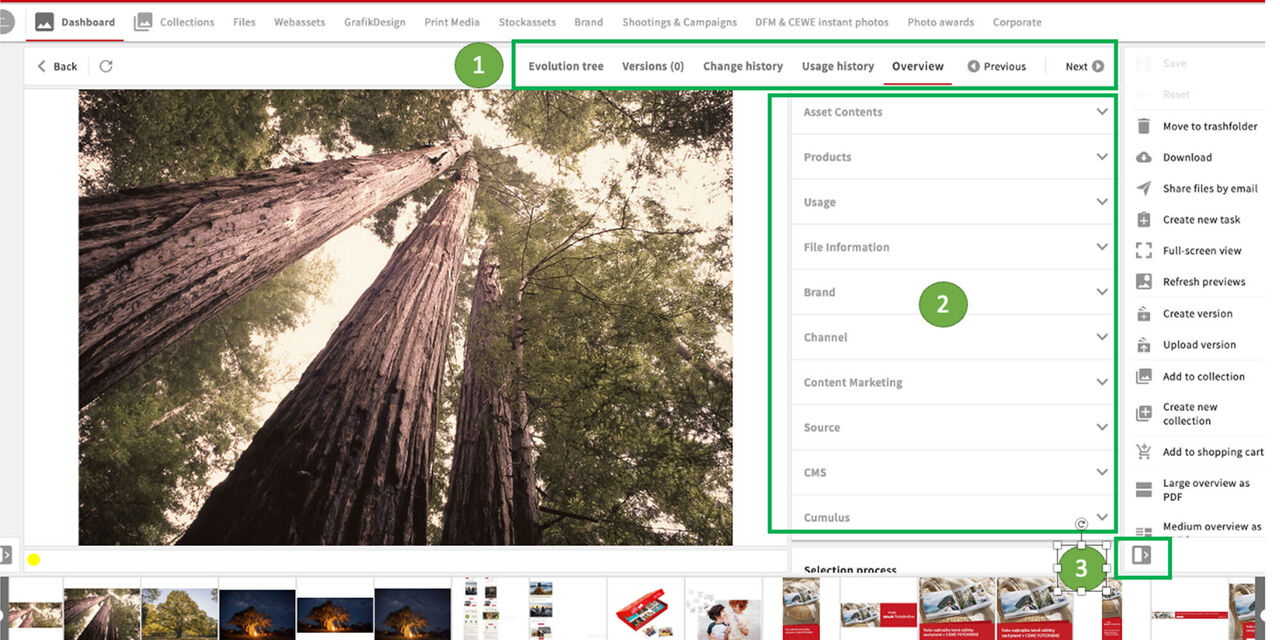
To get into the detail view double-click on one asset or click "view files" in the action panel.

  1. Find available options within the detail view here.

  2. Metadata fields are identical to the filters in the filter pane. So if a metadata field is filled out, you can search for that data specifically and thus find the assets.

  3. In any view option you can make the action bar visible or invisible.

You can find more information about this in the topic block Metadata

Full screen view with functions

Choose full screen view

The full screen view allows assets to be viewed in more detail.

Click on full screen view on the right

Full screen

You get one asset in full screen view and all others are shown in the bar below.

Your options here:

  1. Click the pinning icon to display multiple assets side by side

  2. Possibility of downloading, enlarging and reducing

Pin function

You can also view two or more assets side by side:

  1. Click on another asset to display it to the right of the original image

  2. Asset display of two pinned assets

Mark assets

Mark assets in a row

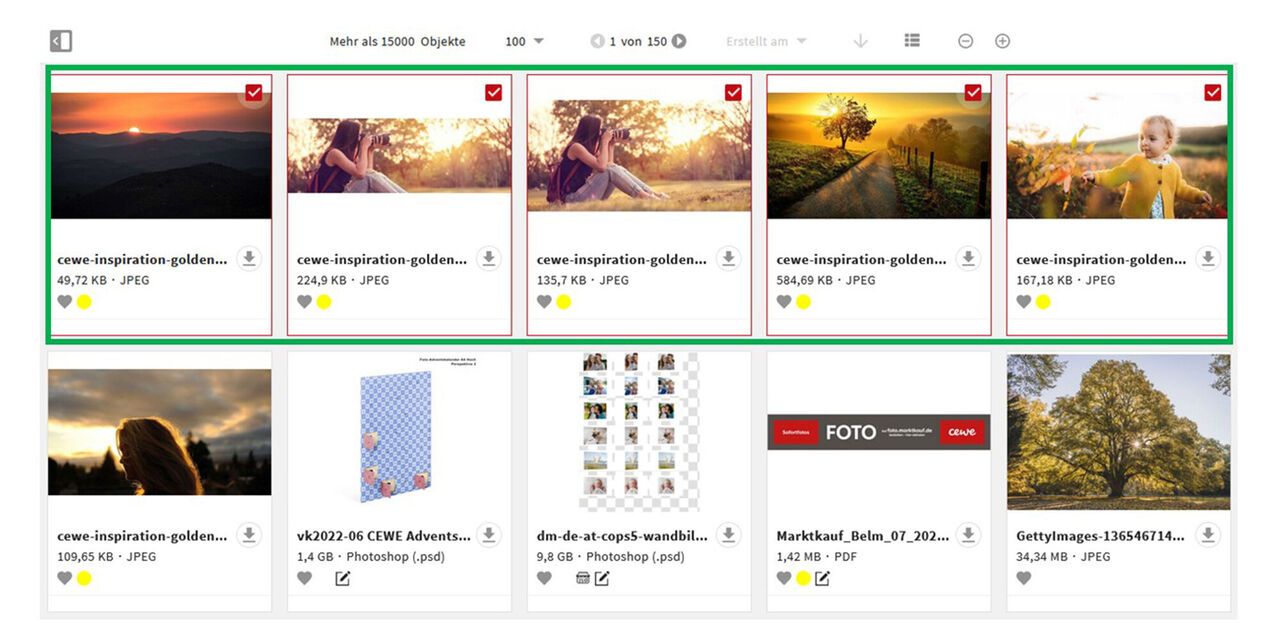
Would you like to mark and select several assets in a row at the same time, as shown in the screenshot?

  • Click on the first desired asset as the starting point of your row

  • At the same time hold the Shift key

  • Click on the last desired asset

Now all assets between the start and end point are marked.
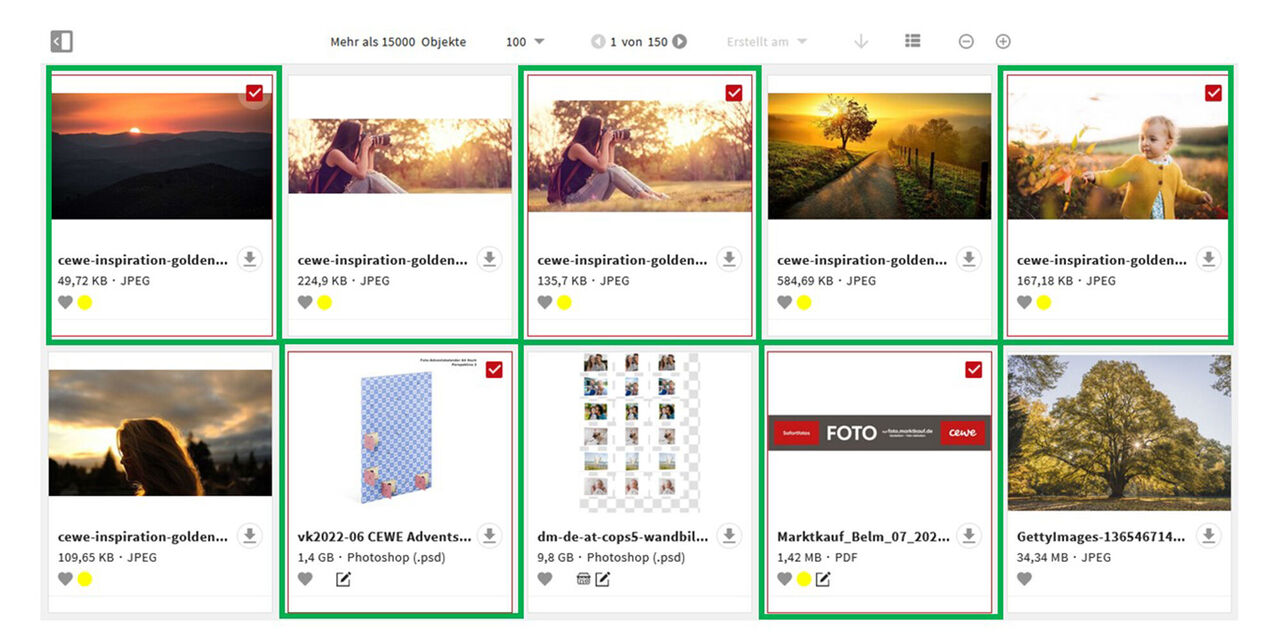
Mark various assets individually

To tag individual assets that are not in a row, do the following:

  • Press and hold the Ctrl/Cmd key

  • Click on the individual assets

The respective assets are then marked and can be used for further work.

Comparing versions / slider
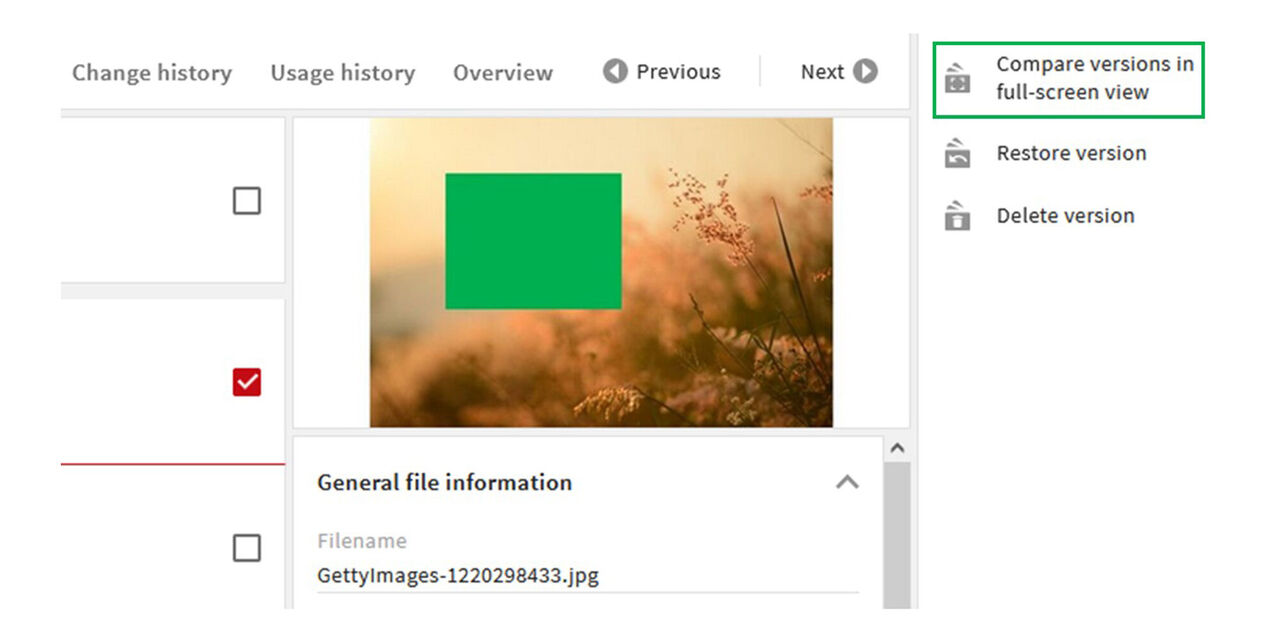
Compare Versions

If you want to compare two versions with each other, select the version and

  • Click "Compare versions in full screen view"
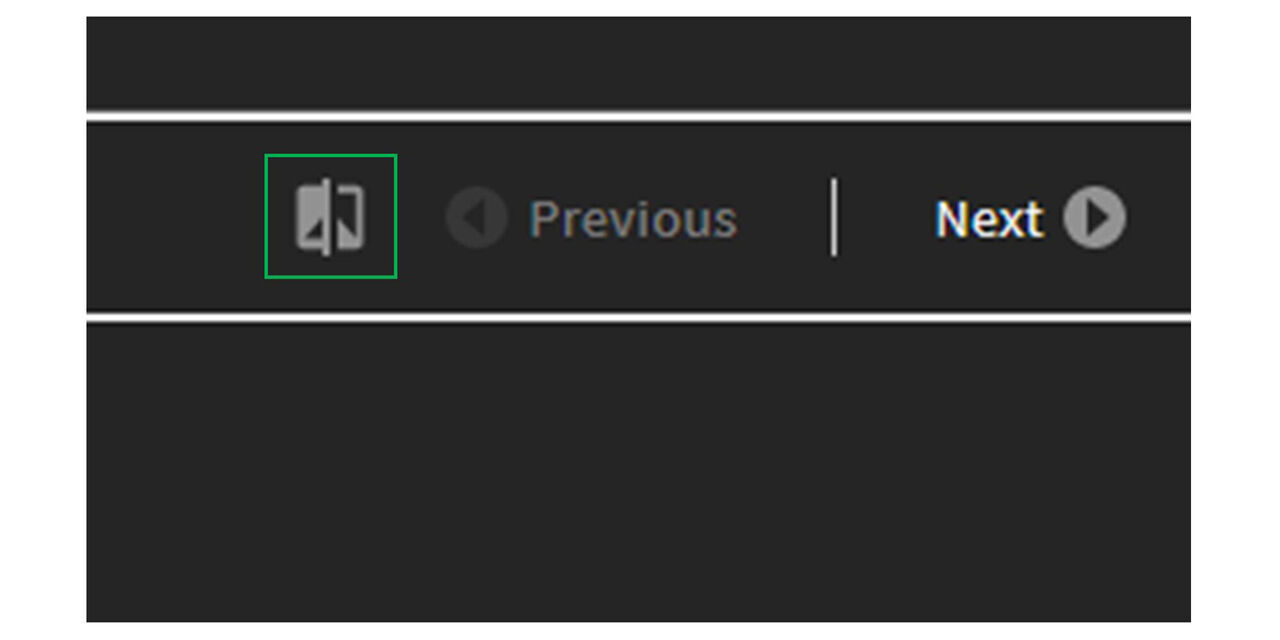
Icon

You can find the corresponding icon right next to the “Previous” button.
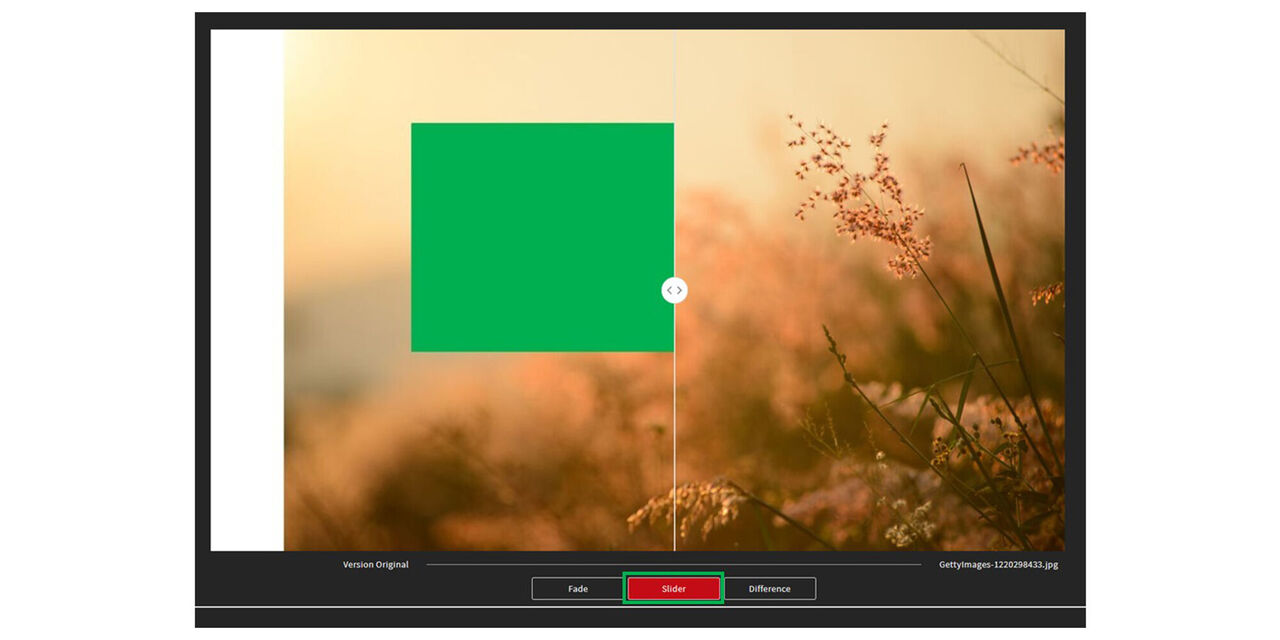
Slider

The slider view allows you to view two assets and move the image sections. This is the best way to compare the details.

  • Click on “Slider”.

  • Move the sections to the right or left.
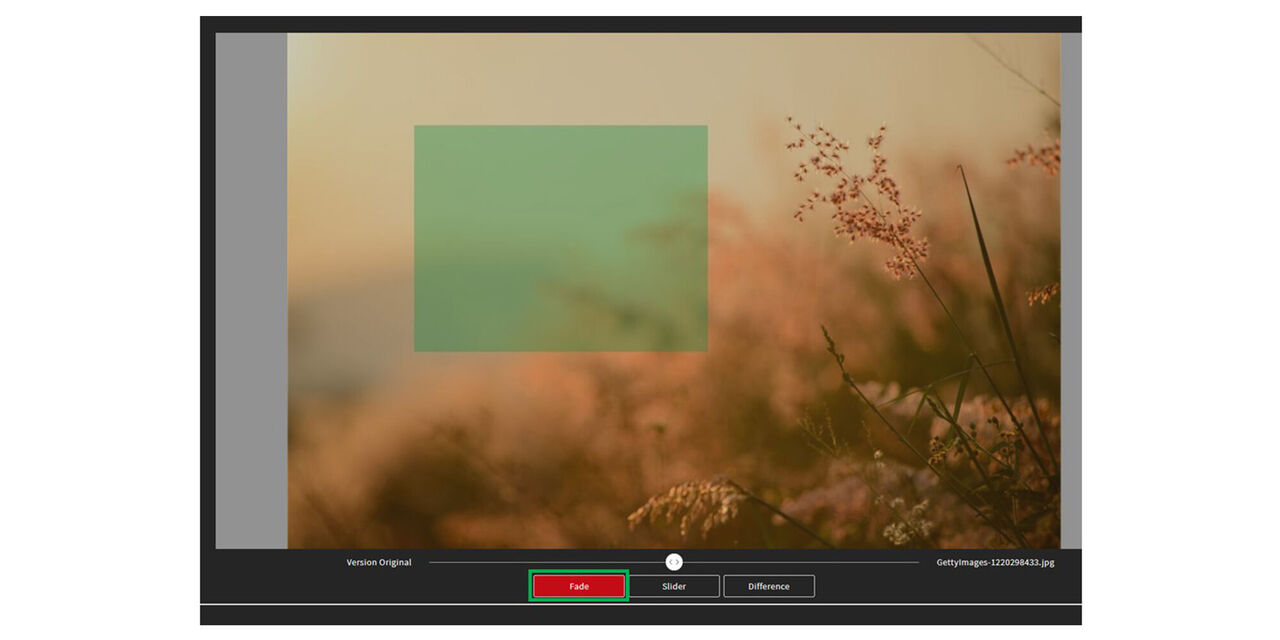
Crossfade

Alternatively, the two versions can be placed on top of each other so that the respective transparency can then be changed.

  • To do this, click on “Fade”

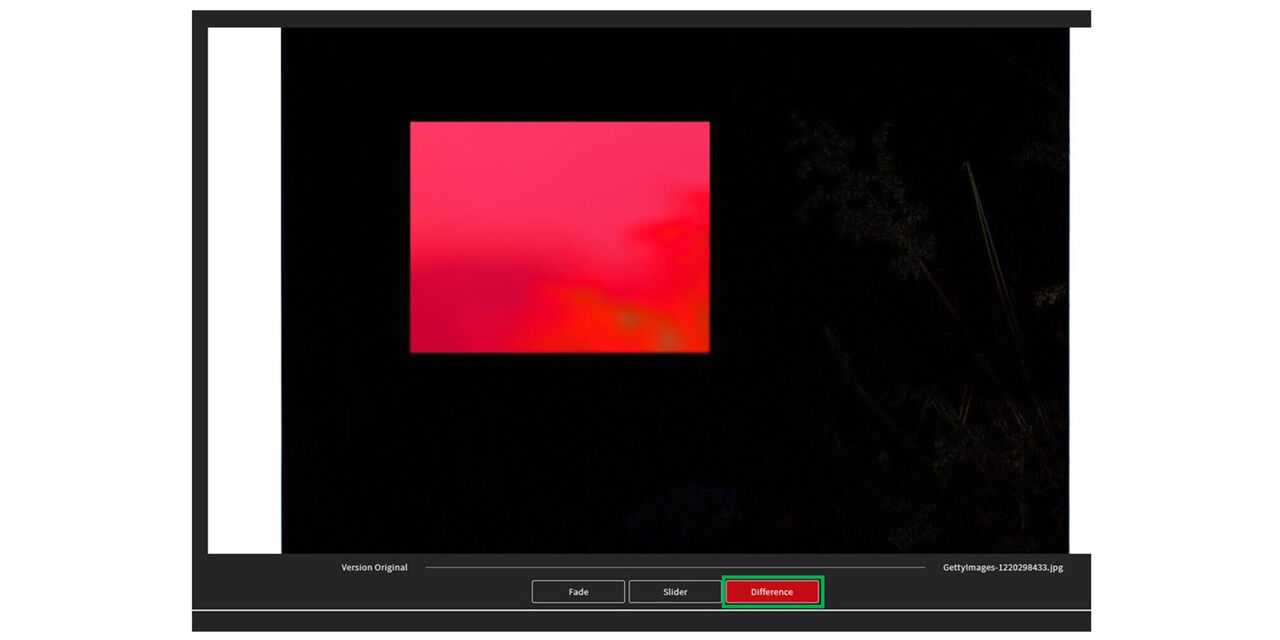
Difference

It is also possible to compare the assets based on a color difference.

  • To do this, click on “Difference”.

Status icons and their meaning

The visibility for the different roles is controlled via the status of an asset.

For example, a user with the "Consumer" role will not see a file that is still being edited because they only need final files.

For a creator, this is his working file that he needs and therefore it is also visible to him.

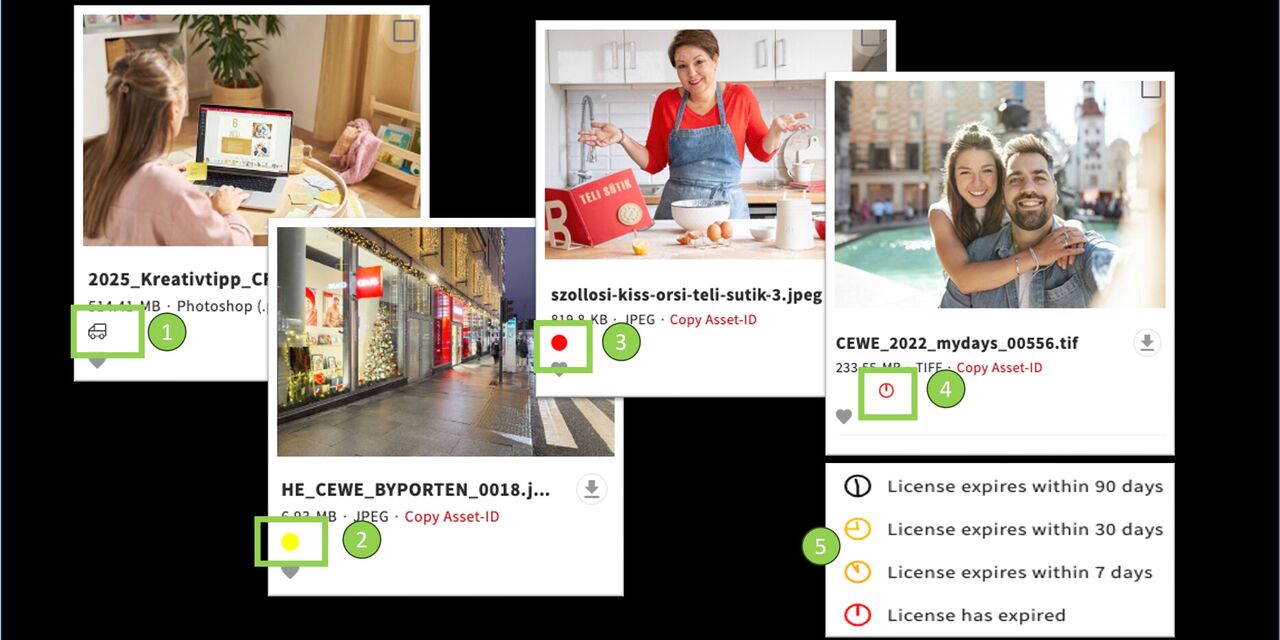
1 - In delivery processs

Assets that are being uploaded to the system by using the delivery process have the status “in delivery process”.

3 - In selection process

Assets that are part of a selection process collection have the status “In selection process”. You create these types of collections to decide for a smaller selection of Assets out of a bigger pool.

5 - Archived

Assets that should not be accessible for public use and should therefor not be visible for the user groups have the status “Archived”. They can then only be seen and edited by administrators of the system.

2 - Work files

Graphic artist that edit assets in Photoshop or InDesign set the status of their assets on “work files”. They are not visible for all user groups.

4 - For public use

Assets that should be visible for all user groups have the status “For public use”.

6 - License expired

Assets from which the license has expired (for example Stockassets) have the Status “License expired ” and are therefore not visible anymore.

Usage restrictions

Asset usage may be restricted as detailed below.They can be downloaded but may only be used for the stated purpose.

A symbol on the asset indicates the type of restriction (e.g.flag for country). Further details can be found in the metadata of the asset under usage.

  1. Only to be used for partners
  2. Only to be used for country
  3. Only to be used for channel
  4. Only to be used in connection with Six articles
  5. Only to be used in connection with photo awards
  6. Special restriction (can be assigned individually)
  7. Defines the trading partner

Traffic light status

Status

For various reasons some assets are not available for an immediate download.

The traffic light status indicates that a download is not available at all or only available on request.

  1. Yellow traffic light = On request
  2. Red traffic light = blocked
  3. No traffic light = unrestricted

Contact person

If you need an asset that shows a red traffic light, please get in touch with the contact person(s). For an asset with a yellow traffic light please use the request process, to be found under Downloads > On request.

In the asset's metadata under Usage you can find

  1. the status
  2. the contact person
  3. and usually a reason why the asset is not downloadable.

Read more about it under Downloads > On request.

Filter

Corresponding with the entered metadata, you can explicitly search for assets with a specific traffic light status in the filter options (Usage).

For example, if you only want to see assets without download restrictions, select option 1 or 2.

Option 2 means, there are restrictions you need to respect, but you can still download the asset.