Metadata editing
Some metadata is already mandatory when uploading. Further data can be added or changed immediately or later, and this can be done for both individual and multiple assets at the same time.
Editing metadata of single assets
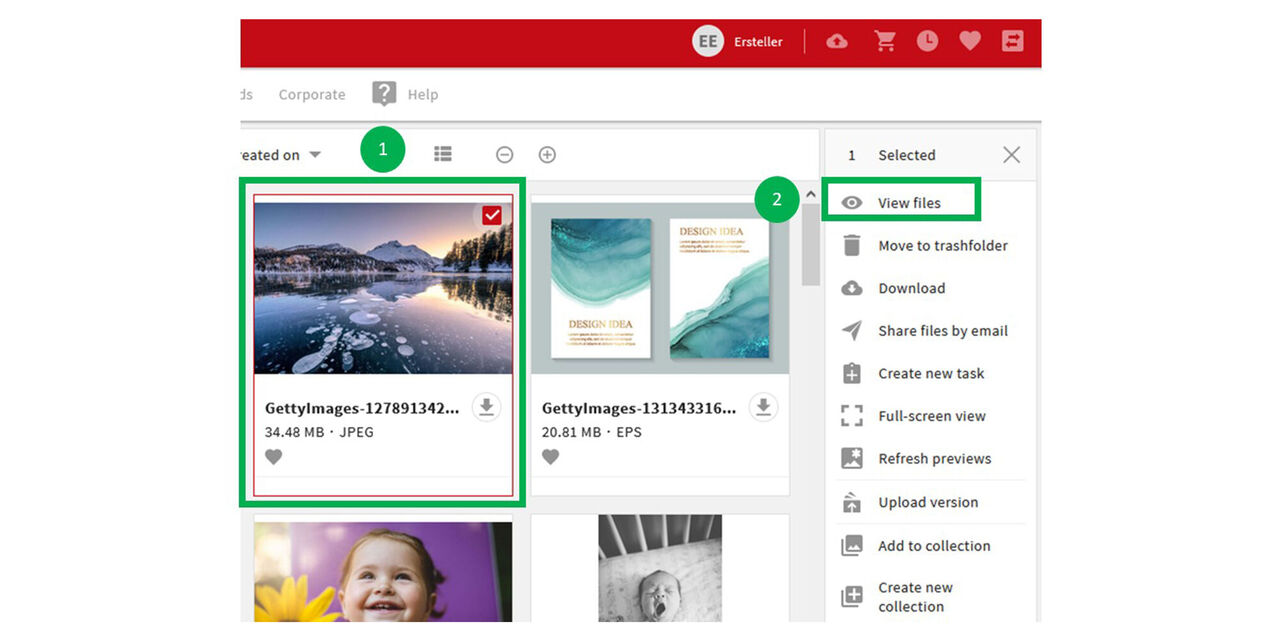
Asset in detail view
- Mark the chosen asset
- For the details view click on view data
(alternatively double-click on the asset)
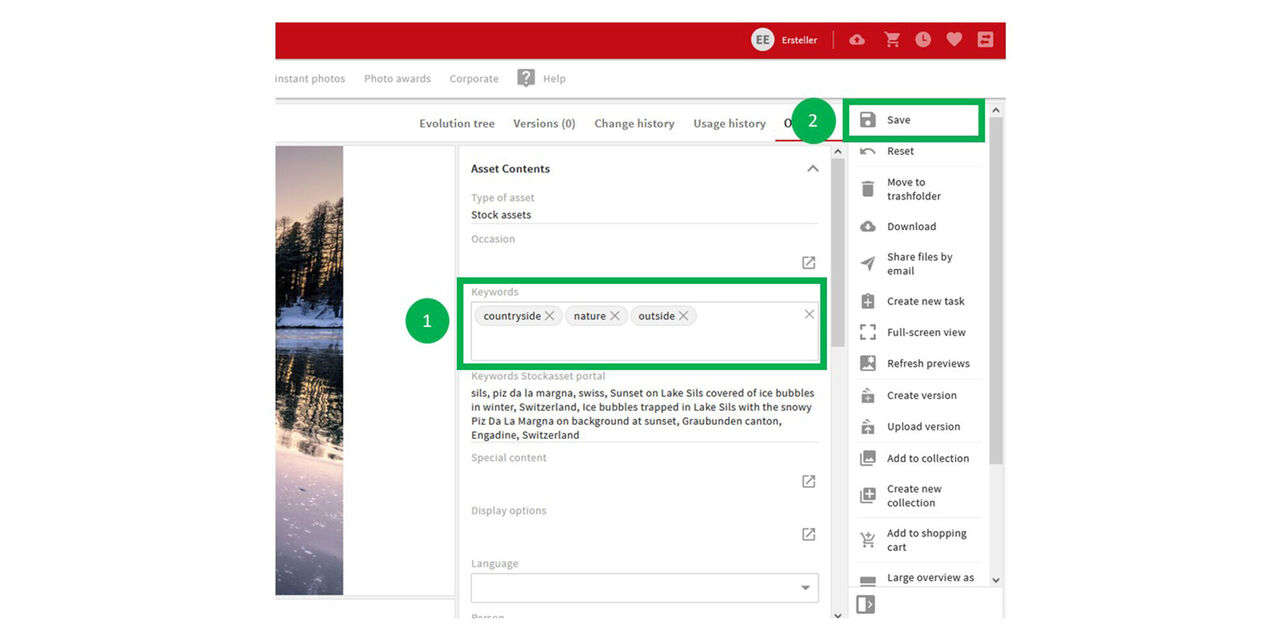
Edit metadata
Open the area of the metadata that you want to edit, in this example image description, and enter the keywords that make sense for a search in the field. CMA shows you whether the keyword as such exists in the system.
Then go to Save.
The asset is now updated.
Mass change (edit multiple assets in one step)
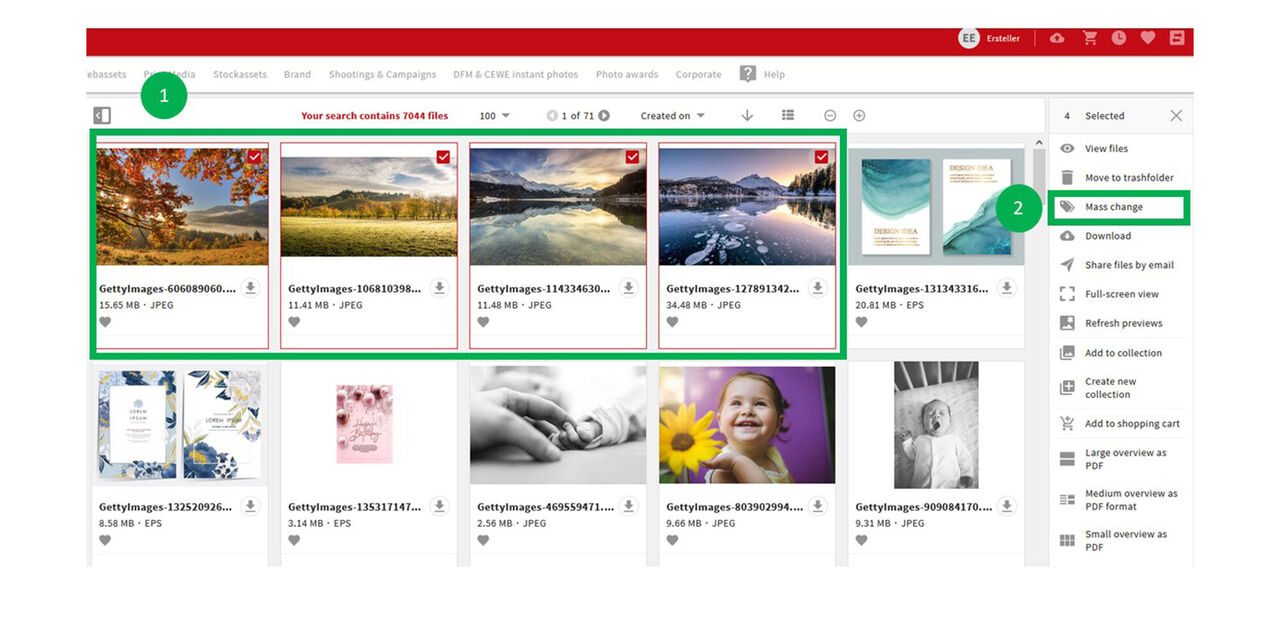
Select assets
Select all assets you want to edit
Go to "Mass change"
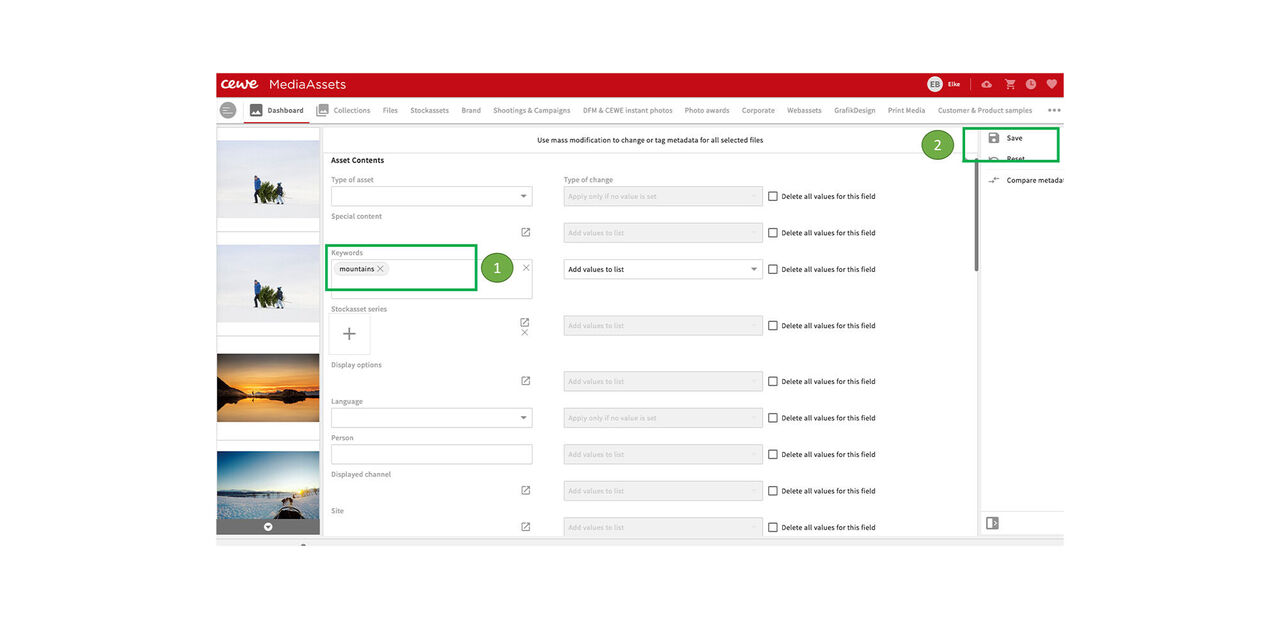
Edit all
Open the area of the metadata that you want to edit, in this example image description, and enter the keywords that make sense for a search in the field. CMA shows you whether the keyword as such exists in the system.
Then go to Save.
All assets are now updated.
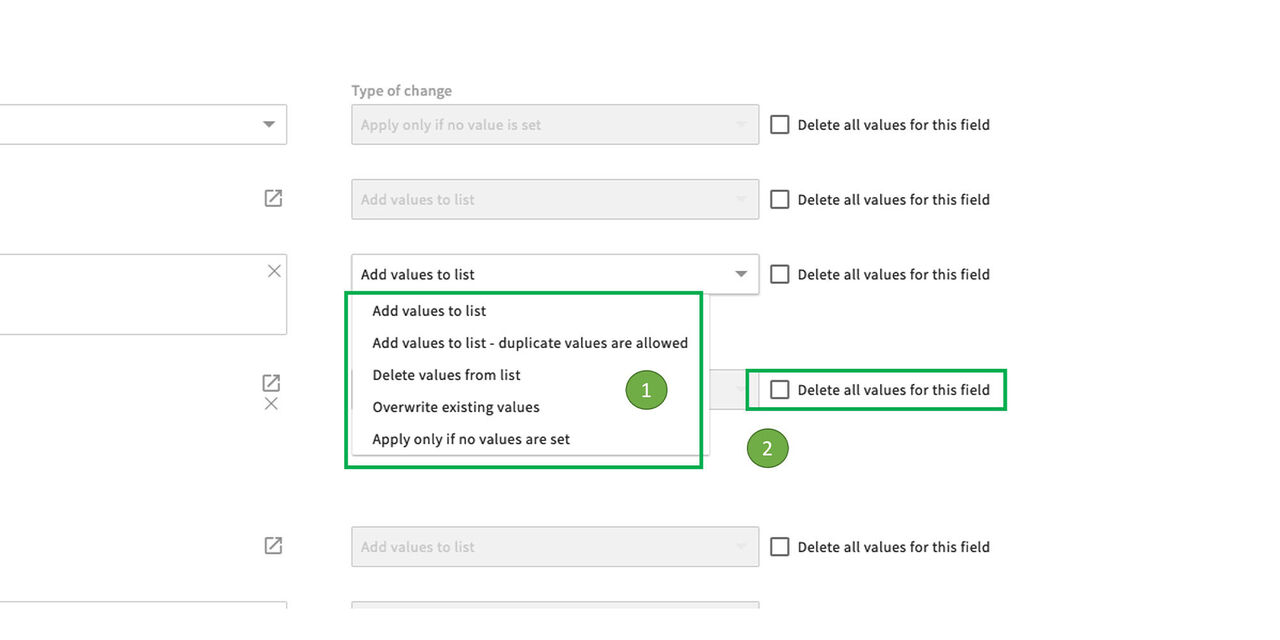
Options to edit
See 1
- Add values to the list - e.g. additional image descriptions
- Add values to the list - duplicate values are allowed - not relevant
- Delete values from list - remove individual values
- Overwrite existing values - e.g. change traffic light status
- Apply only if no values are set - if the field was empty beforehand
See 2.
You can also delete all previously entered values, e.g. delete the traffic light status, remove all restrictions, etc.
Stockasset series
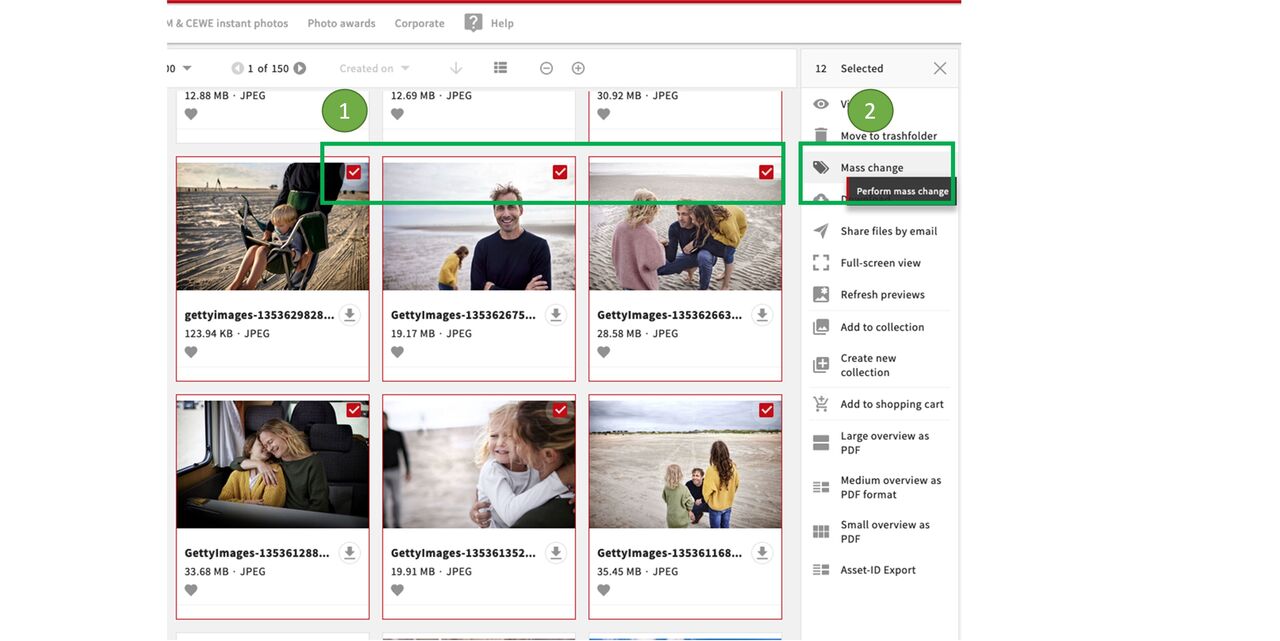
Select files and mass update
This feature is very useful to collect similar assets and retrieve them as a series.
The field stockasset series allows you to link all files belonging to a stockasset series. It can be helpful to put the files into a collection before you link them, so that you easily able to find them in the linking process.
Select all files that should be linked
Go on mass update
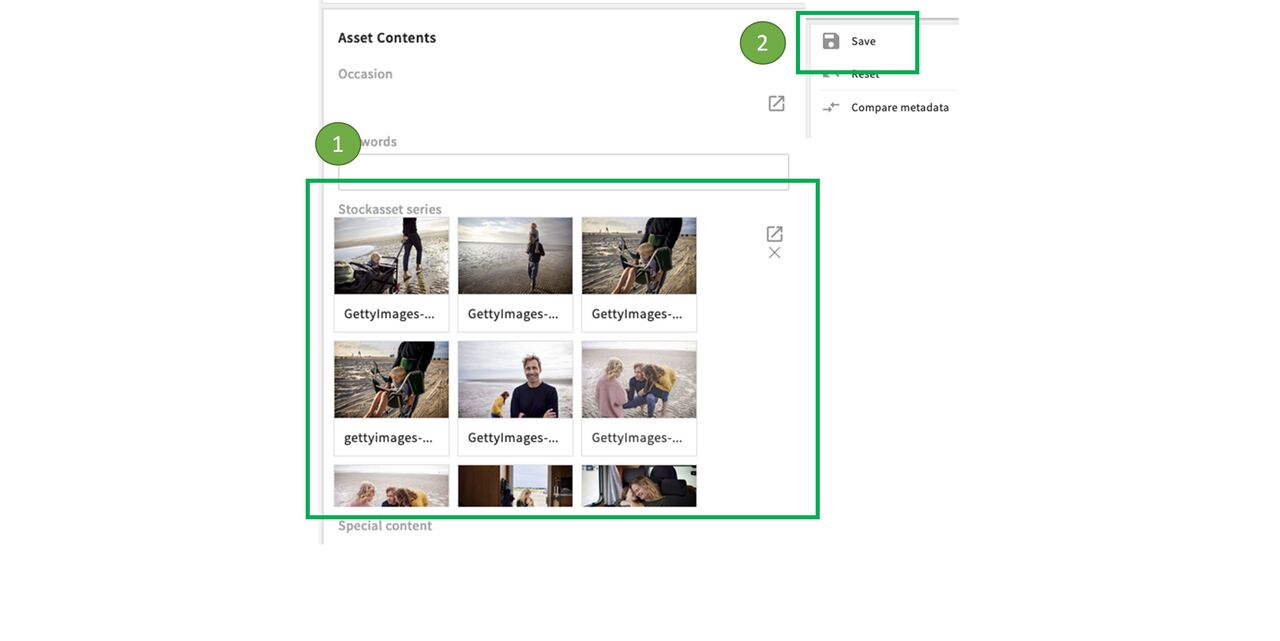
Add files to field and Save
Open the Asset contents
Add the files via the plus symbol or the little box with the arrow (if applicable use the collection you created earlier to find them)
Click on Save
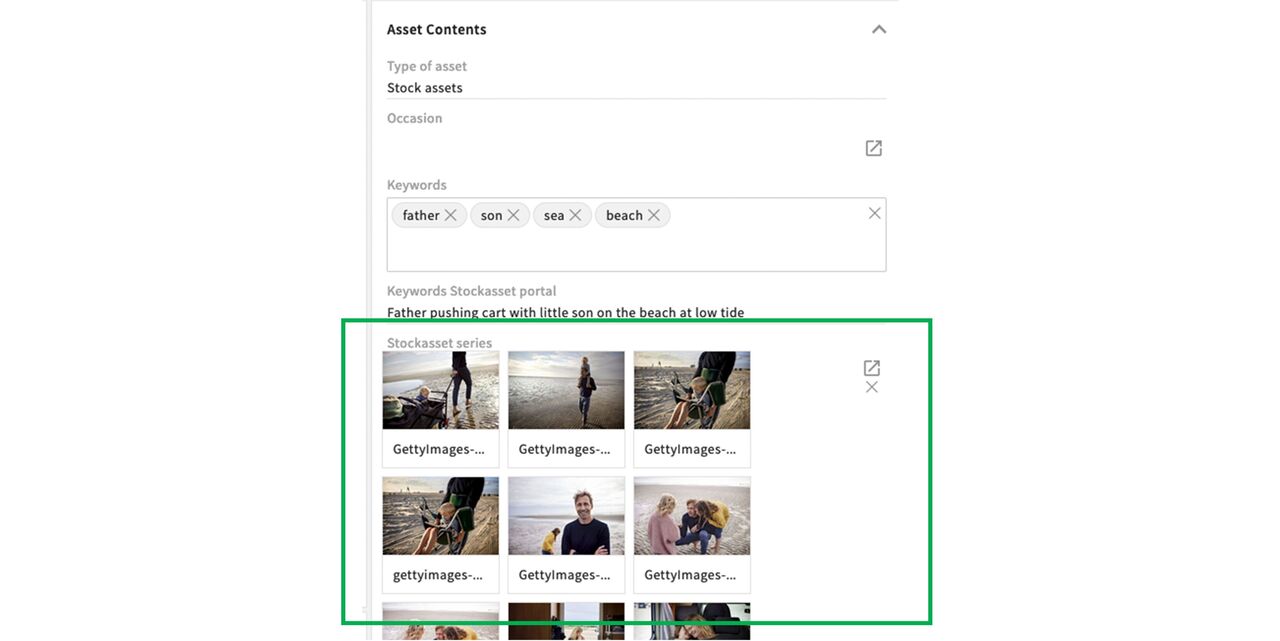
Series in Metadata
After saving you can see all linked files in the metadata. You can open files by clicking on the eye symbol on the tiles.
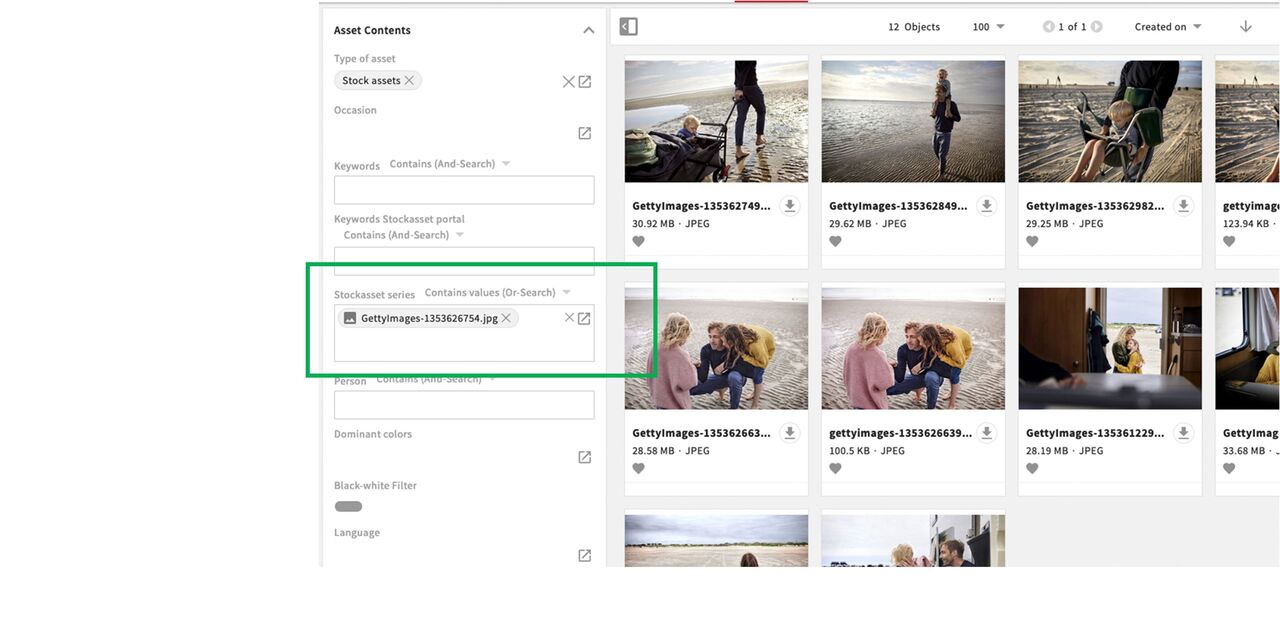
Search for stockasset series
To find the complete series, use the filter option (available in Files and Stockassets). If you add an image from the series the search will show you all the images in this series. You can even add images from several series to the filter and use the Or Search option to find images from several series.