Changes and improvements

Last updated: 21st August 2025

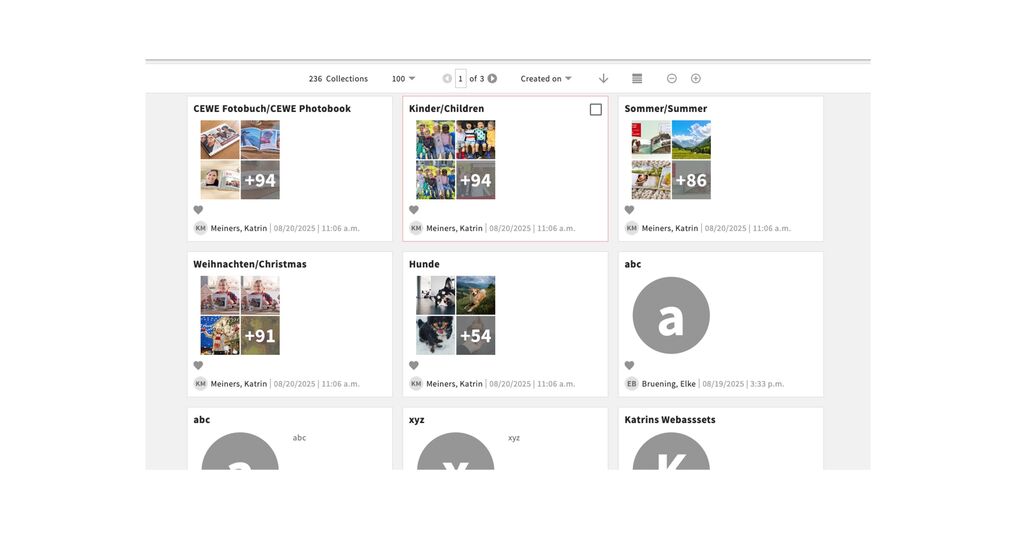
Changes to collection layout - Copy collection link

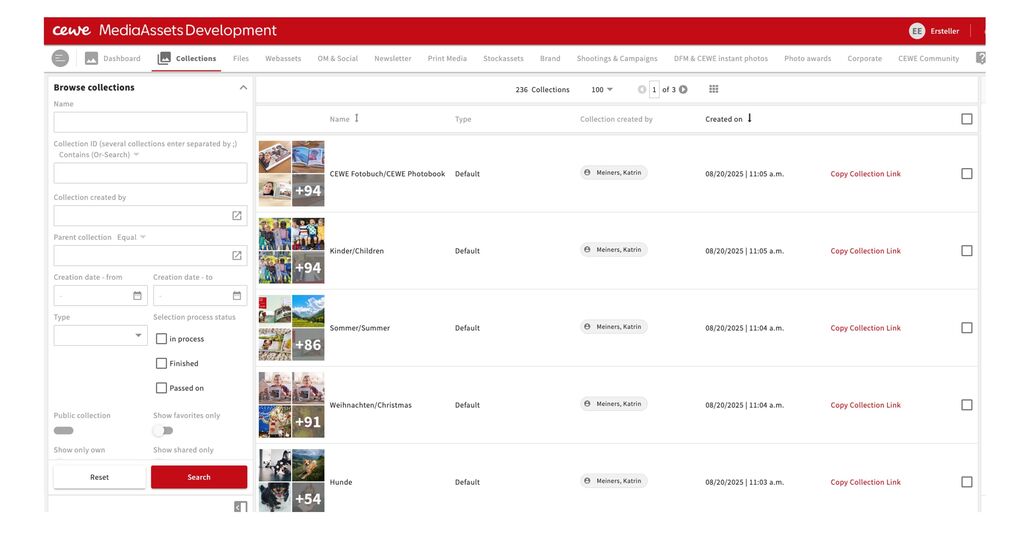
We no longer display the collections as tiles by default, but now as a grid. This allows us to offer you the option to directly copy the collection link to your clipboard with a single click (similar to copying the asset ID for the images).

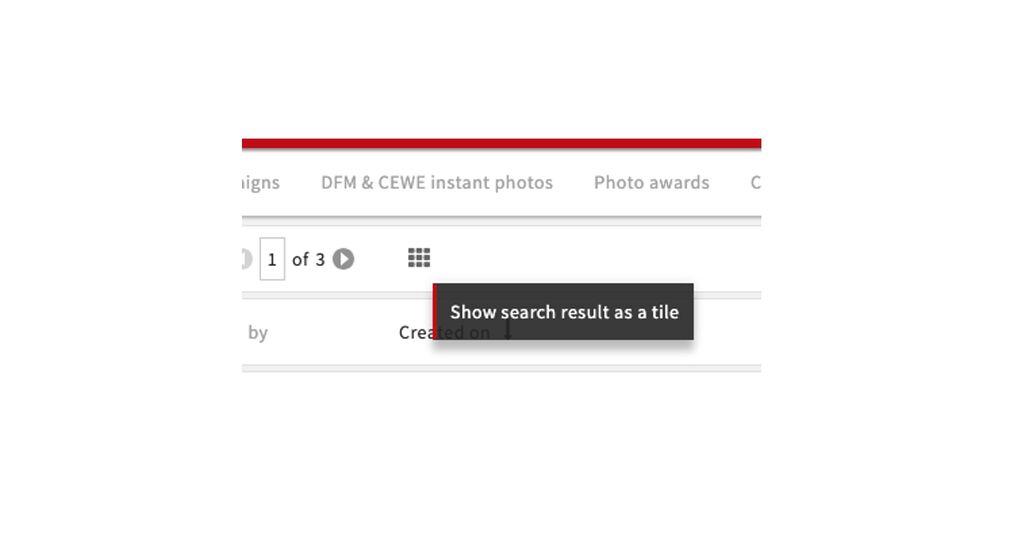
If you want to see the tile view instead you can switch here.

The the collections are shown as tiles.

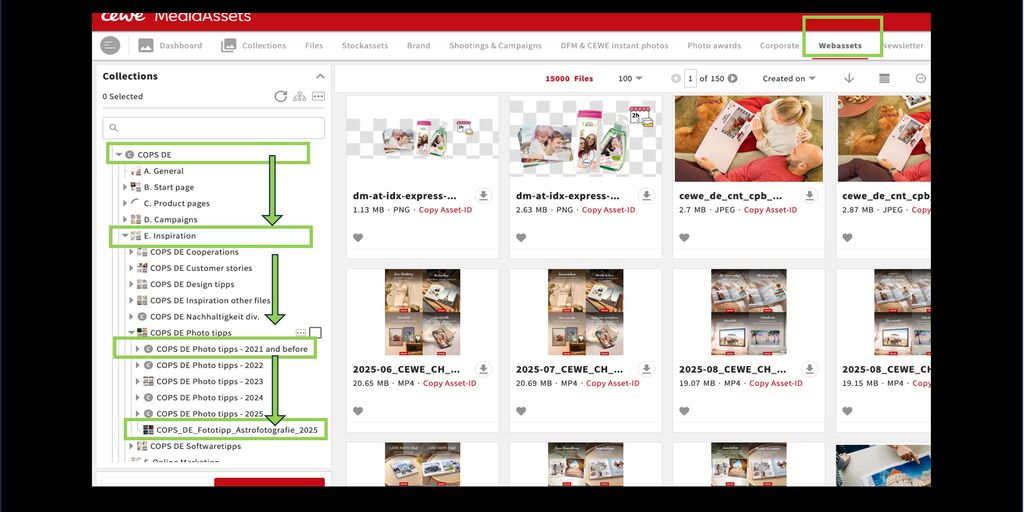
Creating and assigning web asset collections

When creating new web asset collections, the creator now enters the parent collection themselves. This allows you to define where the collection should be inserted in the structure. Previously, this was done by us administrators. Now this function is available to you.

Please note that new collections should only be created if the assets do not fit thematically into the existing collections.

A detailed description can be found here.

As always, feel free to contact us with any questions.

Earlier changes

29th July 2025

Metadata field AI

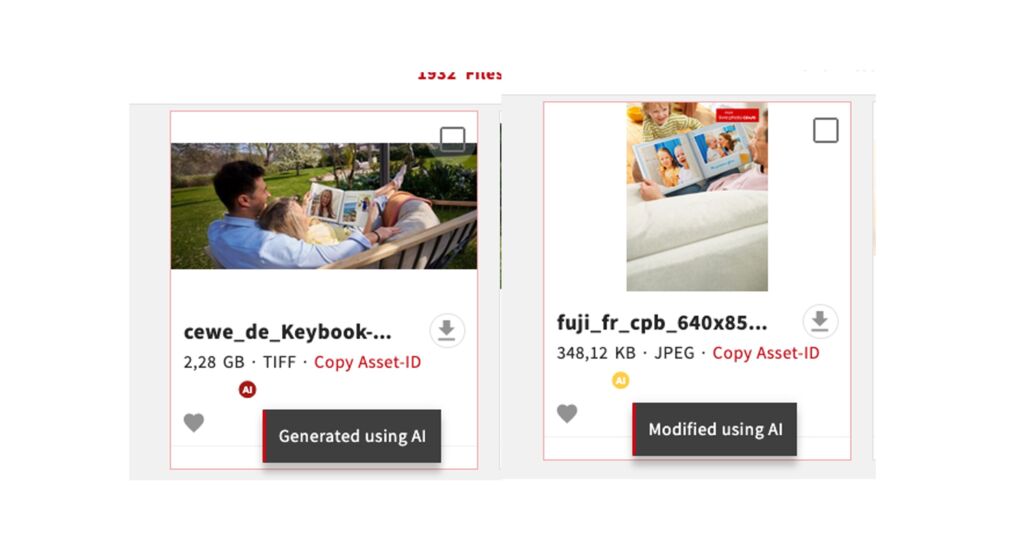
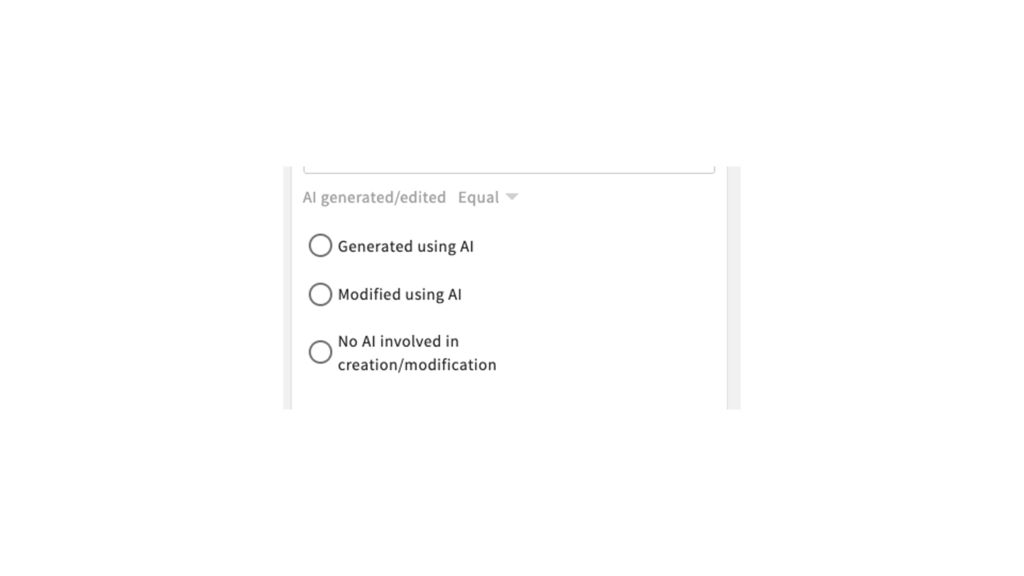
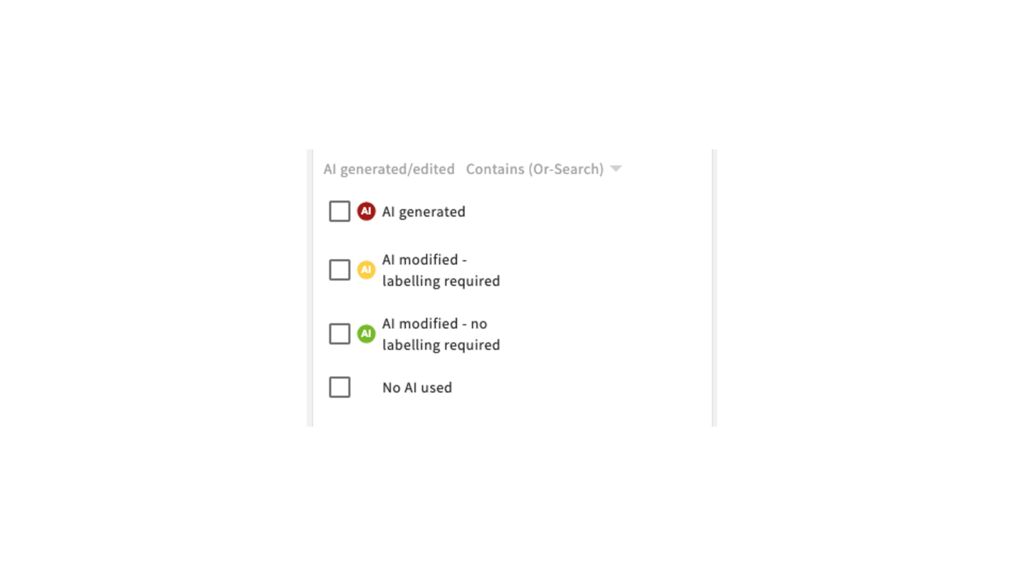
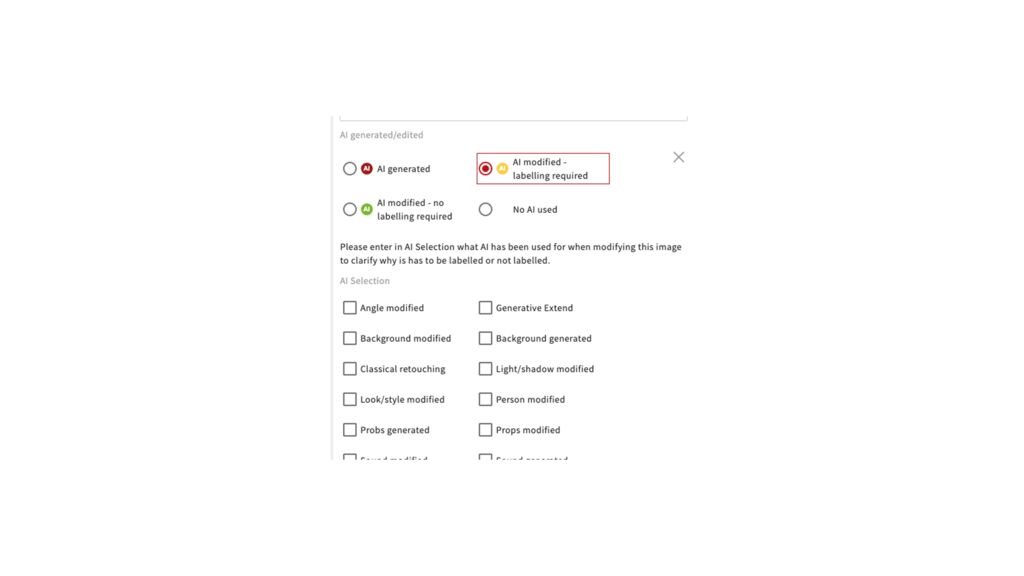
As requested by the Design team in Oldenburg we have now introduced a field which allows you to indicate if AI has been used in the generation or editing of an image. When you upload images this is now a mandatory field. In case of technical questions regarding this you can contact us, for questions regarding the when/how it should be used please contact Sonja Biel.

07th July 2025

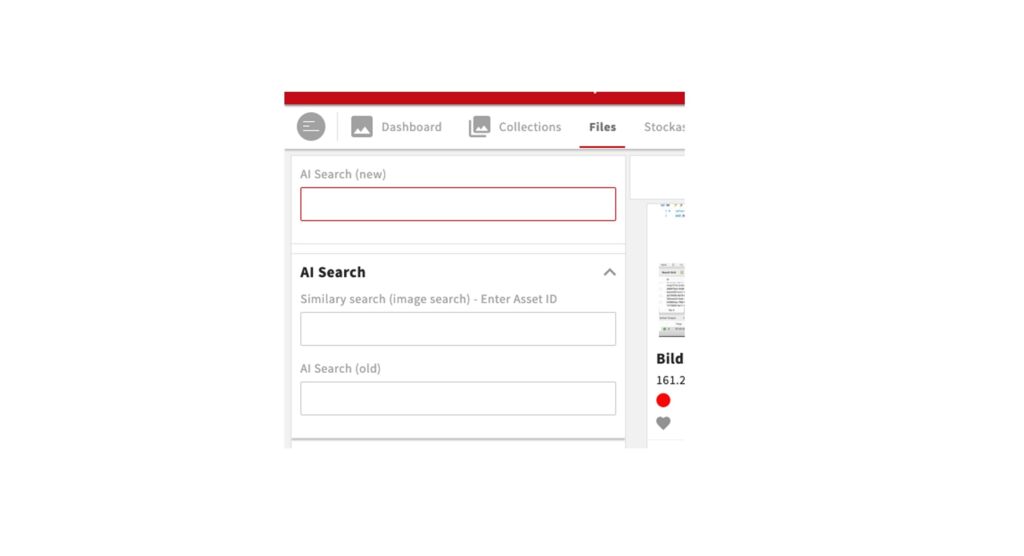
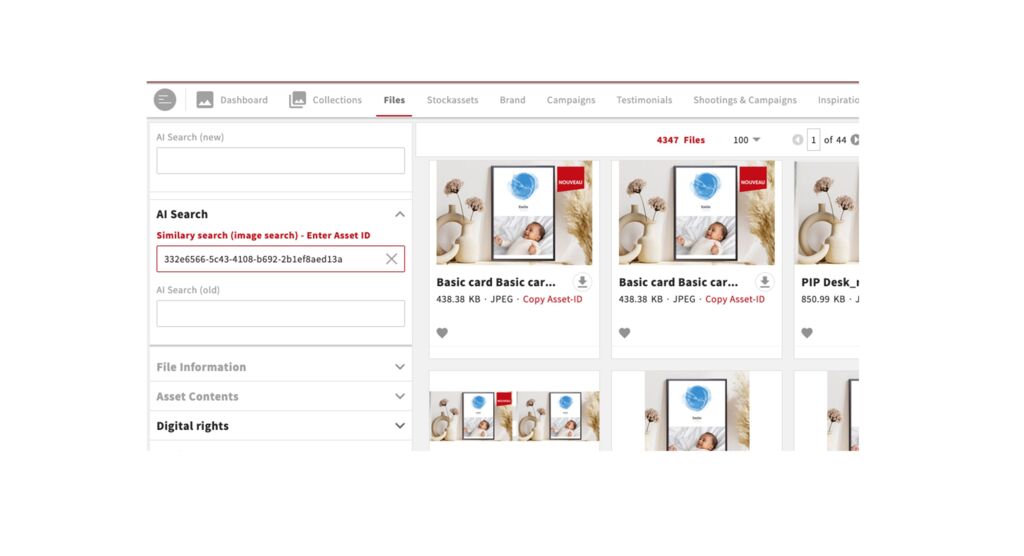
After last week’s upgrade, the AI search is now back. For now, we have integrated it into the existing search filters at the top. If necessary, we may add additional search filters in this area according to demand.

The next step will be an image-to-image or similarity search; we are currently in discussions with the provider about this.

27th February 2025

Modified metadata for graphic and shooting assets

We have made some changes for even better categorisation and retrievability.

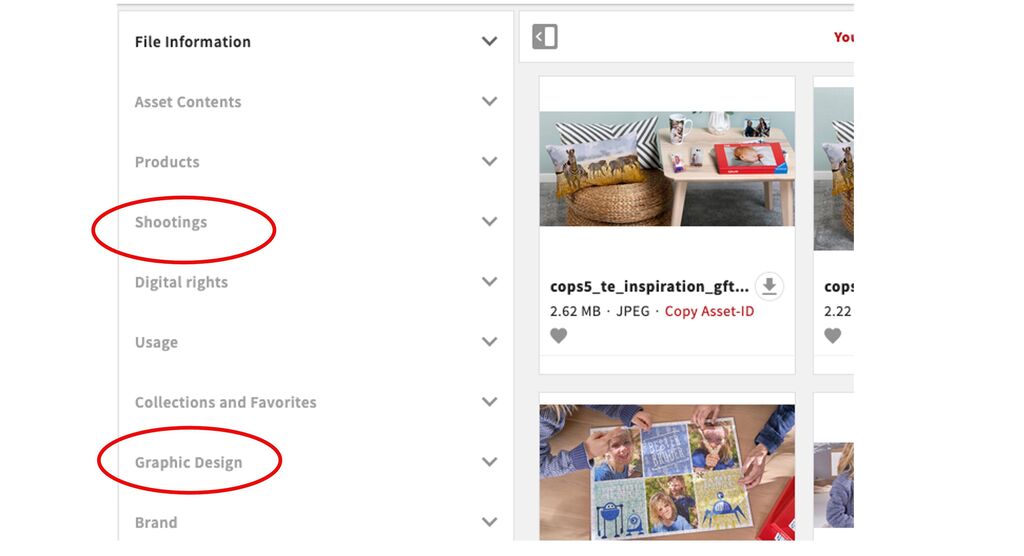
There are two new areas in the metadata and search filters, namely Shootings and Graphic Design.

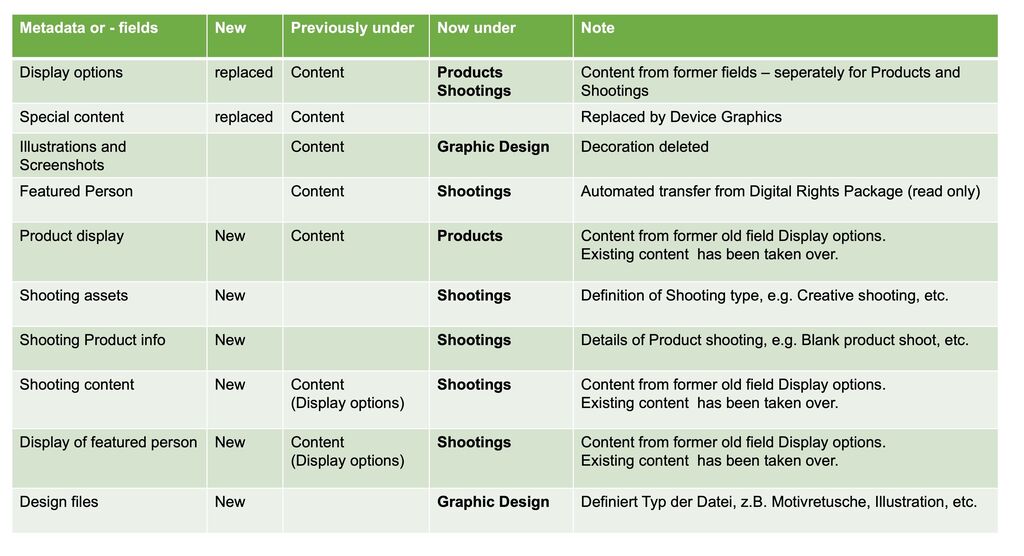
Some metadata has been reorganised, supplemented or even removed where unnecessary. This has an effect on mandatory fields when uploading as well as on the corresponding search filters.

We show you an overview of the changes made here. Examples can also be found in the revised metadata overview on our help page.

Please familiarise yourself with the changes. As always, we are here for you if you have any questions.

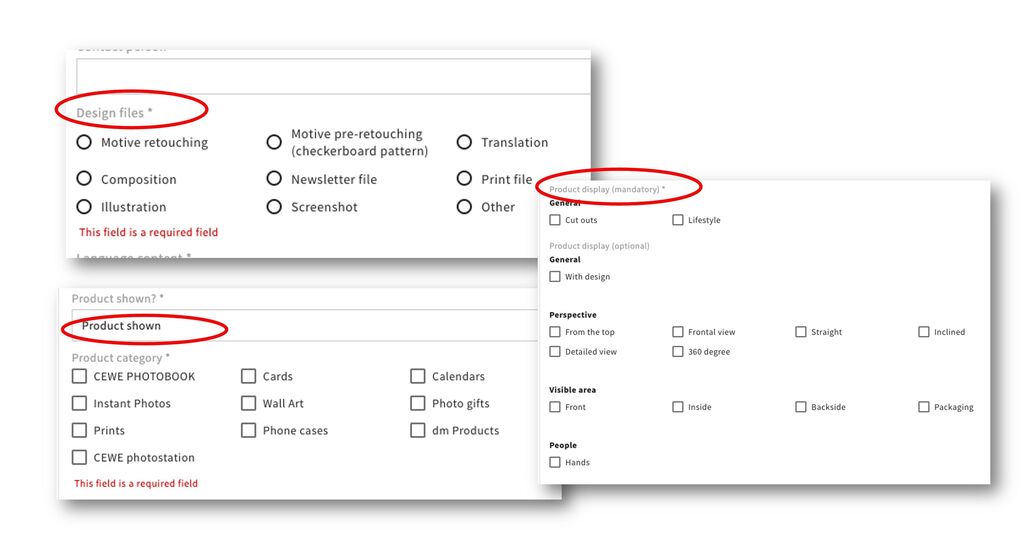
The new field Graphic design files can be found in the Graphic design area. It contains the following selection:

  • Motive retouching = Image where a motive has been placed on a blank product or pre-retouching
  • Motive pre-retouching = Shooting file where a checkerboard pattern is placed on products with filters/settings which make it easier to place a motive on them later to create a motive retouching
  • Translation = Existing file where language content is changed
  • Composition = file which is created by combining the content of several other files
  • Newsletter
  • Print
  • Illustration
  • Screenshot
  • Other = Files which do not fit in any of the above categories. We will check this field regularly and if necessary add more categories or let you know if you should use different metadata.

If products are included the Product display also needs to be filled out as mandatory field during uploads.

These data can then be filtered in the Search.

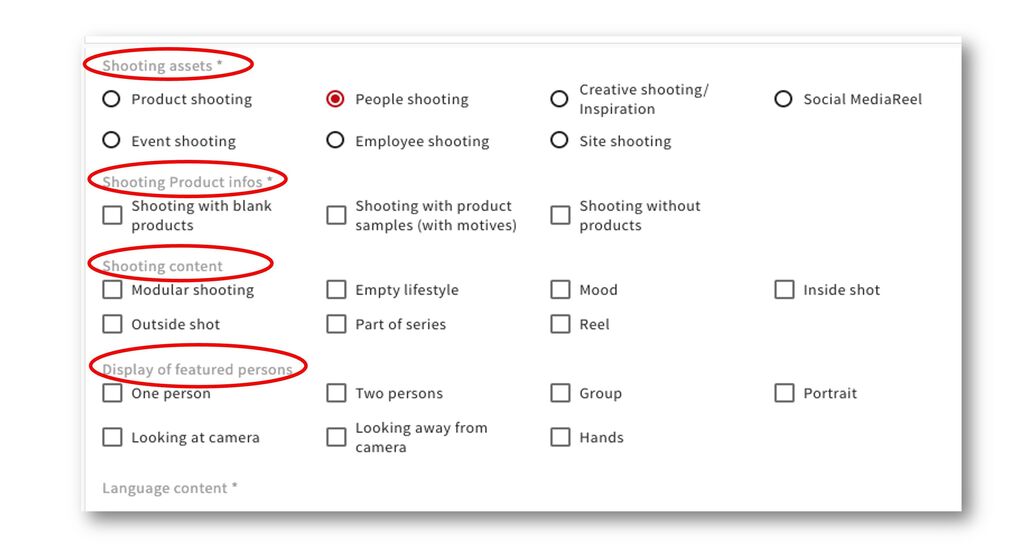
The Shooting section contains the new fields

  • Shooting assets
  • Shooting Product infos
  • Shooting content
  • Display of featured persons

Depending on the type of shooting selected, there are additional or different mandatory and optional metadata fields to fill when uploading assets.

These data can then be filtered in the search.

And here a summary in a tabular overview.

7th February 2025

Product search

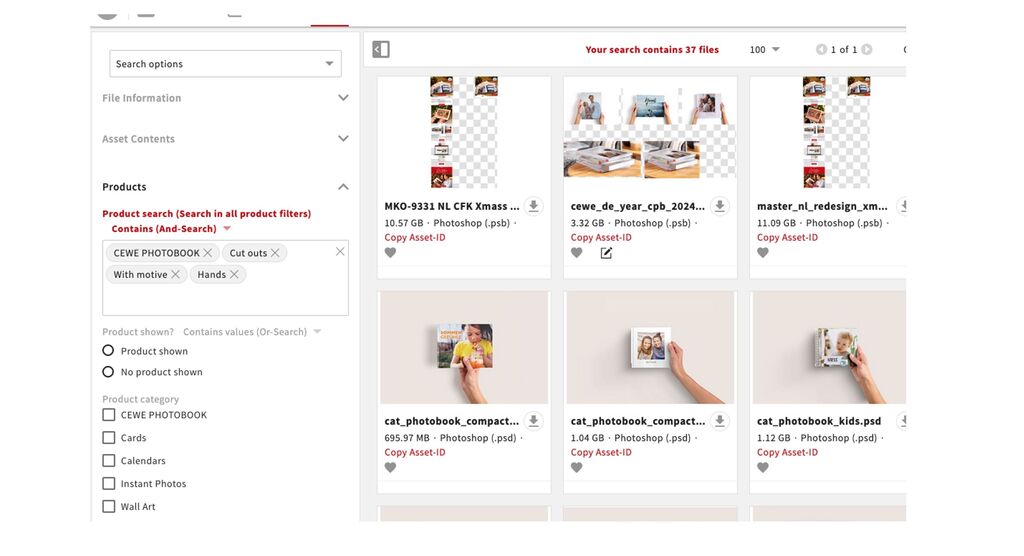
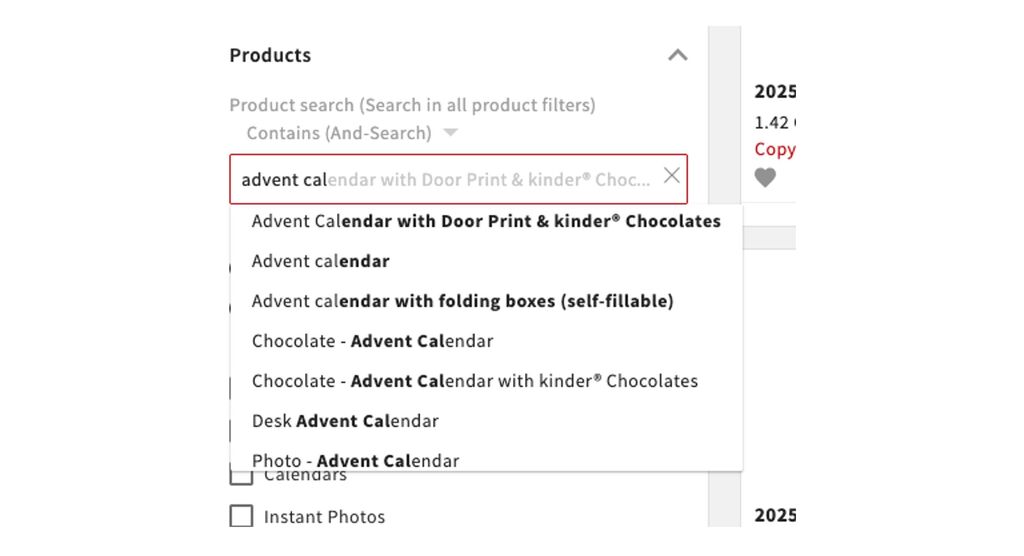
Under Products in the search filters you will now find a field which you can use to search all product information including display options such as cut outs, lifestyles etc. This was made possible by writing all the product data in one field, this means the content is based on the product metadata that was entered.

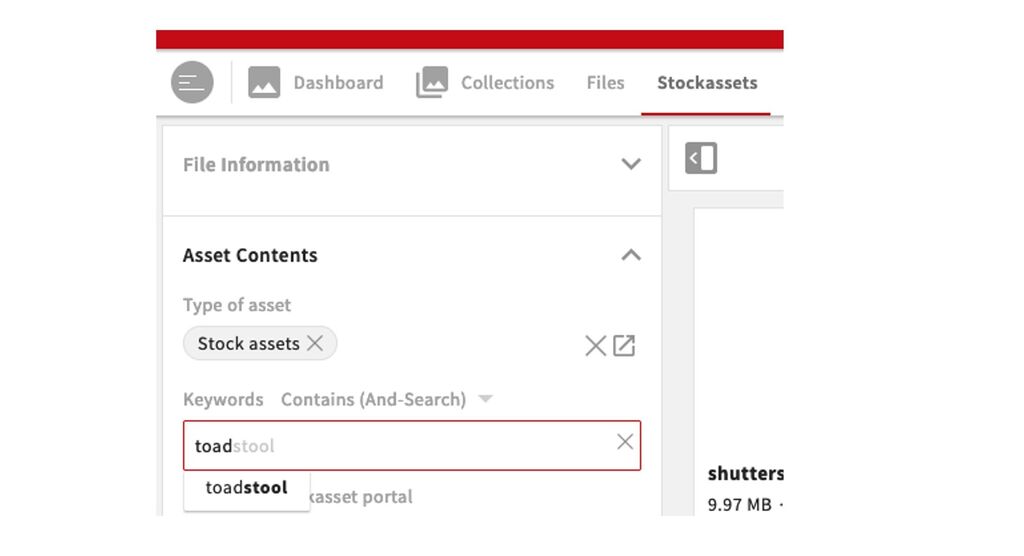
You now no longer need to know which filter to use but can combine all of them in this field. The system will provide you with type ahead search options based on the beginning of words.

You can search in English and German (even combine both languages), the search results will be the same.

For example you can now use this option to search through all the different advent calendar options without having to know exactly how they are called and without having to know that they are hidden under "individual product photo gifts".

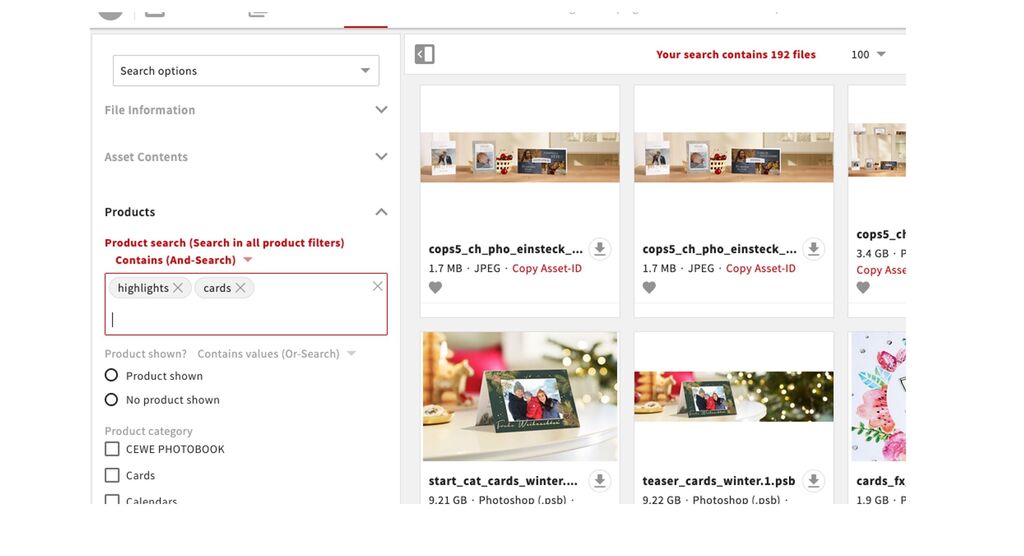
In addition to the suggested search options you can also enter words without selecting an existing options, even parts of words. E.g. if you enter cards you will get all files with the word cards somewherein the product metadata. Of course this needs to be an existing metadata entry and it has to be spelled correctly.

21. November 2024

Collection information

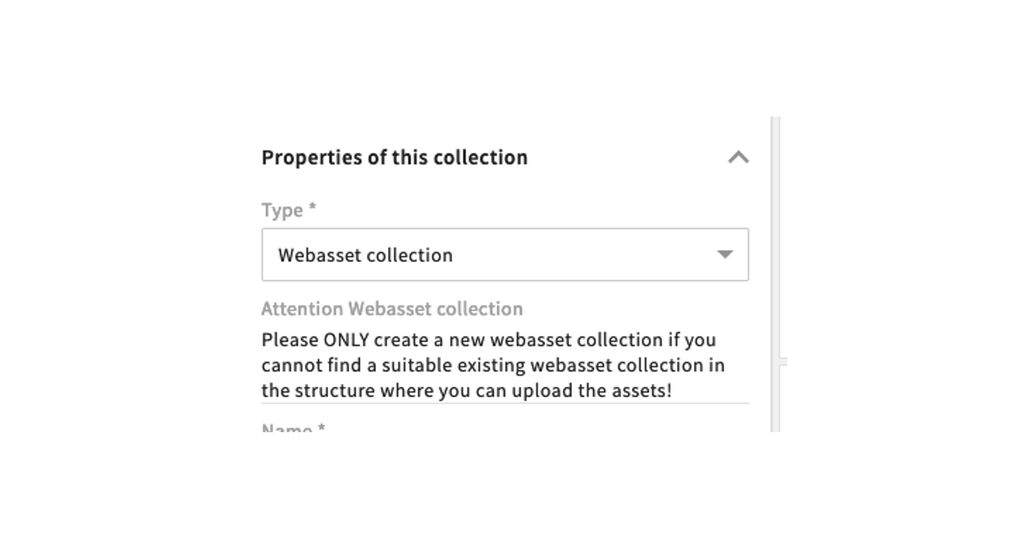
If you select the collection type "Webasset collection" you will be asked to check if there is already a webasset collection in your country structure that you can use to upload the assets. We want to avoid that the collection structure becomes to big and confusing. This means for example that all content for product or pip pages are all uploaded into the collection "Product pages" for your country - in this collection you can then filter by product category.

So please only create a new webasset collection if there is none that is suitable (please also check under "Other pages"). Please give the collection an easily understandable and clear name so that we can sort it into the structure.

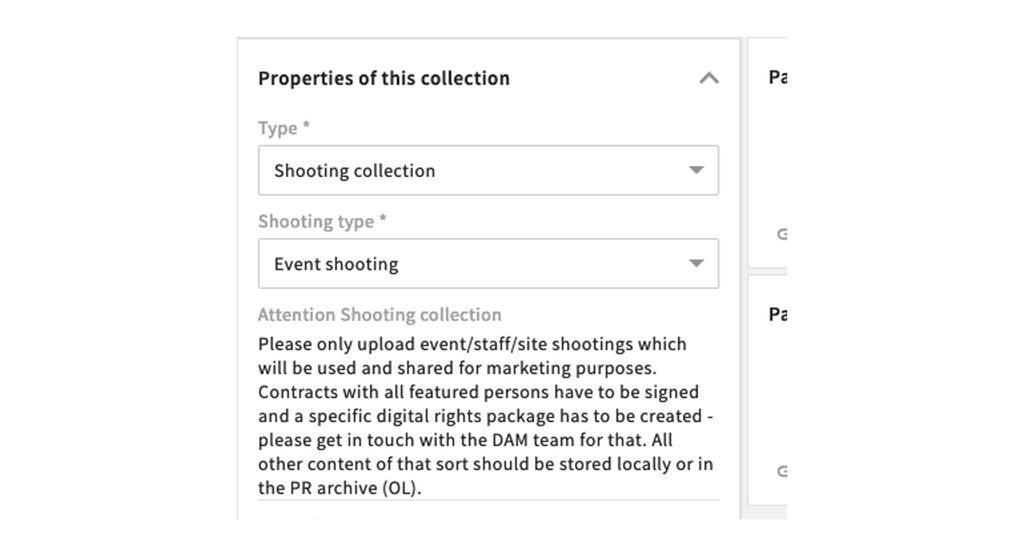
If you create a shooting collection and choose the shooting type "Event shooting" "Staff shooting" or "Site shooting" you will now be advised to make sure the assets are going to be used and shared for marketing purposes. If that is the case you need to get a specific digital rights package created before the uploaded which needs to contain the license information for all featured persons (including CEWE employees). In addition it needs to contain information about the photographer and other rights owner. If you need help with this please contact the MediaAssets team.

If you do not intend to use these assets for marketing purposes please store them locally or for Oldenburg in the PR Archive. Of course also in that case you are responsible to make sure that the digital rights are adhered to.

Design products

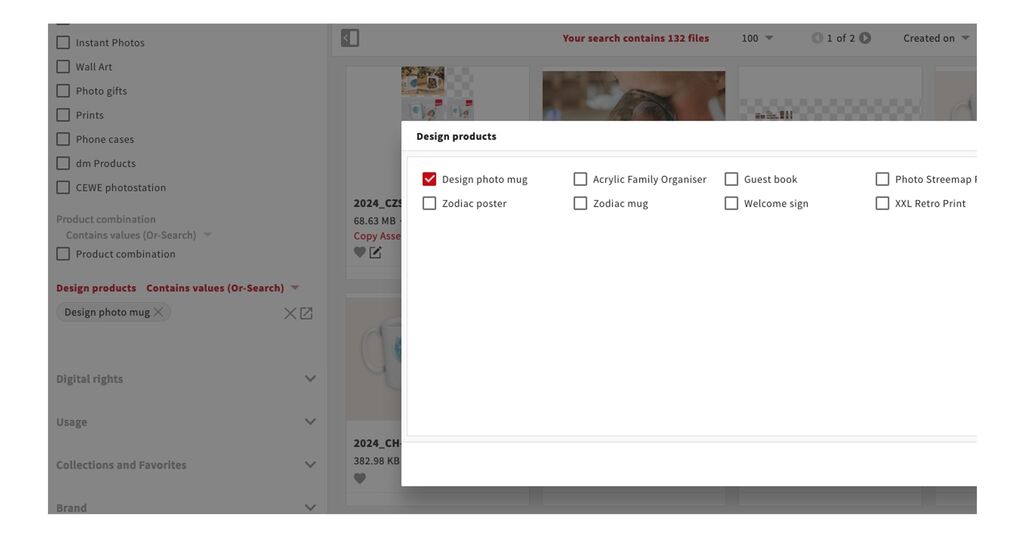
Since there are more and more design products, i.e. products where we sell a design as a product, we have now integrated this into the metadata and also provided a search filter. Using this search filter you can find design products without first having to open the respective product category and individual product filters. You can find the filter under the heading "Products" in all tabs.

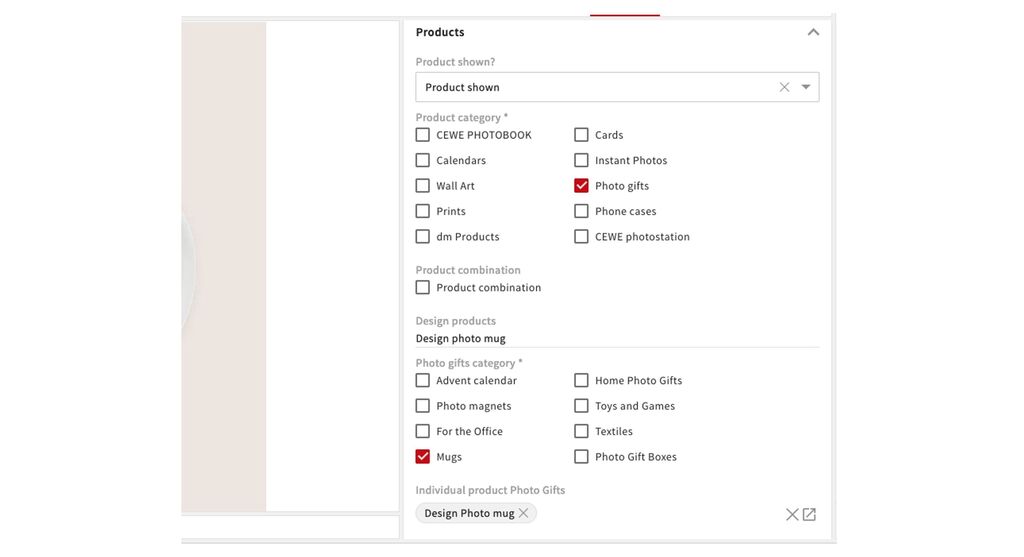
You enter the design products as usual via the Invidual products field. This entry is then automatically transferred to the field Design products via a workflow.

The design products have now been added to the respective products which they are based on:

  • Design photo mug, Zodiac Mug, Guestbook = Photo gifts
  • Photo Streetmap Poster, Zodiac poster = Wallart - Photo Posters
  • Welcome sign, XXL Retro Print = Wallart - Foam Board prints
  • Acrylic Family Organiser = Wallart - Acrylic

New products will be entered when they are released.

24th October 2024

Search for multiple asset ids

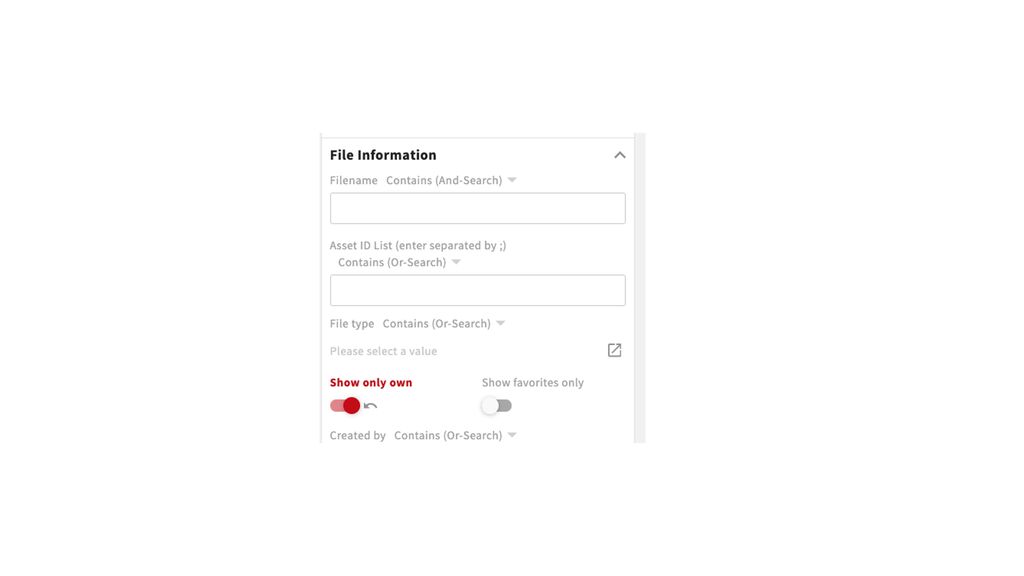
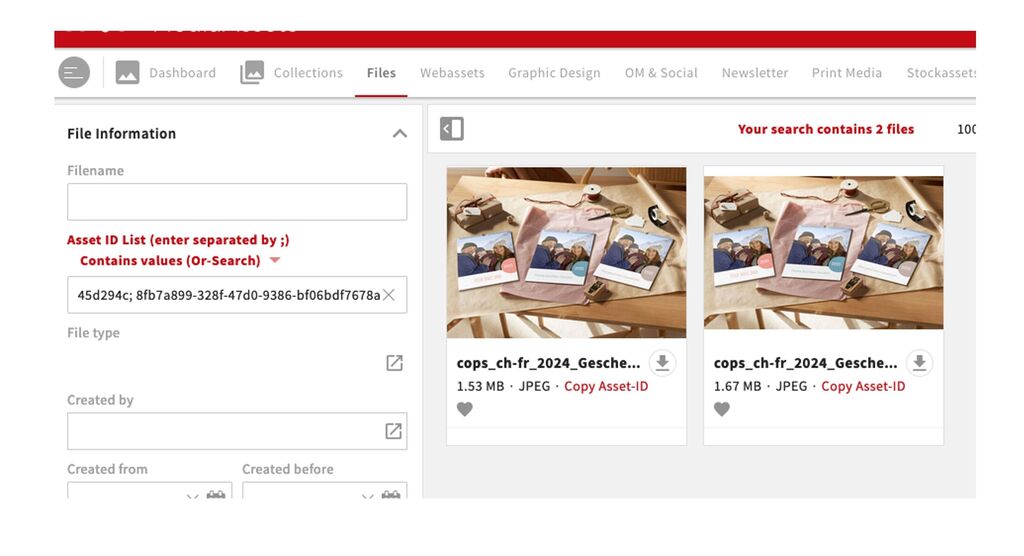
You can now search for multiple Asset IDs using the Asset-ID search field. The Ids have to be separated with a ; (semicolon) for this to work. You can search up to 500 IDs at the same time.

To make sure this search field can be find more easily we have placed it under file information directly below the file name in each of the searches.

New digital rights option for rights for featured persons

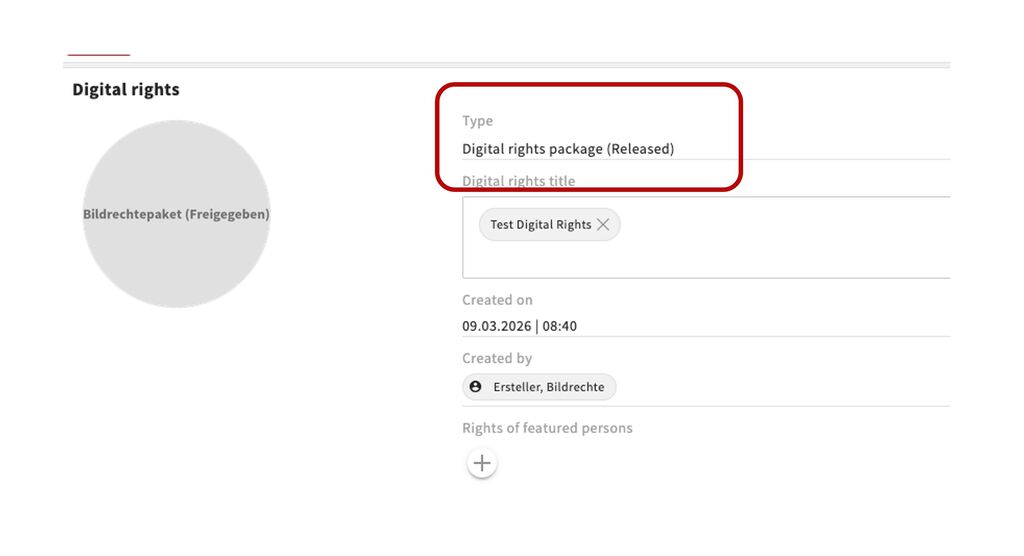
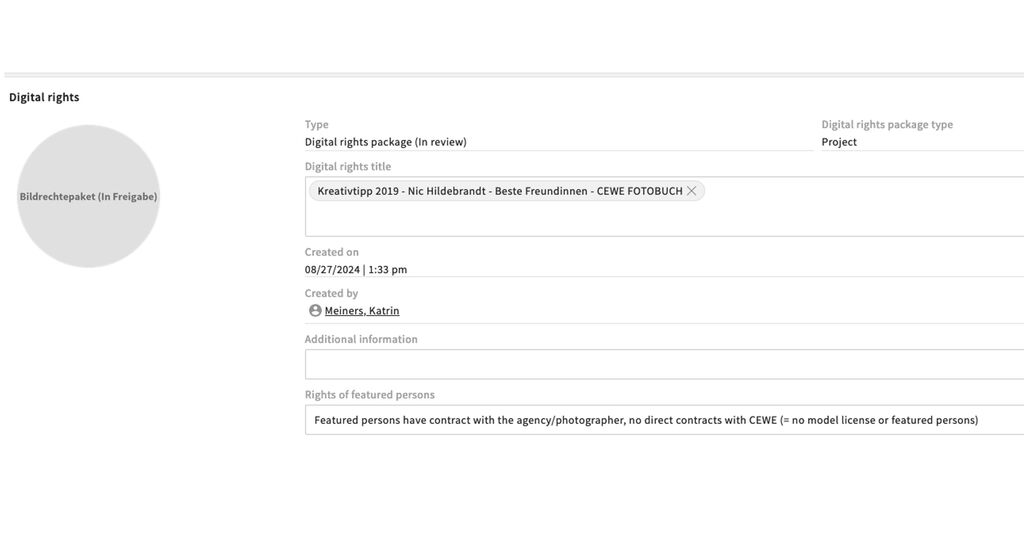
We regularly have digital rights situations where the photographer/influencer or agency signs the contracts with the models or other featured persons and CEWE has no direct contract with these persons. This is legally fine and in this case only the photographer license has to be added to the digital rights package. We have now enabled a new entry which can be added for these cases to a digital rights package , as shown here. In that case it is not necessary to add the featured persons, however if you do have their names you can of course still add them.

Please only use this option if it is really applicable, i.e. if you have received the confirmation of your licenser that they have the usage rights for all featured persons. In a legal situation we can still be made responsible, especially if we cannot prove this.

Traffic light - Update

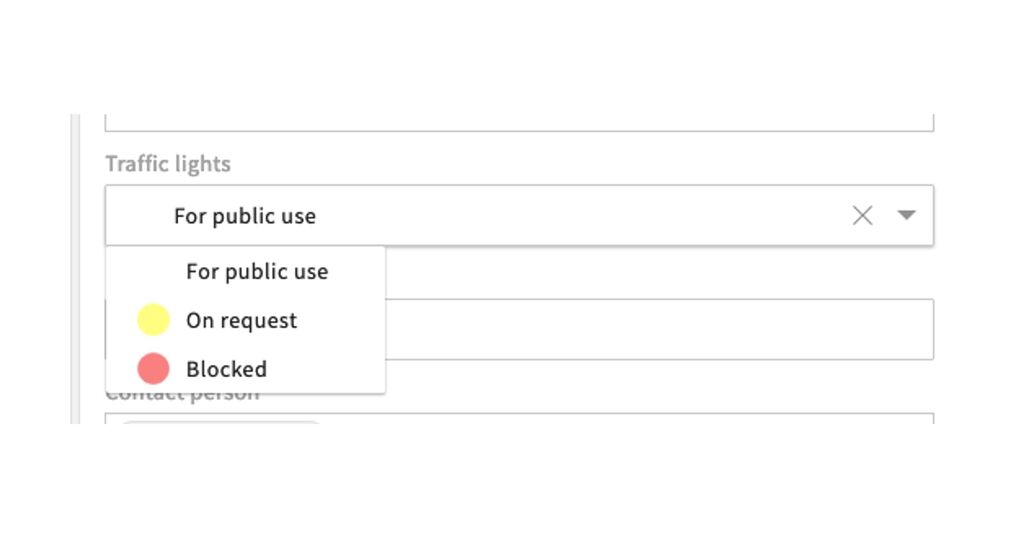
We have now updated the traffic light options in the metadata and search to only contain the current options, and no longer "for public use with restrictions". If there are restrictions in the useage of an asset, this needs to be recorded in the digital rights package that is linked to the asset. If you cannot set this up yourself, please get in touch with the DAM team.

Old files with this option will be updated eventually, if they are not archived during clean up actions.

16th July 2024

Metadata/search filter for Company awards and test winner files

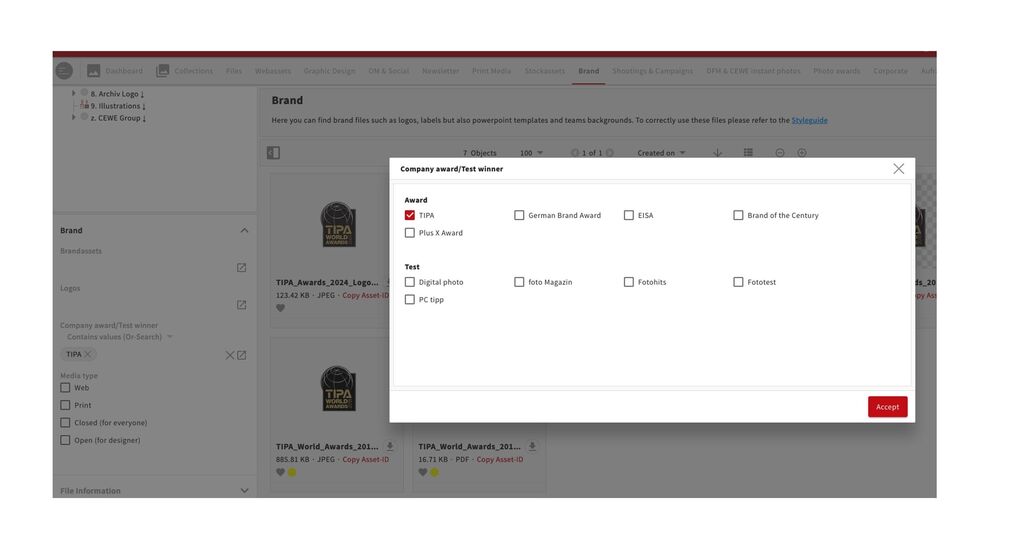
Since some of these have recently been added several times to the keywords we believe there might be a need to search for specific company awards and test winner files. We already have the general option to tag these under "Brandassets" but have now added a separate option with the most relevant awards and tests.

Where possible we will try to add this metadata to existing files. You can use it from now on to tag and search for contents for TIPA, EISA etc. Please do not add this information to the keywords but use the specific field. If anything is missing there, please get in touch.

Linking - Manual embedded files and search

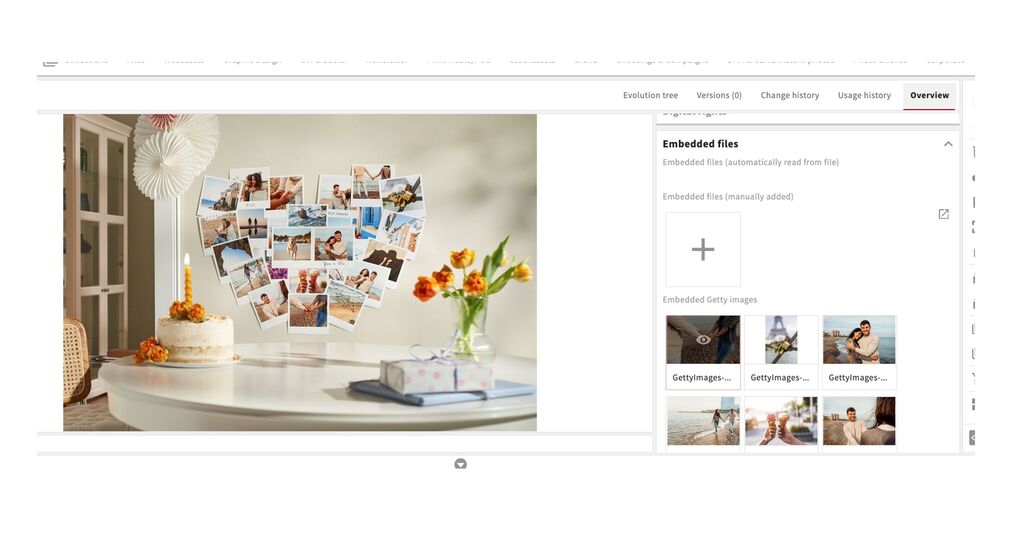
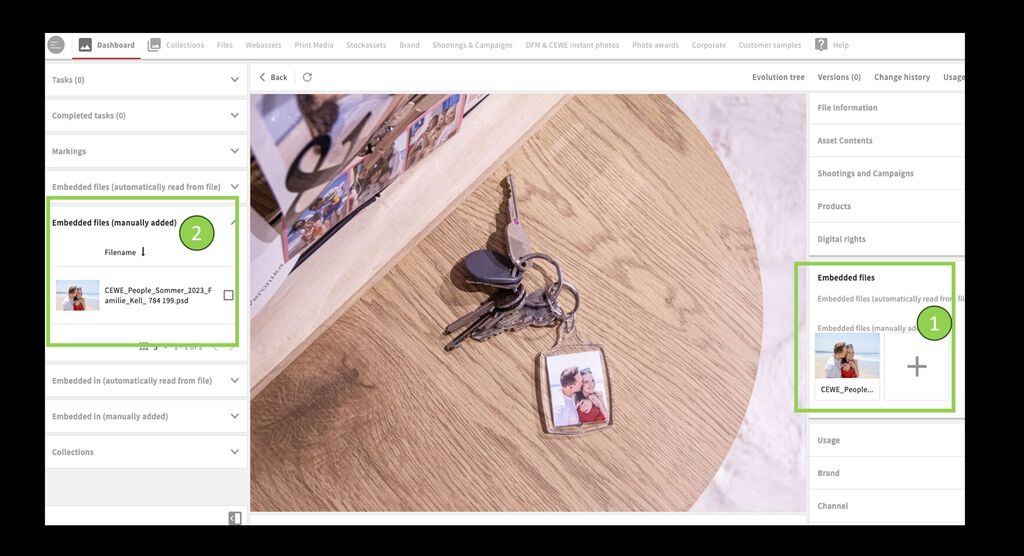
We have now created an option to manually link embedded files. These are files that are used within another file, e.g. which have been placed onto a product image.

Normally these are linked automatically, if they have been placed into the photoshop file as embedded smart objects. However, this is not always possible, e.g. if a shooting is done using products with motives.

In these cases, the embedded files can now be linked manually, you can find an instruction on how to do this on the bottom of this page:

Linking and Embedding

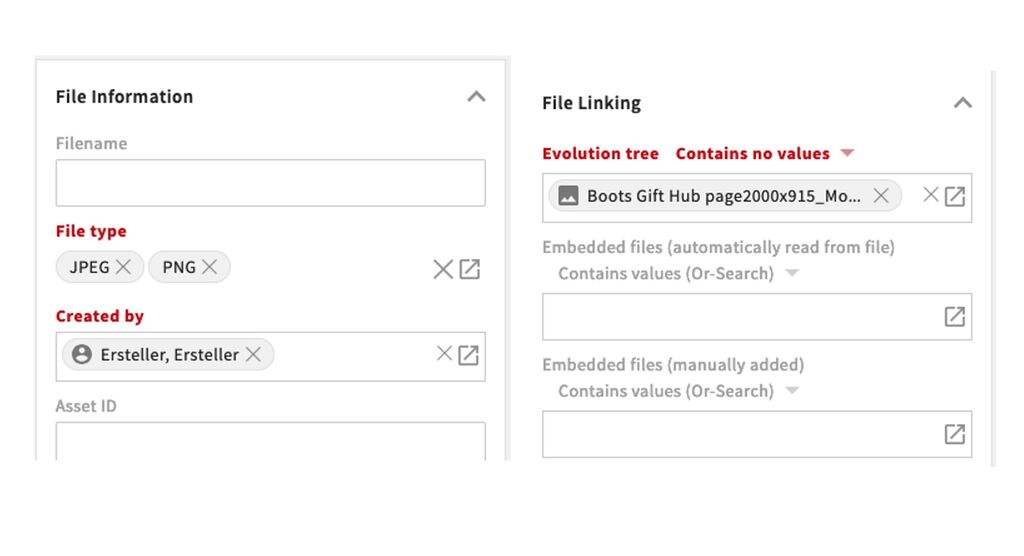
You can now also search for embedded files (manual and automated) and the content of the evolution tree. This means you can for example search for files which you have created but which do not yet have any evolution tree and correct this.

To do this you select yourself in Created by, select the relevant file types and if useful a time frame. Under Linking you then select "Contains no values" and enter any file name into the search field (you need to enter a value to start the search, but the value does not matter).

You can also use the embedded files search filters e.g. to find files where a certain image that you like has been used - so that you do not have to create a new file yourself.

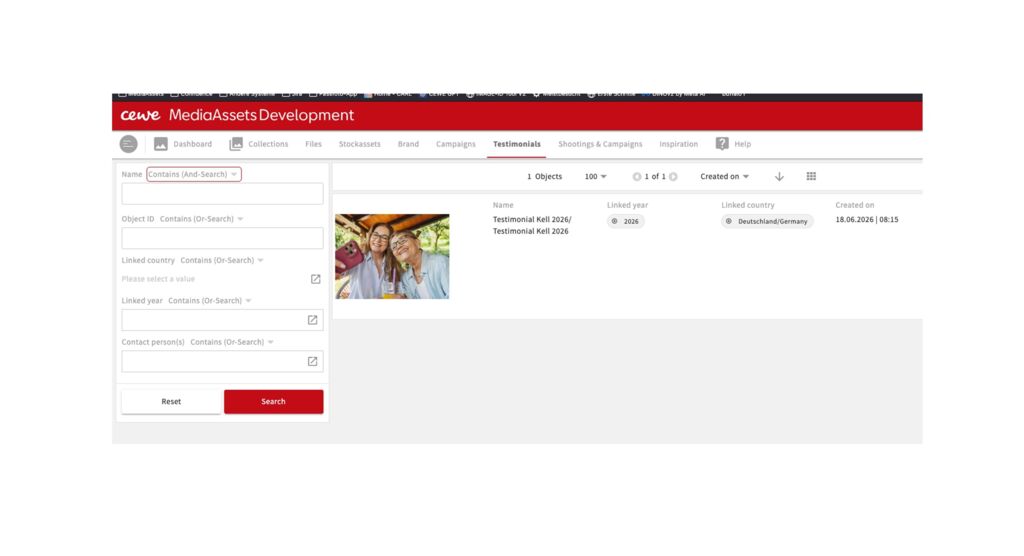
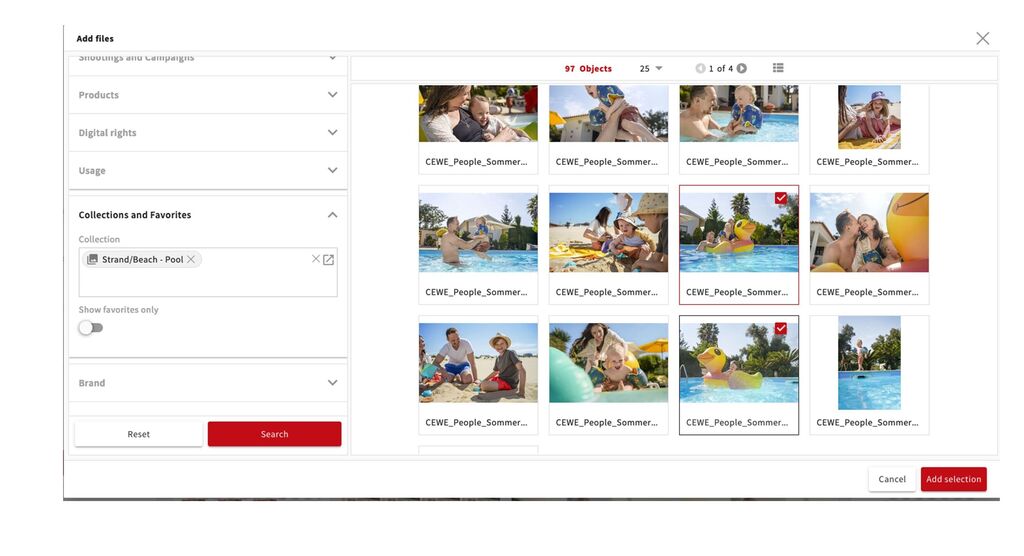
E.g. if I like the pool photos of the Kell Summershoooting and want to know if there are any files where these have been placed on calendars I can select those files by searching for the collection.

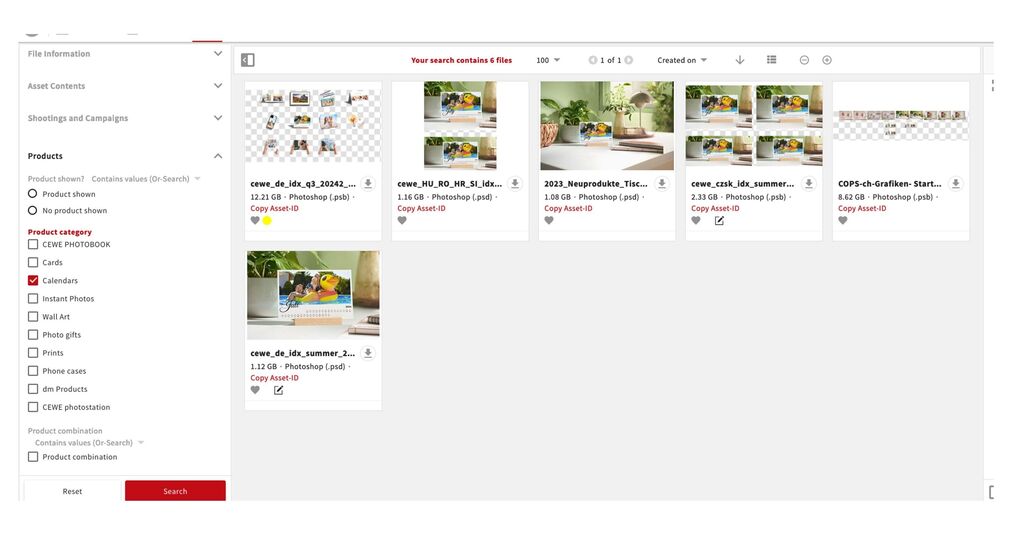
Then I filter using the product category and find the relevant content.

8th July 2024

New process to add new keywords

We have slightly change the process to add keywords. The previous process has led to too much extra and unnecessary work.

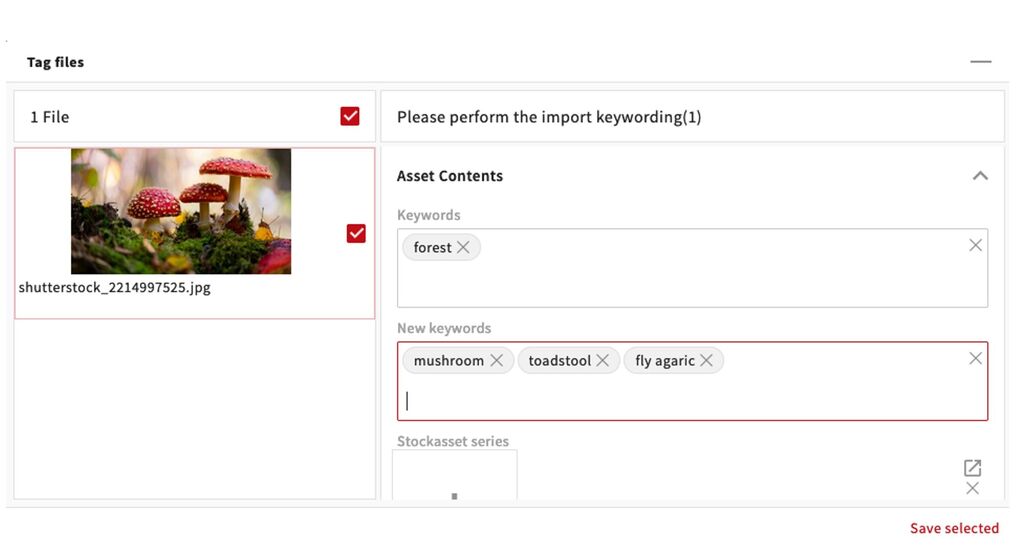
From now on you can enter new keywords in the field New keywords, just below the normal Keywords field. So please first select existing keywords, and if one is missing enter it into the new field. We will then regularly add these keywords to the Keywords field.

As a reminder, please do not enter any product names, channels, display options etc. that are covered by other fields.

The search field Keywords will search through both fields, so that new keywords will be found instantly.

4th July 2024

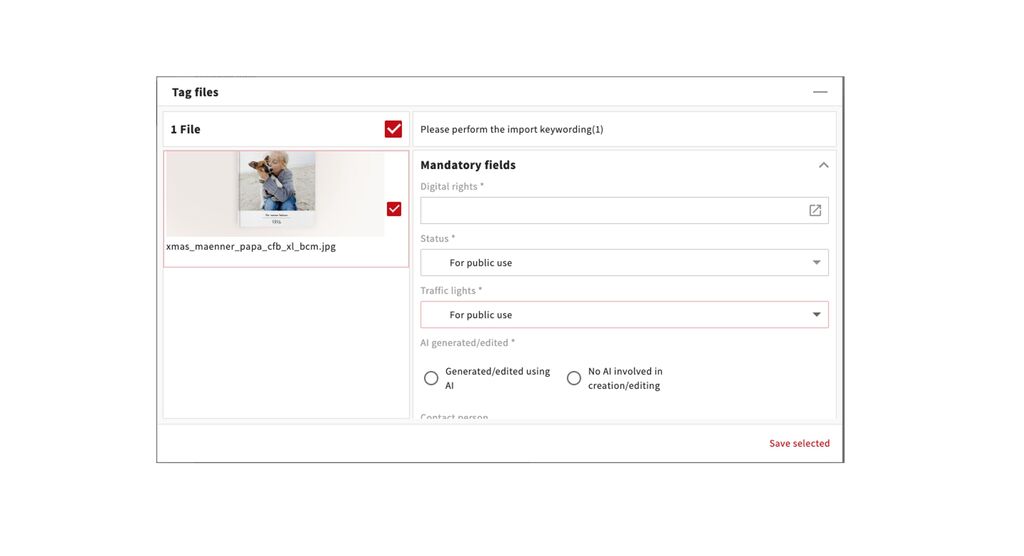
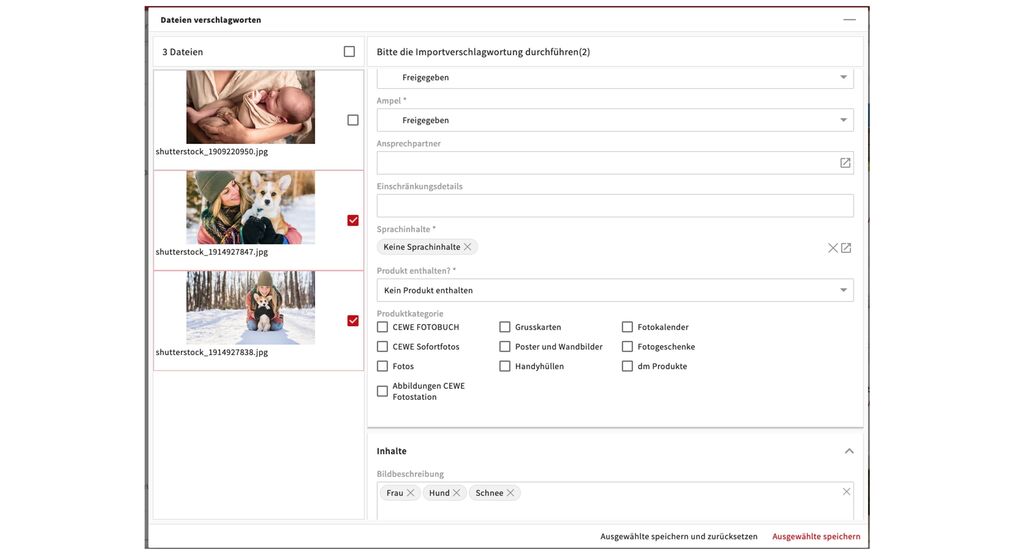
Importmanager - improved view + selected metadata

The import manager has now bigger previews and the name of the file should always be readable (up to 2 lines).

This will enable you to enter specific metadata for selected files only and to save it only for those files.

As the next step you can select further files, the entered metadata will stay put and you can change it or enter new data for the new selected files.

10th June 2024

Cropping Tool - File name

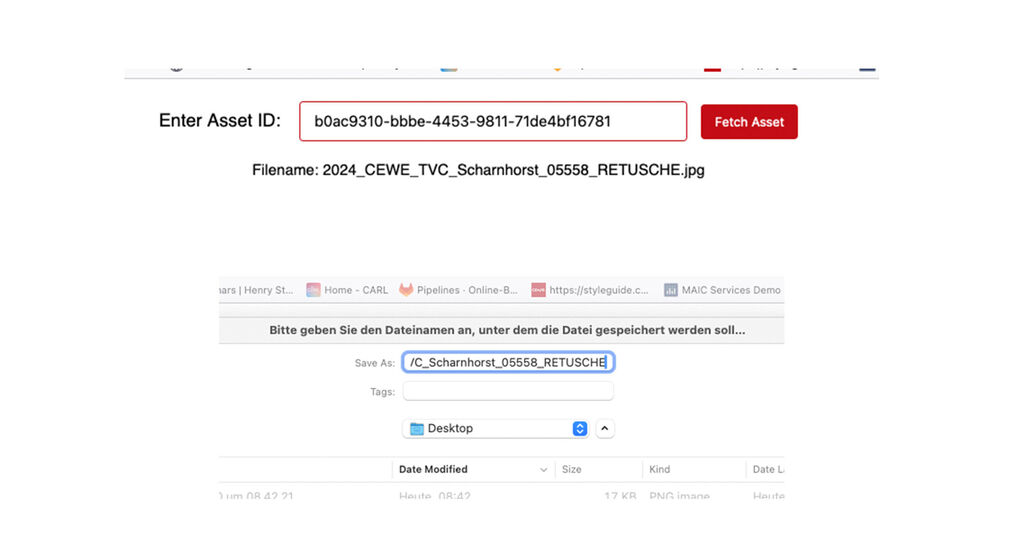
The Cropping Tool now displays the file name when you get the file from MediaAssets. When you click on Download the file is now downloaded directly and the file name of the original file is used. If that is not yet the case, you can change your browser settings so that you are asked where you want to save the file. You can then add the module shortcut or amend the file name when you save it.

30th April 2024

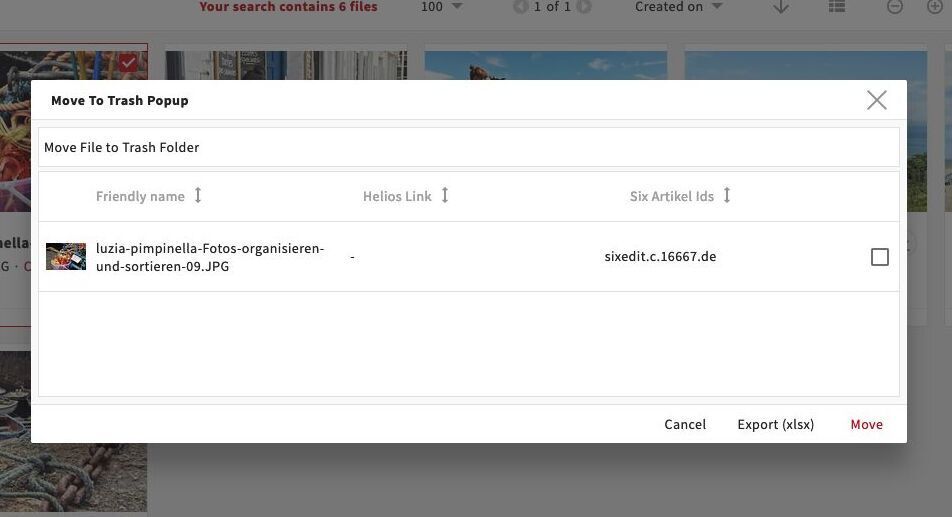
Warning function for Six/Helios files when moving to trash

If you now move files to the trash which are linked in a six article and/or Helios, you will be warned by a pop-up. You can then decide if you still want to move the files and generate a report of the Six Article IDs and/or Helios links in order to make changes in those systems.

Please note that the linking information is only updated once per night, so will not be 100 % accurate.

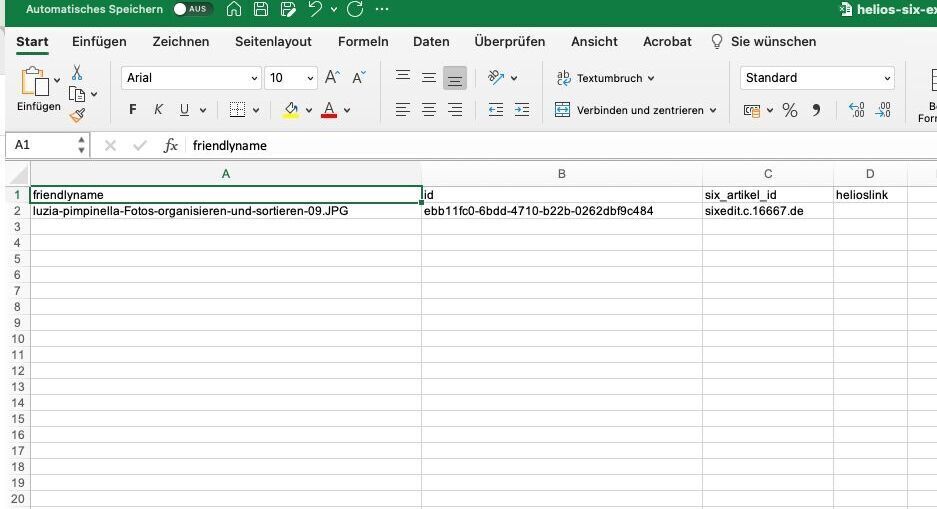
Export of Six/Helios information

This is what the generated report looks like, it contains file names, asset ids, six article ids and helios links.

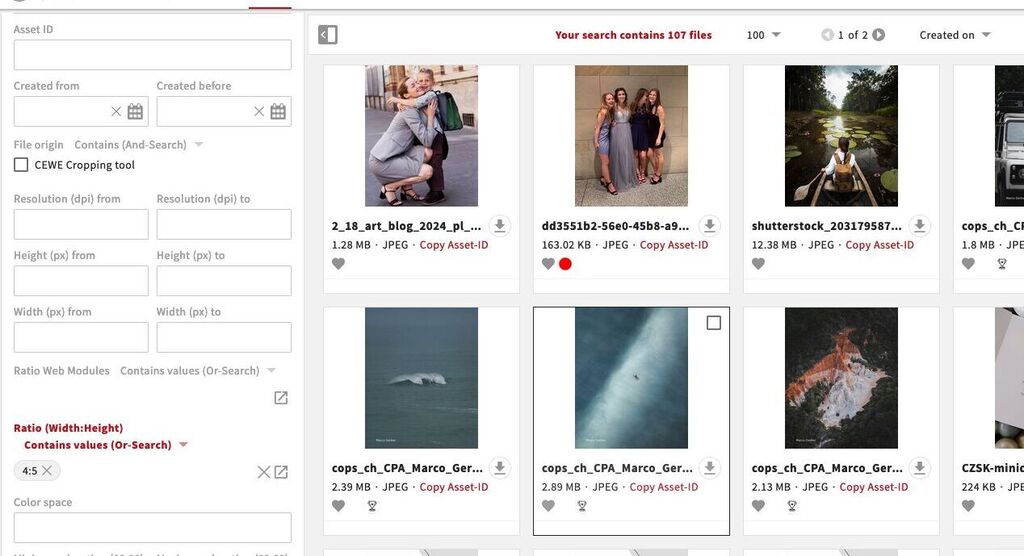
New search options and metadata for ratios

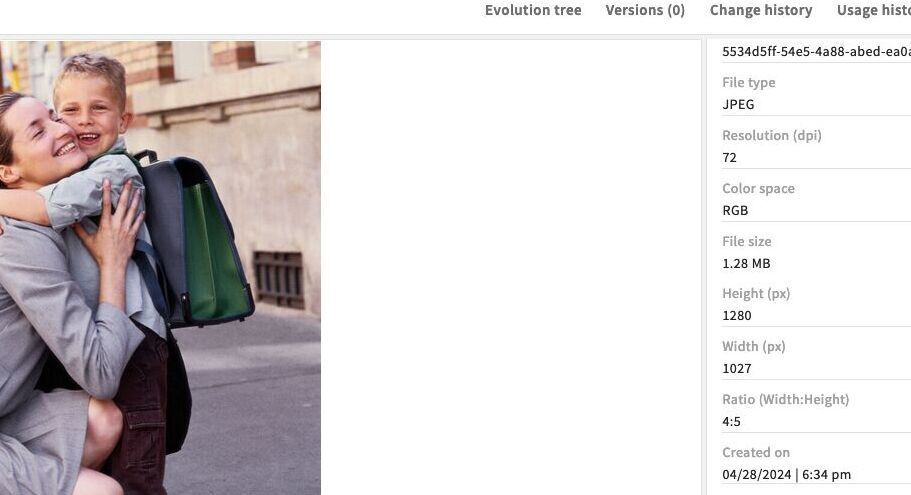
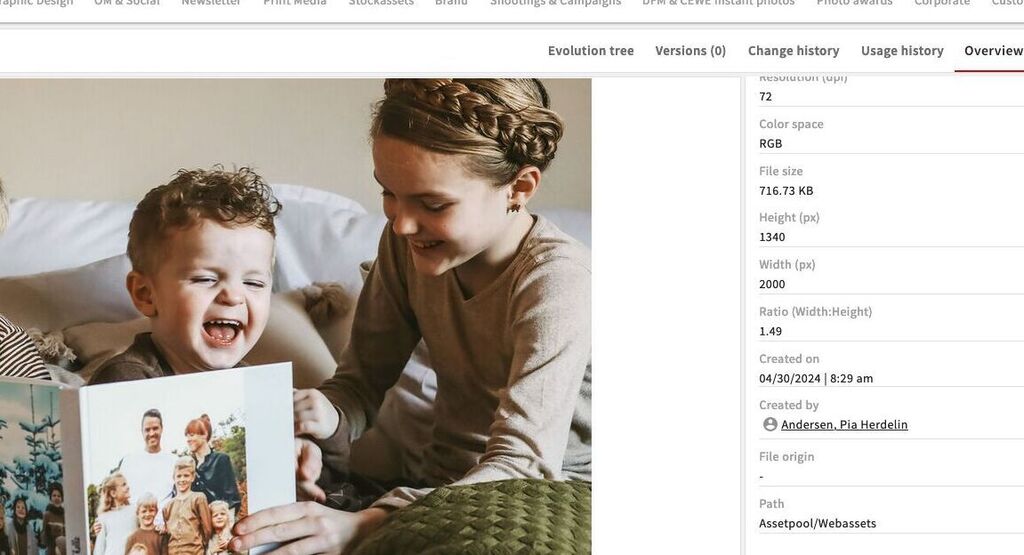
In the file information you will now find search filter for ratios. In addition the ratio is shown in the metadata of the file.

In the search options you have 2 filters - one for webmodules and one for general ratios. We will explain them on the following slides.

Showing and searching the ration works for all new uploaded files since 29th April. For other files we have to restart the preview creation process. I have done this for all webassets with file type JPG uploaded since January 2024. In addition for most files in the Social Media Area. I will do this for more files on an ongoing basis.

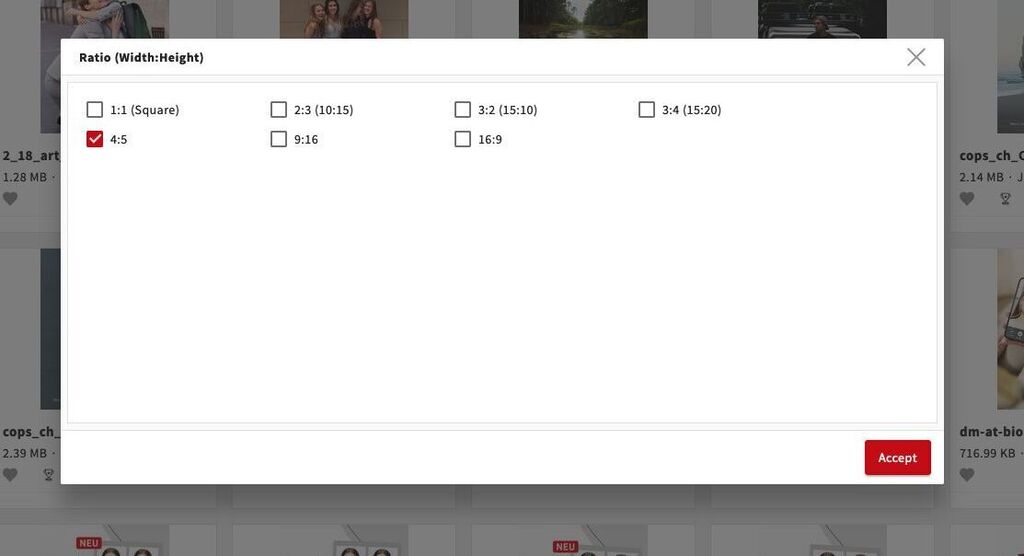
Ratio - general search options

These are known and useful ratios, especially for Social Media. If you are missing a certain ratio, please contact us.

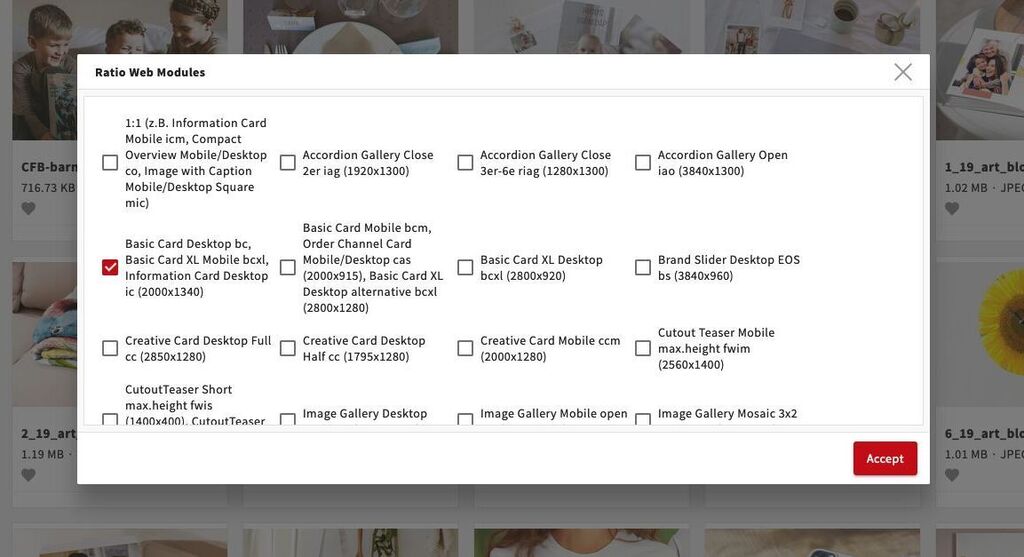
Ratio - search options for web modules

Here we have tried to enable you to search for ratios for the most commonly used web modules.

Please also check the width and height in pixels before you use the image to make sure the minimum requirements are met. The search options only look for the correct ratio, they ignore any size requirements.

Ratio - metadata for known ratios

We show known and simple ratios in the metadate, such as 4:5, 2:3 or 16:9.

Ratio - metadata for unknown ratios

For unknown or complex ratios we show the value of width divided by height, with 2 decimals.

8th April 2024

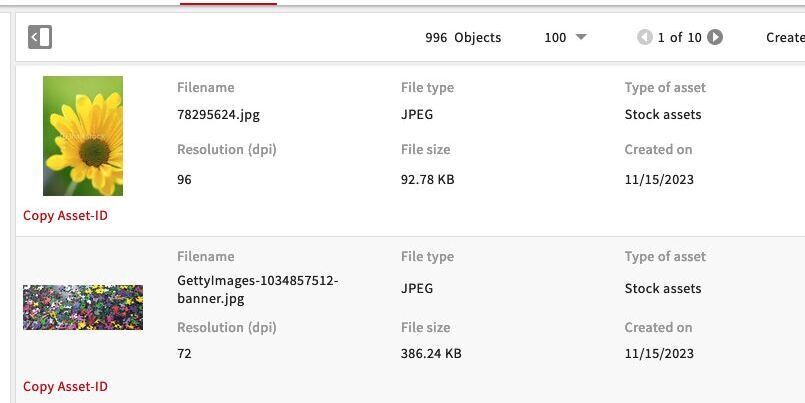
Copy Asset ID in list view

Copy Asset ID is now also available in the list view. This will enable you to better find the relevant files as you can read the full file name. If you would like to see other or more metadata in the list view, please get in touch.

Search options for image dimensions

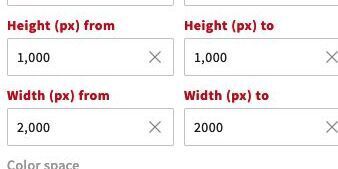
You will now find a search option for image dimensions in pixel under "File information". You can use this e.g. to search for a certain size for a module. If technically possible we plan to also introduce a search option for a ratio and possibly for certain modules based on the ratio.

Add new keywords

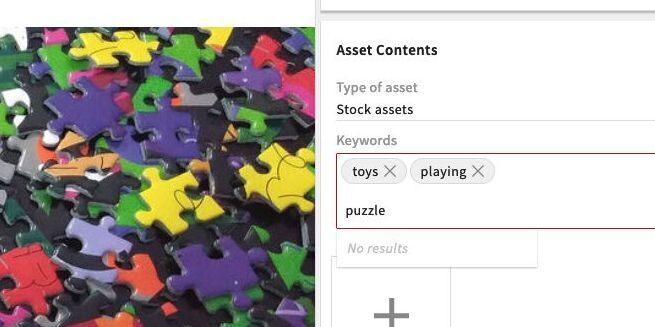
By popular request we have now opened the field "Keywords" so that you can add new keywords. We will regularly filter these new keywords and add them in a translated version. Once you have entered a new keyword it can be found and used by other users.

Please only enter keywords in English or German, with correct spelling. The keywords should only contain information about the general content of the image. Please do not enter any product names, channels or other specific information that can be found via the other filter options.

If we realise that this process leads to too much manual corrections or if regularly "wrong" keywords are entered we might decide to switch it off again in the future.

Digital rights for cooperations

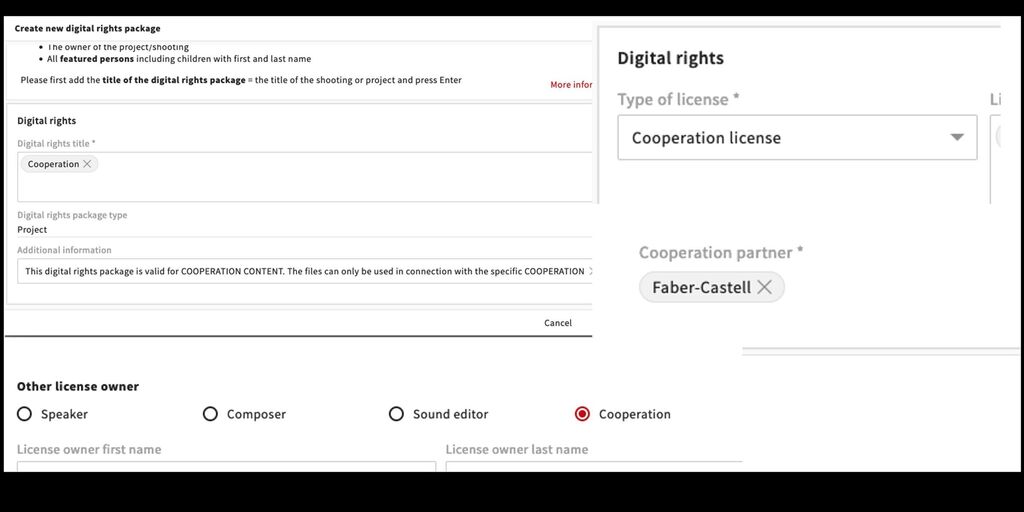
It is now possible to create a specific digital rights package for cooperations. You can select a specific information and the cooperation partner which will then be shown when downloading - indicating that the content should only be used in connection with the cooperation.

Please get in touch if you want to create a new cooperation package and have questions or if you want to add a new cooperation partner.

26th January 2024

Shooting collection

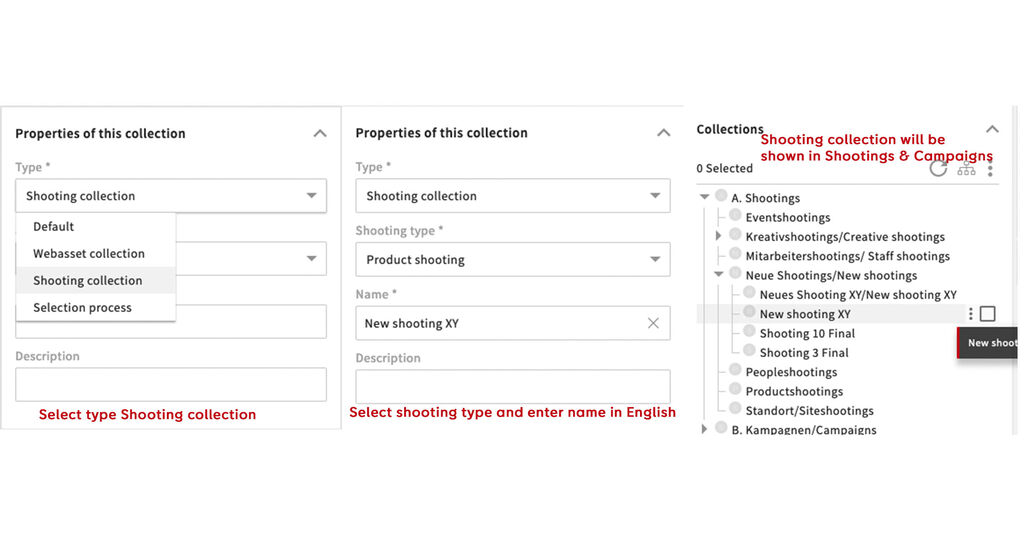
There is now a new option to create a collection to upoad shooting assets. This should be used for shootings which are not carried out by the photostudio in Oldenburg, as they have their own process. You can use it in the different sites or for shootings which are delivered from an external source.

The collection will then automatically appear under Shootings & Campaigns - New shootings and from there we will sort it into the existing structure. This will also enable us to do specific quality checks on the metadata.

As communicated before it is mandatory to upload all files which are going to be used to create compositions and web assets and to attach the relevant digital rights to these assets. This process should make this easier and help your colleagues to find the assets.

For shootings which are not carried out by the OL photostudio, in most cases a new digital rights package will have to be created - please get in touch if you need assistance to do this.

11th May 2023

Mandatory fields in mass change

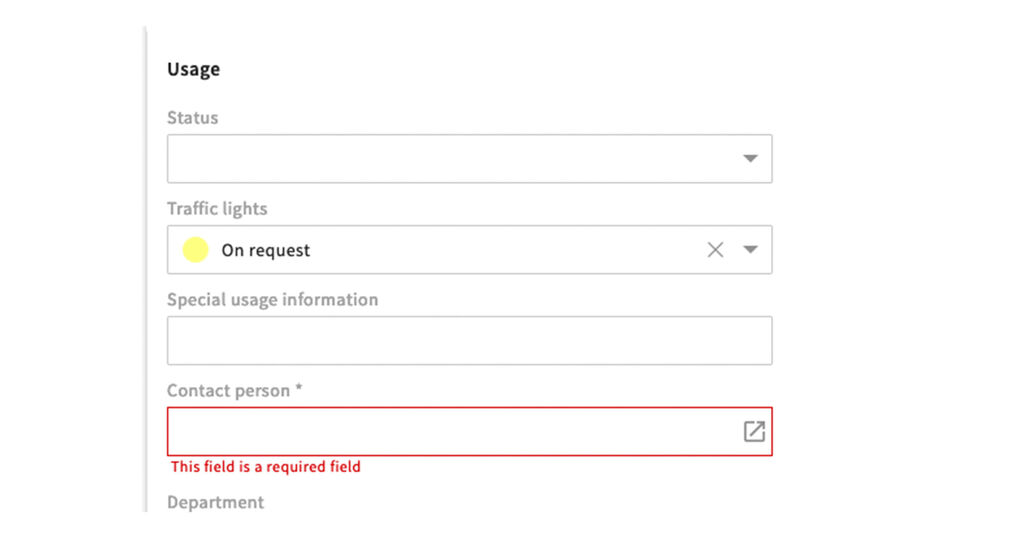
When you select certain values in the mass change you will now also have to complete some mandatory fields before you can save. For example if you select in the traffic light "On request" you will have to add a contact person. This will ensure that requests will go to the right person. If you select "Blocked" you will have to fill in the details of the restriction and add a contact person for questions.

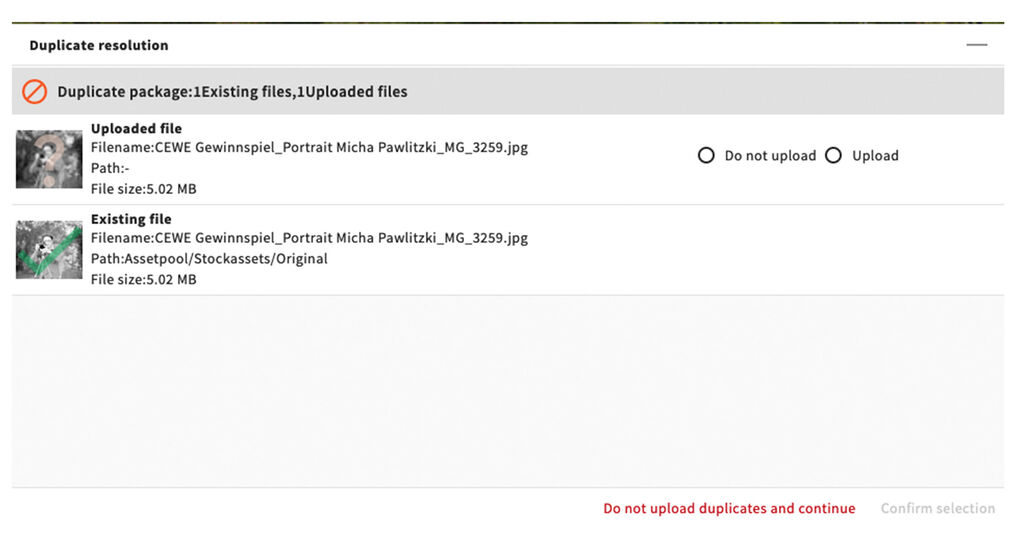
Warning about duplicates

If you upload file which already exists in the system, the system will now recognise this and warn you about it. You can then select to not upload the duplicates or if for some reason necessary you can upload the file as duplicate.

16th February 2023

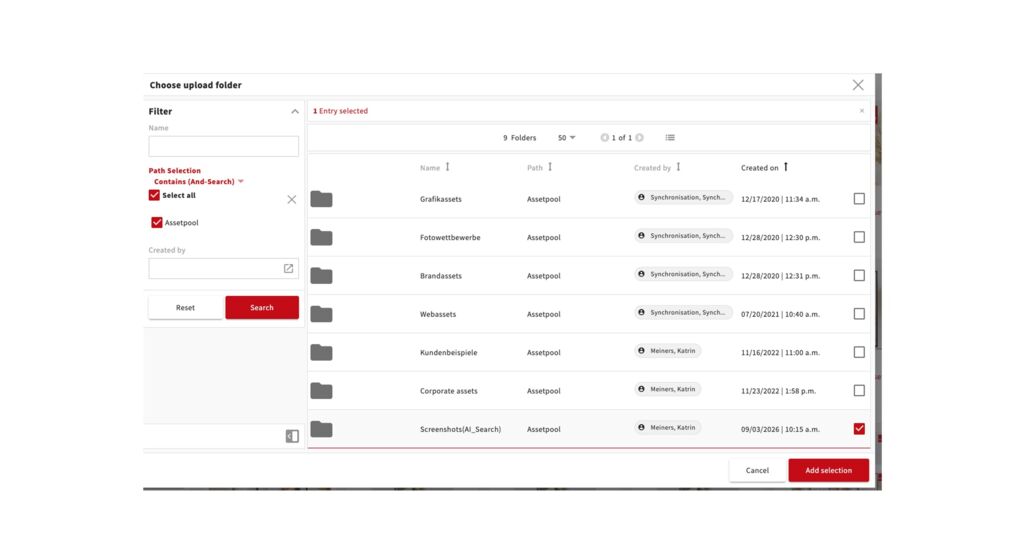
Selection of upload folder

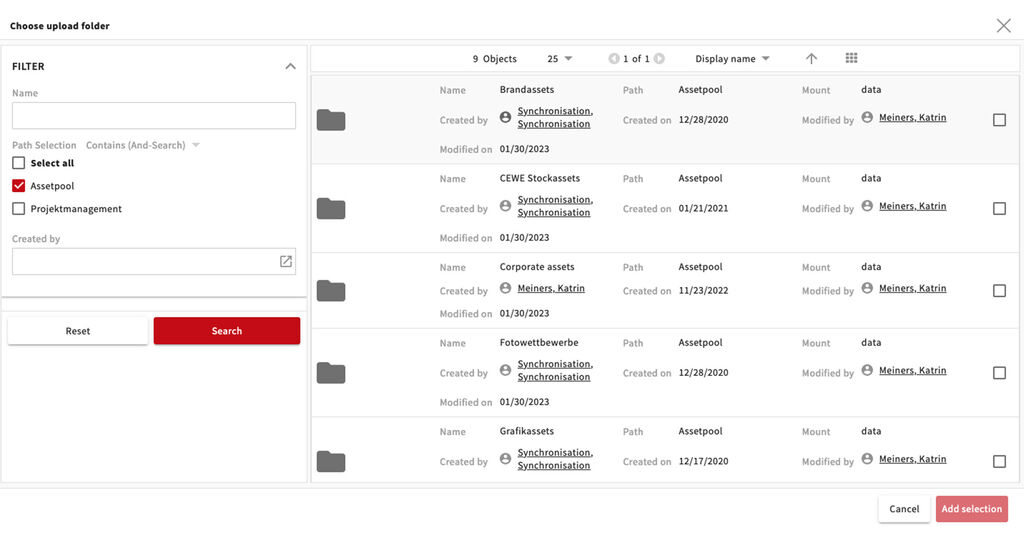
When you upload files you sometimes need to choose an upload folder, which is based on the different asset types. Some roles can see quite a lot of folders, all that have the option to upload.

We have now simplified this view. All roles except for the "Anlieferer Intern" = Photostudio etc. see only the highest folder structure from the assetpool and maybe some project management folders which they have access to.

The default filter is set to the assetpool, so this should make it easier to find and select the correct folder.

Request process - Bug fixed

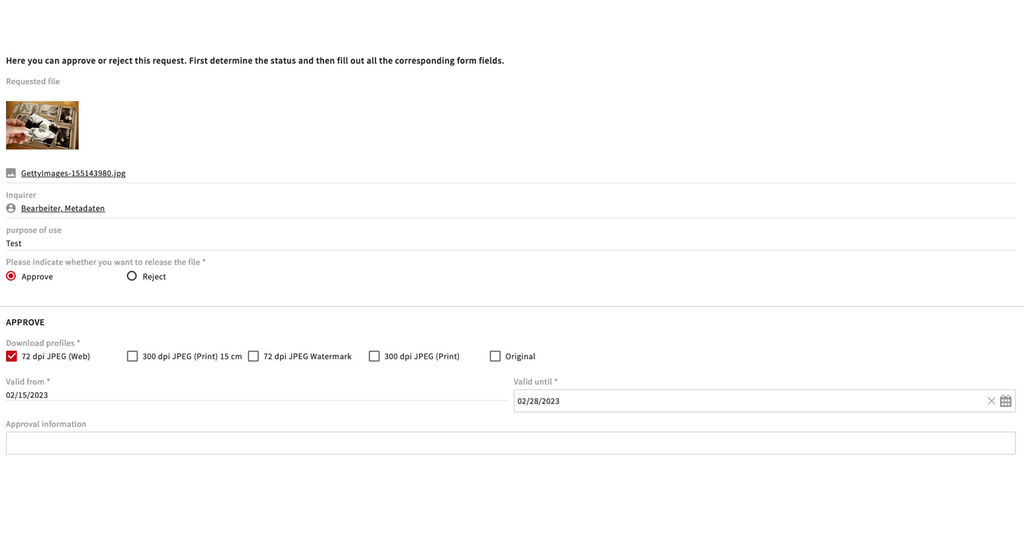
Approvals of downloads for assets that are "on request" are now valid from the moment the approval is made, there is no longer a delay.

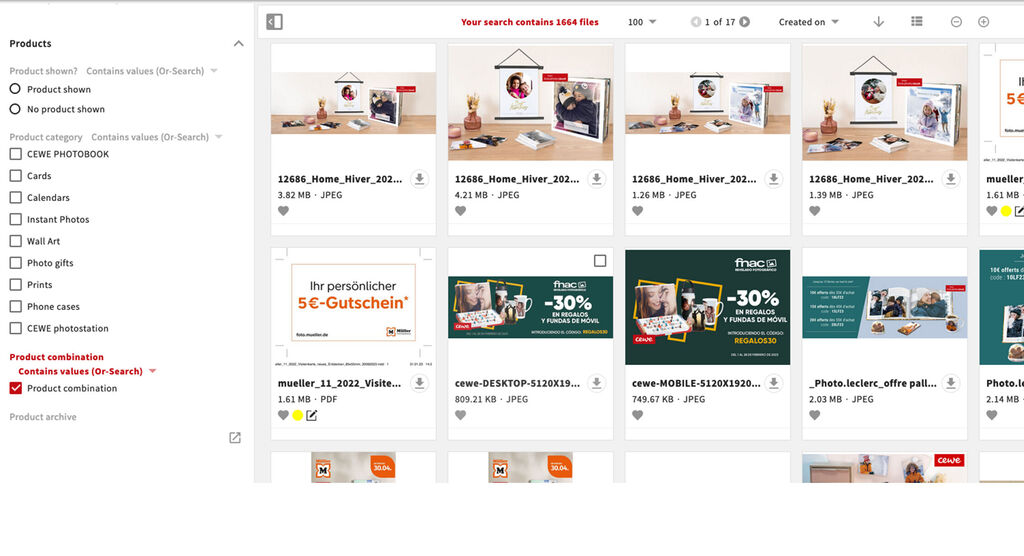
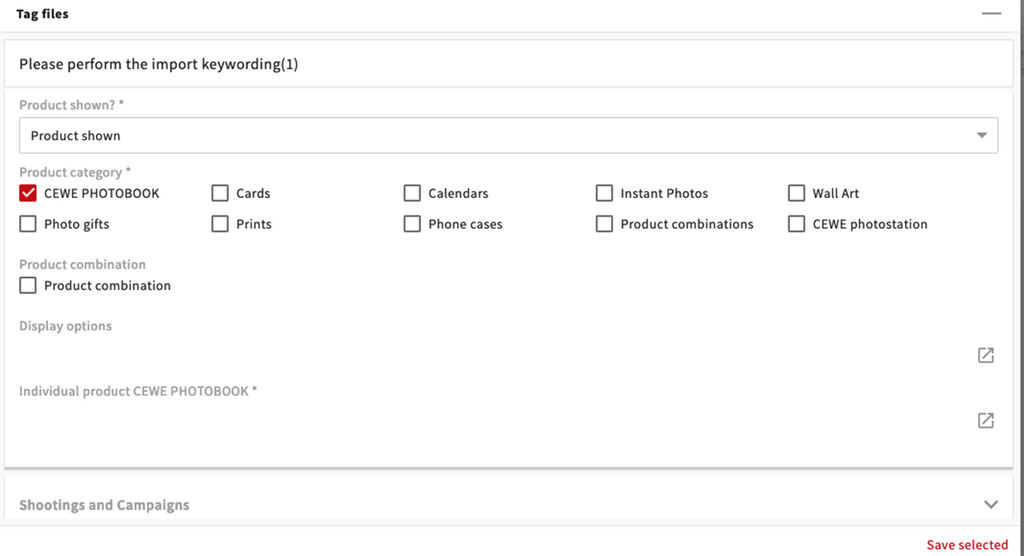
Product combinations

We have removed the option product combination from the field product category and added a separate field for this. This way we can ensure that the product categories are inserted correctly even for images with product combinations.

Please therefore only use this field in addition to the actual product categories when different products are visible in one image.

Mandatory fields in upload

In agreement with the graphic designers in Oldenburg we have made the individual product fields mandatory for graphic assets whenever you select "product shown". In addition the field "display options" is shown, so that you can enter e.g. if the image is a cutout or a lifestyle. For shooting assets we have even made the field "display options" mandatory whenever a product is shown in an image.

Please adjust your upload routines accordingly, so that you upload all images in one go that have the same metadata. If you upload more images and select "wrong" metadata for the in the initial upload please update this information after the upload. We are now controlling this on a regular basis and might be in touch regarding this. The goal is to make the images easy to find **and to make the filter options work **reliably for everyone.

26th October 2022

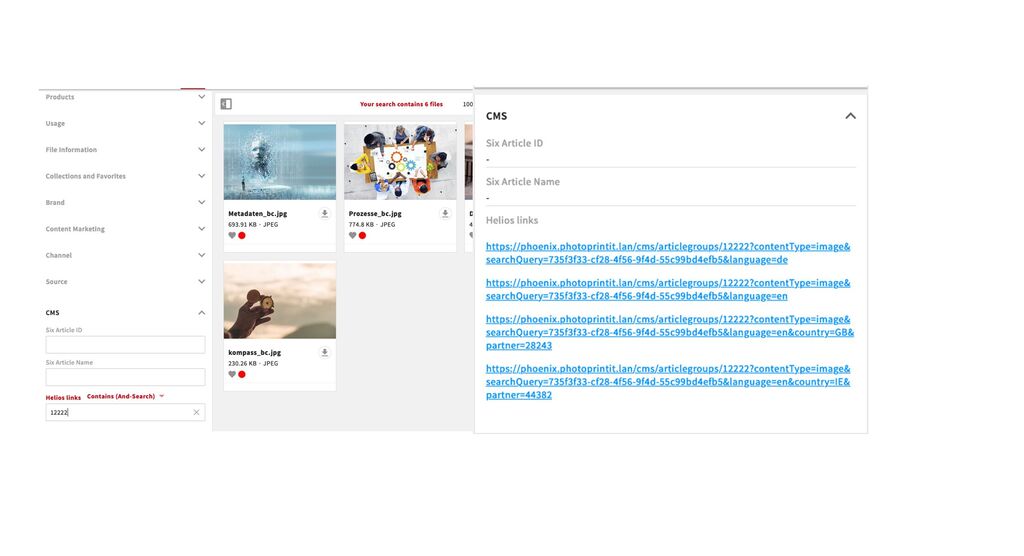
Helioslinks in Metadata and Search

Similar to images which are used in Six we are now showing in the system which images are linked in a Helios image field. This information is entered into the system every night. It is entered regardless if the field is in usage in EOS or not. The links to the fields are shown in the metadata in the section CMS. If you click on them you are redirected to the Helios field, it is a good idea to use right mouse click and open the link in a new tab.

In addition there is a search option, again in the section CMS where you can search for parts of the Helios link. So for example you can enter the ID of an articlegroup and can then see all images which are linked in fields in this group. Please note that new links will only be shown on the next day.

11h October 2022

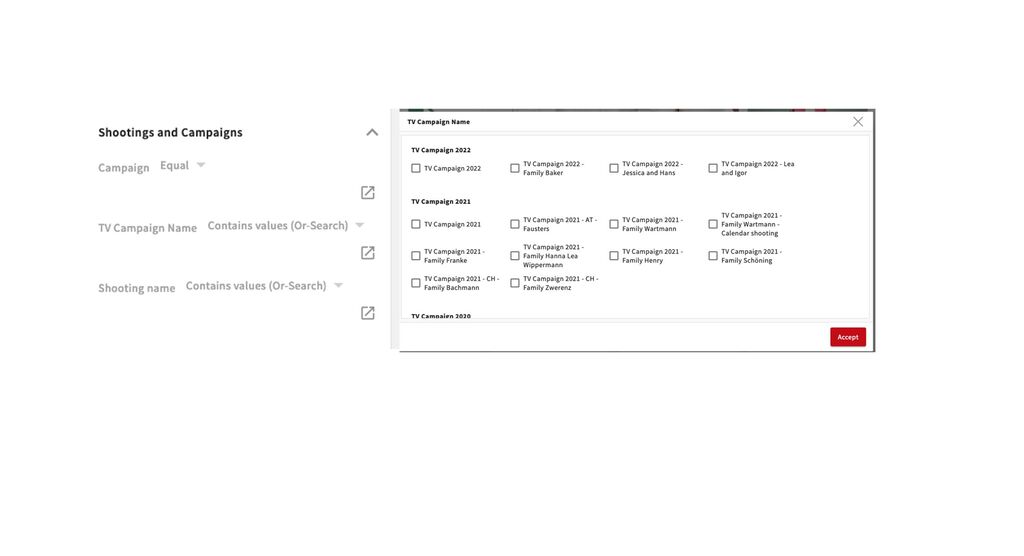
New metadata heading Shootings and Campaigns and new field TV Campaign

To enable everyone to find the metadata/filter options regarding shootings and campaigns more easily we have introduced a new header Shootings & Campaigns. There you will find the fields Campaign (renamed from Occasion), a new field TV Campaign and the field Shootingname.

The new field TV Campaign contains the recent and earlier TV Campaigns and allows you to search for files relating to these campaigns across all content. For existing content we will try to fill out this information retroactively.

Please use these metadata options to assign files to shootings, TV campaigns and campaigns and get in touch if you need any value to be added.

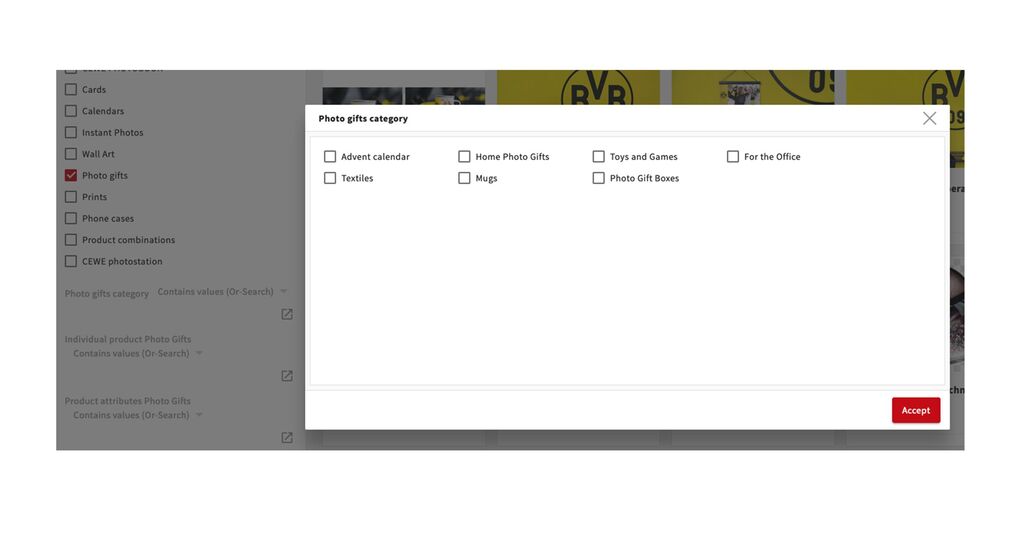
Photo gifts category

As you know, the photo gifts consist of many different products. To make it easier to assign them to the different subcategories we have introduced a new field. This field is shown when you select the Product category Photo gifts.

In the new field Photo gifts category you can now select the subcategory of photo gifts such as Advent calendars, For the office, Textiles etc.

We have removed these subcategories from the individual product field, so there you can then assign the actual individual product.

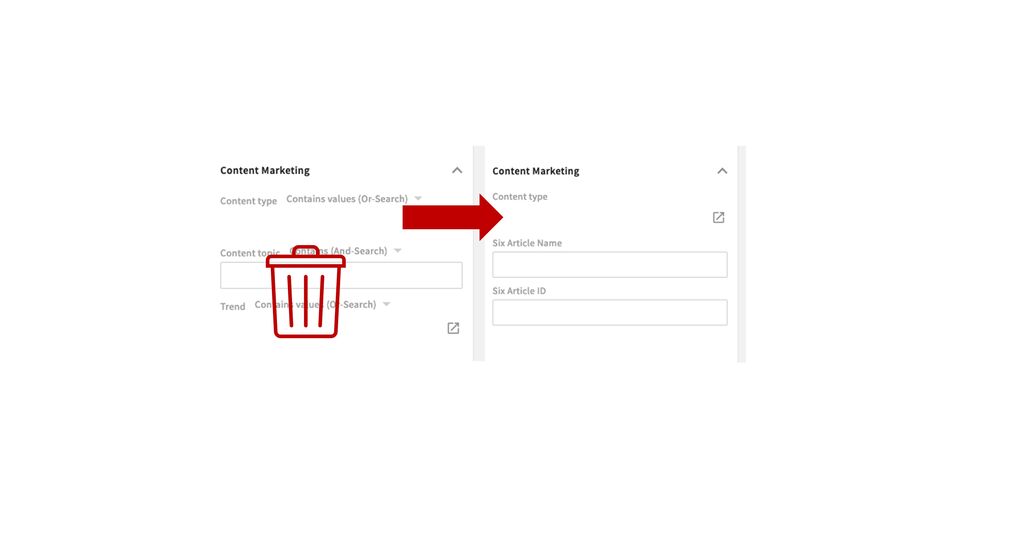
Change to filter/metadata for Content Marketing

As agreed with the Content Marketing team we have removed the field content topic. The content of this field is already covered by the Six Articles and the collection structure.

Instead we have added the filter options Six Article Name and **Six Article ID* to the content marketing section of the search filters. You can use this to search for assets which are linked to a certain Six article (updated every night). You can also find these filters under the section CMS.

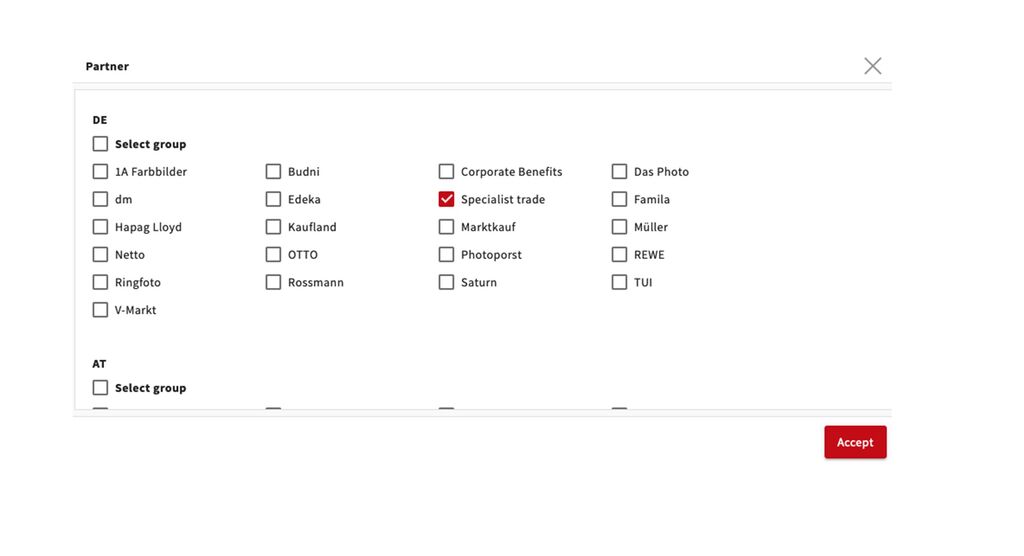
New value Specialist trade in field Partner

On request of the design team in Oldenburg we have added the value specialist trade to the partner field. This should be used for all content for German photo trade companies such as Foto Braun etc.

If you require something like this for your market, please get in touch.

27 September 2022

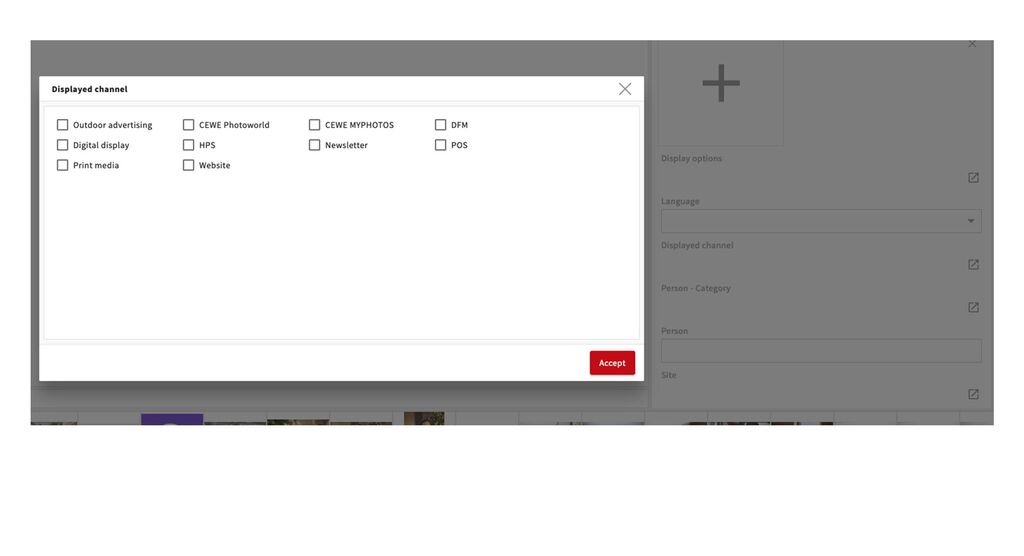
New field: Displayed channel

At CEWE we frequently create photos/videos that show a certain channel, often an order option or an information source. These can be images that show the CEWE Software, one of the Apps or a print publication like the CEWE Magazine.

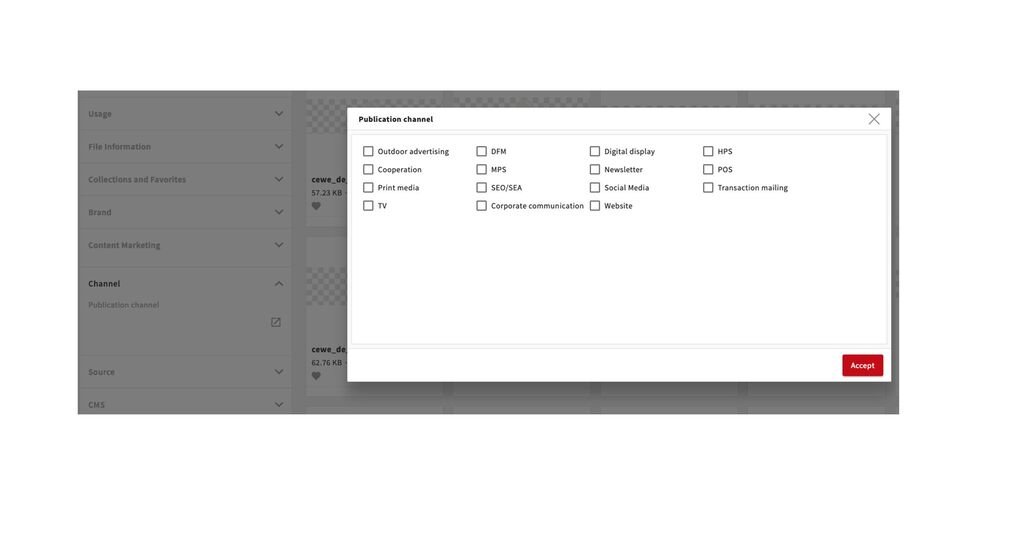
To be able to find this content we have therefore introduced a new field called Displayed channel. So this should be used only to enter a channel which is shown within the image. You can find it (for now) under asset content. The channel where the image will be published will be entered under Channel - Publication channel.

Here an example: An image showing the CEWE Magazine - for publication on cewe.fr

Displayed channel: Print media
Publication channel: Websites

If required we can add options to this field or even add single channels (e.g. CEWE Magazine instead of Print Media). Please contact us if you have requests or ideas regarding this.
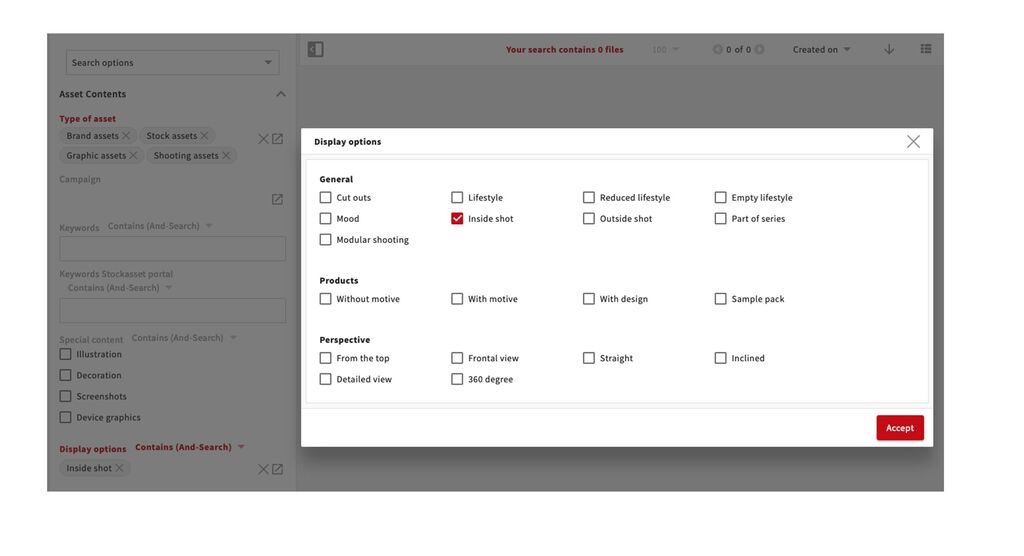
New option: Inside shot/Outside shot in Display options

We have added the options inside shot and outside shot to the field Display options (to be found under Asset contents). This will enable you to distinguish between images taken inside or outside e.g. for shootings.
As far as possible we will also enter this information for existing content, especially for shooting images, i.e. images where it is relevant.
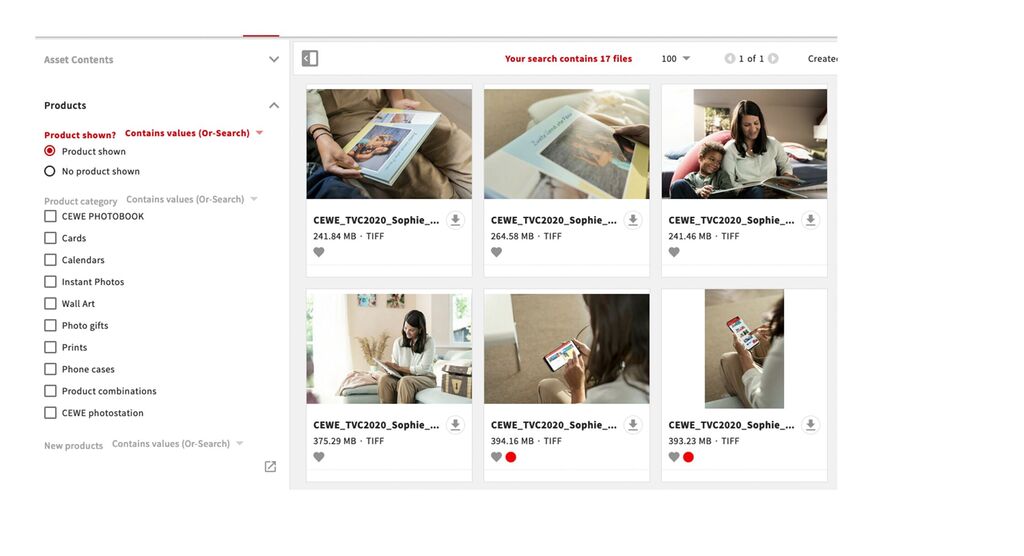
New field: Product shown

This new field has to be filled in for all uploads from now on. This will enable you to filter for images which contain or do not contain products. E.g. you can use it to search all images within a people shootings that show a product. In addition we will be able to use it to make sure that product information is provided consistently for all files that show products.

We are currently entering this information also for existing files. This will however still take a while and we will also only do this for files from the past 2 years.

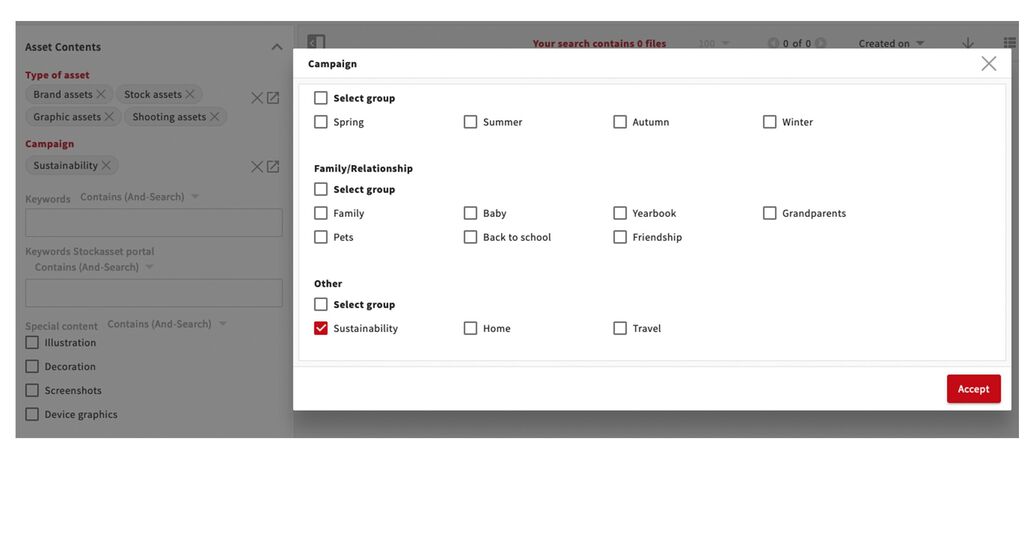
Change of name: Occasion to Campaign and new option Sustainability

We have changed the name of the field/filter Occasion to Campaign because that seem to fit better to how this field is being used. If you are missing a reoccurring campaign in this field, please get in touch. We have already added the option Sustainability, where this is clear we will add this tag to the existing content.

20 September 2022

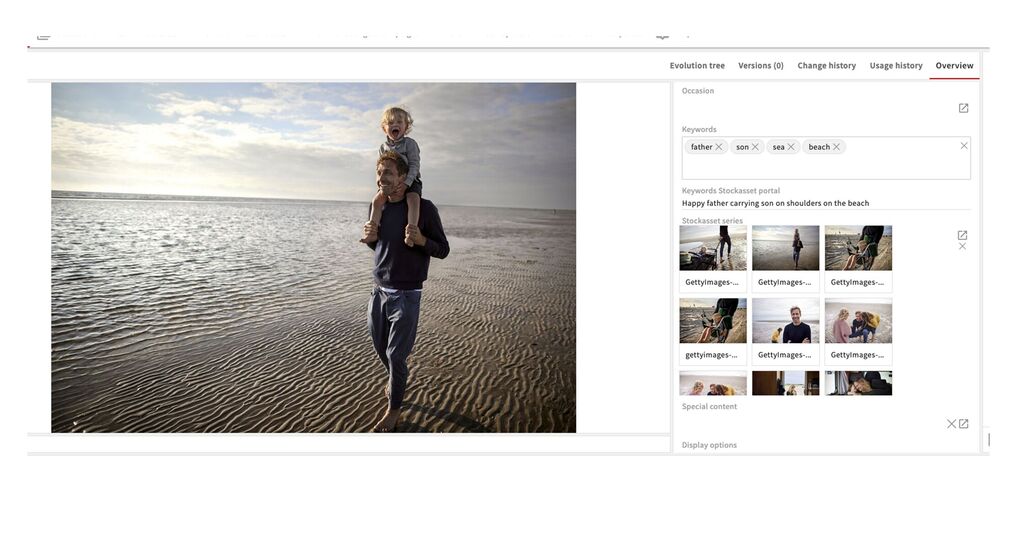
New option for stockasset series

You can now link files that belong to a stockasset series using the field "Stockasset Series" (under Asset content). All files within the series will the be shown in the metadata of those files. The whole series can be found via the filter options by just selecting one of the files. For more information and instructions on how to link the files please click here:

Stockasset series - Instructions

Filter and metadata field "Publication channel"

The field channel has been renamed Publication channel.

This has been done to distinguish it from a new field regarding the displayed channel which will be introduced shortly. This way you can differentiate between the channel where you want to use the image and the channel which is shown on the image, e.g. a screenshot of the CEWE Software or the apps.

In addition the option SEO/SEA has been added, since this was an Online Marketing channel that was still missing.

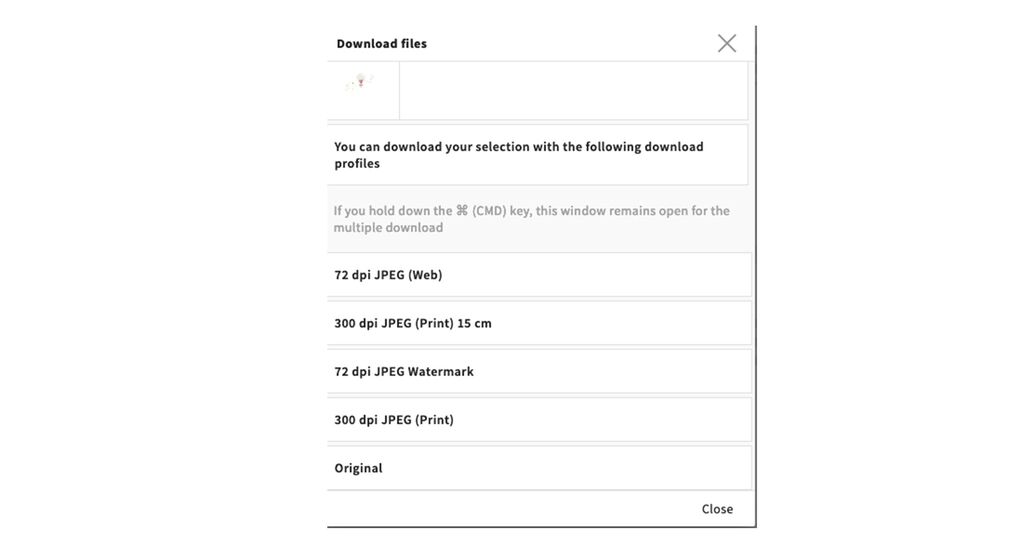
New download profile 15 cm

On request of the PR department a new download profile has been added. This enables you to download a 300 DPI JPEG for printing where the longest side is approximately 15 cm long. You can also use this to send the file to external parties via a download package or e-ticket. It will reduce the file size significantly.